Core Material Workflow
What Is a Normal Map? How It Works and When to Use One
Understand how tangent-space direction data changes lighting across a low-detail mesh, when normal maps are the right tool, and how to avoid strength and Y-axis mistakes during engine import.
Direct answer
What is a normal map?
Use a normal map for small lighting detail that does not need to change the silhouette. Use geometry or displacement when the feature must affect the outline, cast a real shadow, or hold up at grazing angles.
How PLAYTEX AI helps: PLAYTEX AI derives a tangent-space normal map from the same source as the rest of the material, keeps it aligned with the other channels, and gives you both flat-channel and shaded 3D views for review.
What you will get
- Understand what a normal map texture does in plain language.
- Know when normal maps help real-time game performance.
- Avoid common Unity import and material setup mistakes.
When Should You Use a Normal Map?
- Brick walls that need mortar grooves without extra mesh detail.
- Wood grain, stone floors, sci-fi panels, fabric, leather, metal scratches, and tile grooves.
- Game assets where close-up lighting detail matters but polygon count needs to stay low.
Acceptance test
Approve the asset only when these are true
- The texture is imported as normal data rather than color data.
- The Y direction matches the target renderer; Unity uses Y+ while some DirectX workflows expect Y-.
- The map contains surface-direction detail rather than baked highlights or shadows.
- Strength is moderate enough that edges do not look inflated, faceted, or noisy.
- Silhouette-changing details remain geometry or displacement instead of being forced into the normal map.
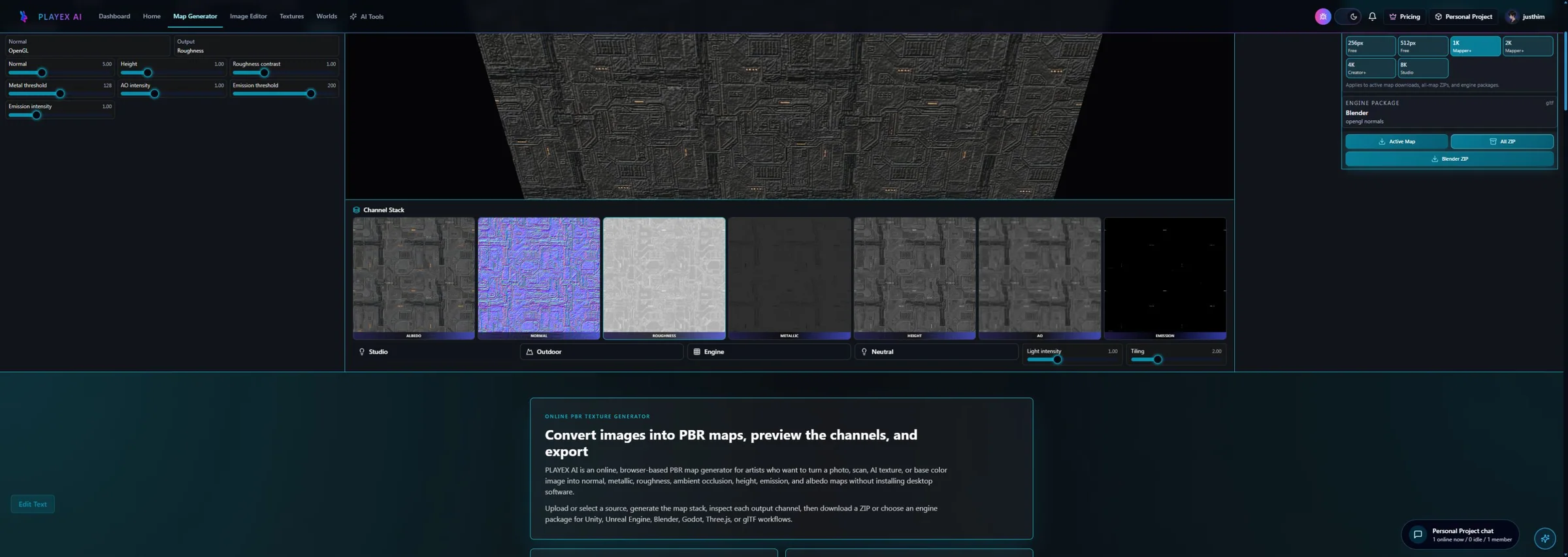
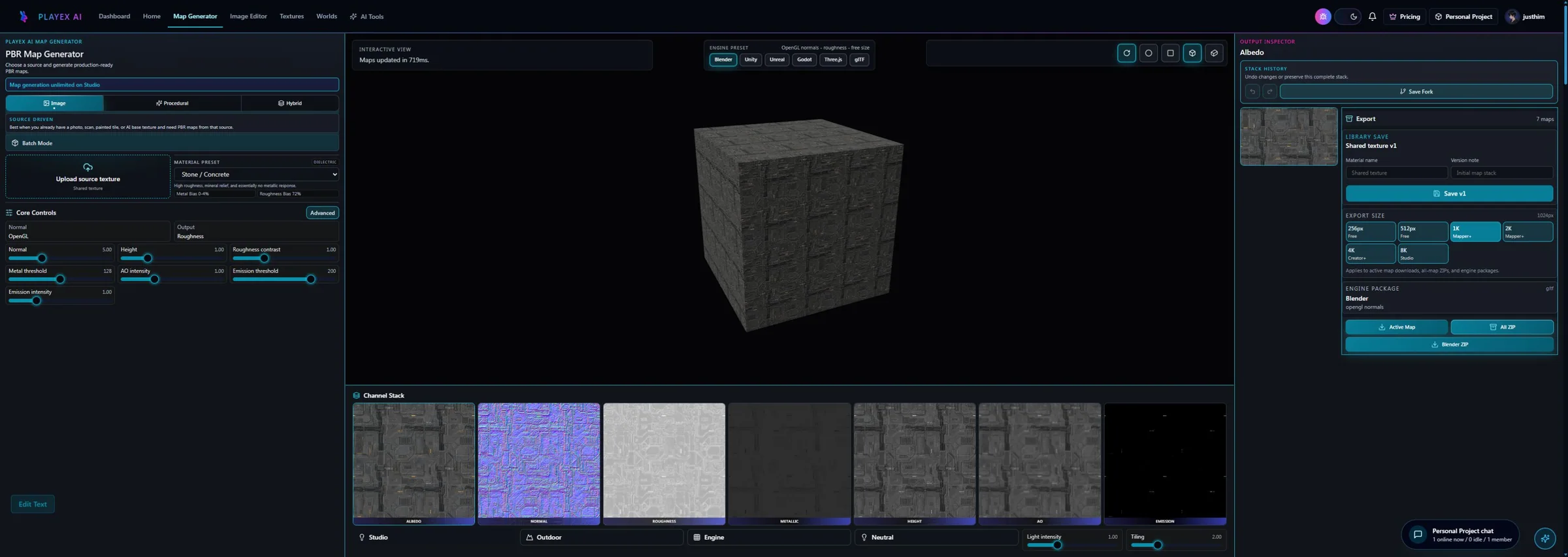
What Does a Normal Map Do?
If you are asking what is a normal map, the simplest answer is this: it is a normal map texture that changes how light reacts to a surface. The mesh can stay flat, but the lighting behaves as if tiny bumps, grooves, dents, or raised details exist.
A normal map does not repaint the surface color. It changes the direction that the renderer uses for lighting calculations. That is why a flat wall can appear to have brick edges, panel lines, scratches, or fabric weave even when the model itself is simple.
Why Normal Maps Matter in Games
Normal maps matter because games need detail and speed at the same time. Instead of modeling every groove, scratch, seam, or bump with extra polygons, artists can keep the mesh lighter and use a normal map for lighting detail.
This helps performance in Unity, Unreal, WebGL, mobile, VR, and other real-time projects. PLAYTEX AI includes normal-map-friendly workflows as part of its texture tools for builders, but the main idea is universal: use geometry for real silhouette changes and normal maps for smaller surface detail.
What Does a Normal Map Look Like?
Normal maps are usually blue or purple. Those colors are not meant to be the visible surface color. They store direction data for the renderer.
In a normal map, the red, green, and blue channels describe surface direction. Unity reads that data and uses it to shade the material as light moves across it.
Normal Map vs Albedo
Normal map vs albedo is a common beginner confusion. Albedo, also called base color, controls the color of the material. A normal map controls fake depth and lighting detail.
A brick albedo texture shows the brick color. A brick normal map makes the mortar grooves and chipped edges catch light as if they have small relief. Most PBR texture maps work best when these roles stay separate.
Normal Map vs Bump Map
Normal map vs bump map usually comes down to what the texture stores. A bump map is often grayscale height information. A normal map stores surface direction in RGB color channels.
Both can create fake surface detail, but normal maps are common in modern game materials because they provide direct lighting direction data and work well in real-time engines.
Normal Map vs Other Texture Maps
Common texture map roles
A material often uses several maps at once. Each map controls a different part of the surface.
- Albedo/Base Color: Controls the visible color of the surface. This is the albedo texture or base color, not depth. Adjust it when the material color is wrong or has baked lighting that should be removed.
- Normal Map: Adds fake depth and lighting detail by changing how light reacts to the surface. Use it when a surface needs small bumps, dents, scratches, grooves, or relief without more polygons.
- Roughness/Smoothness: Controls shine. Rough surfaces spread reflections; smooth surfaces look glossier. Adjust it when a material looks too wet, too dull, too plastic, or too mirror-like.
- Metallic: Controls whether the surface behaves like metal in a PBR material. Use it only for actual metal areas, not for dirt, paint, stone, wood, or fabric.
How to Use a Normal Map in Unity
Understand how tangent-space direction data changes lighting across a low-detail mesh, when normal maps are the right tool, and how to avoid strength and Y-axis mistakes during engine import.
Step 1: Import the texture
Add the normal map texture to your Unity project the same way you import other material textures.
Step 2: Select it in Unity
Click the texture asset in the Project window so its import settings appear in the Inspector.
Step 3: Set Texture Type to Normal Map
In the Inspector, set Texture Type to Normal Map. This tells Unity to read the colors as surface direction data instead of regular image color.
Step 4: Apply it to the material
Drag the texture into the material Normal Map slot. For a broader Unity material setup, review the Unity Texture Generator workflow.
Step 5: Adjust strength if needed
Use a moderate normal strength. Too much strength can make the surface look noisy, inflated, or physically wrong.
Common Mistakes
- Using a regular image as a normal map instead of generating a proper normal map texture.
- Forgetting to set the texture type to Normal Map in Unity.
- Making the normal strength too high, which can create harsh or noisy lighting.
- Thinking a normal map changes the real shape of the mesh. It only changes lighting behavior.
- Confusing normal maps with displacement maps. Displacement can change real surface position; a normal map does not.
What does a normal map do?
It changes the direction used for lighting at each texel, making a low-detail surface appear to contain grooves, dents, bevels, and bumps without adding those shapes to the mesh silhouette.
Why are normal maps blue and purple?
The RGB channels store a 3D direction vector. In a typical tangent-space map, the dominant blue channel points mostly away from the surface while red and green encode sideways direction changes.
What is the difference between a bump map and a normal map?
A bump or height map stores scalar height information and the shader derives a direction from it. A normal map stores the surface direction directly, allowing more specific directional detail.
What is OpenGL versus DirectX normal map format?
The common difference is the green or Y channel direction. OpenGL-style maps use Y+ while DirectX-style workflows often use Y-. An incorrect convention makes raised detail appear recessed.
Can a normal map change an object silhouette?
No. Use geometry or displacement when a feature must alter the outline, cast a true geometric shadow, or remain convincing at extreme grazing angles.
Primary sources
Official specifications and renderer documentation
PLAYTEX AI guidance is paired with official specifications and platform documentation where the handoff depends on an outside convention.
Open the live workflow that this guide is documenting.
PBR Map Generator: Create Normal, Roughness, AO, Height, Metallic, and Emission MapsTurn one viable image or source-guided hybrid setup into a coherent map stack, review every channel as part of one material system, and export for the renderer you actually use.
Image to Texture: Convert a Photo into a Seamless TextureExtract a usable surface from a photo, scan, artwork crop, or generated reference; correct the source problems first; then tune seamless reconstruction while protecting the material character.
AI Texture Generator: Make Seamless Game Textures from a PromptGenerate repeatable surface candidates from a material brief, select for scale and tiling rather than spectacle, then move the strongest result into cleanup or PBR map generation.
How to Make Game Textures with PLAYTEX AI: Complete WorkflowStart with the asset you actually have, move through only the tools that solve its current problem, and finish with a repeatable material or lighting handoff.