AI Generation
AI Texture Generator: Make Seamless Game Textures from a Prompt
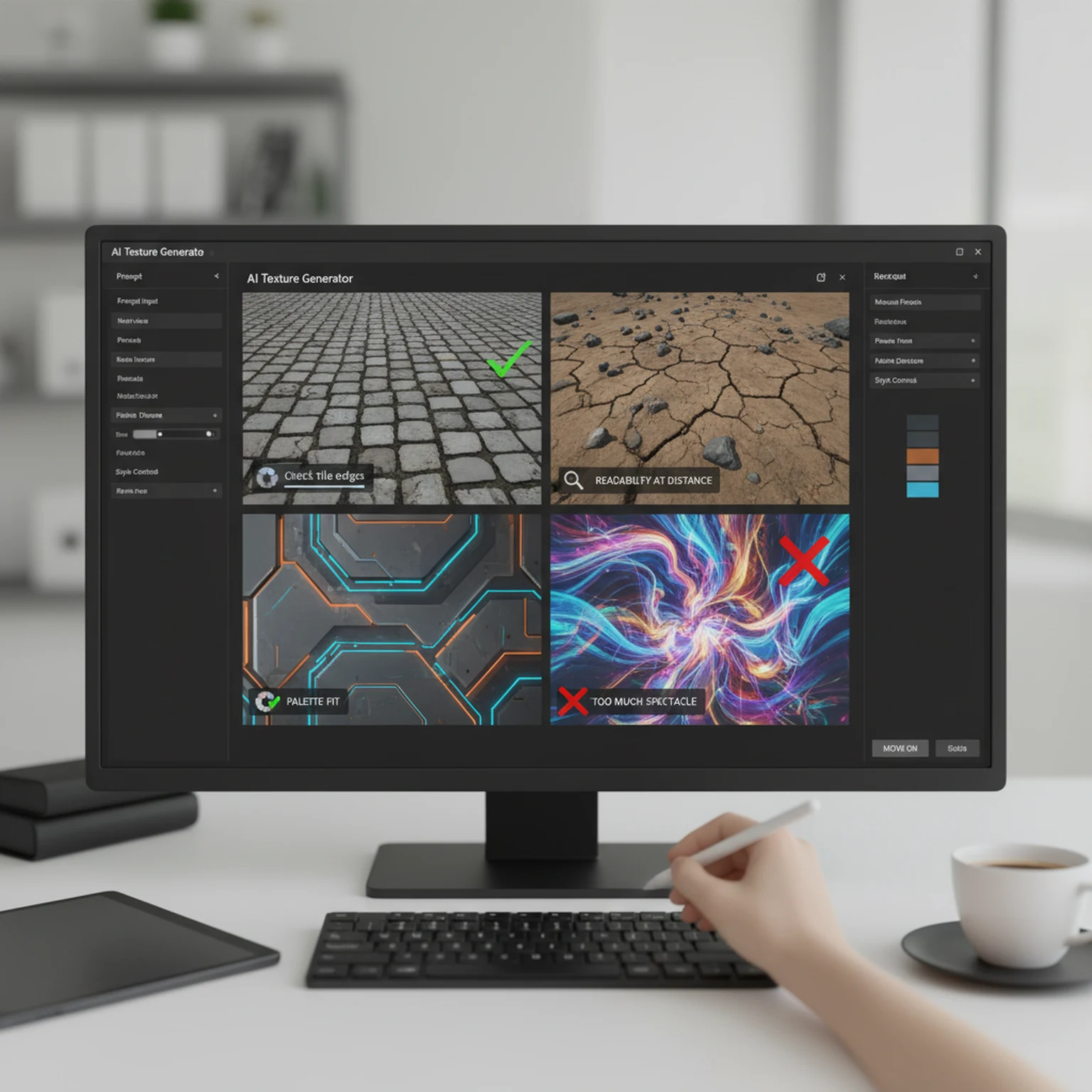
Generate repeatable surface candidates from a material brief, select for scale and tiling rather than spectacle, then move the strongest result into cleanup or PBR map generation.
Direct answer
Can AI generate seamless textures for games?
Prompt for a surface with material, age, finish, scale, palette, and use case. Avoid scene language and unique focal objects when the result needs to repeat across a wall, floor, prop, or terrain.
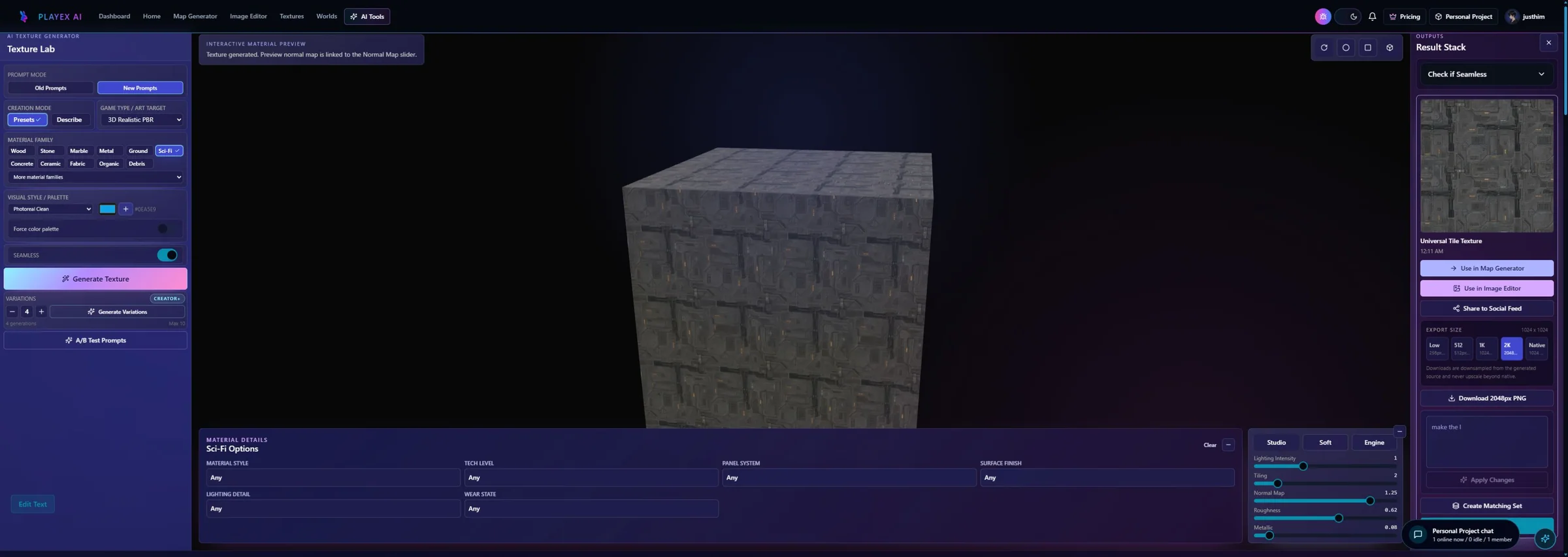
How PLAYTEX AI helps: Texture Lab keeps prompting, style controls, generated candidates, flat outputs, and a 3D material preview together. The selected result can move directly into seamless cleanup or PBR map generation.
What you will get
- Generate a seamless texture from a prompt without drifting into one-off image art.
- Use material presets and sub-options to create game-ready surface ideas faster.
- Create matching texture sets from one winning material and move the best outputs downstream.
Best use cases
- You need a prompt-to-texture workflow for stone, wood, metal, fabric, ground, sci-fi, facade, UI, or stylized surfaces.
- You want to make a tileable texture from text without doing manual offset cleanup first.
- You need a game material preset workflow for faster surface direction before PBR map generation.
- You have one strong generated texture and want matching companion materials for a scene, biome, prop set, or environment kit.
Acceptance test
Approve the asset only when these are true
- The prompt describes a material and its physical traits instead of a whole scene or hero object.
- Pattern scale matches the size the texture will occupy in the game world.
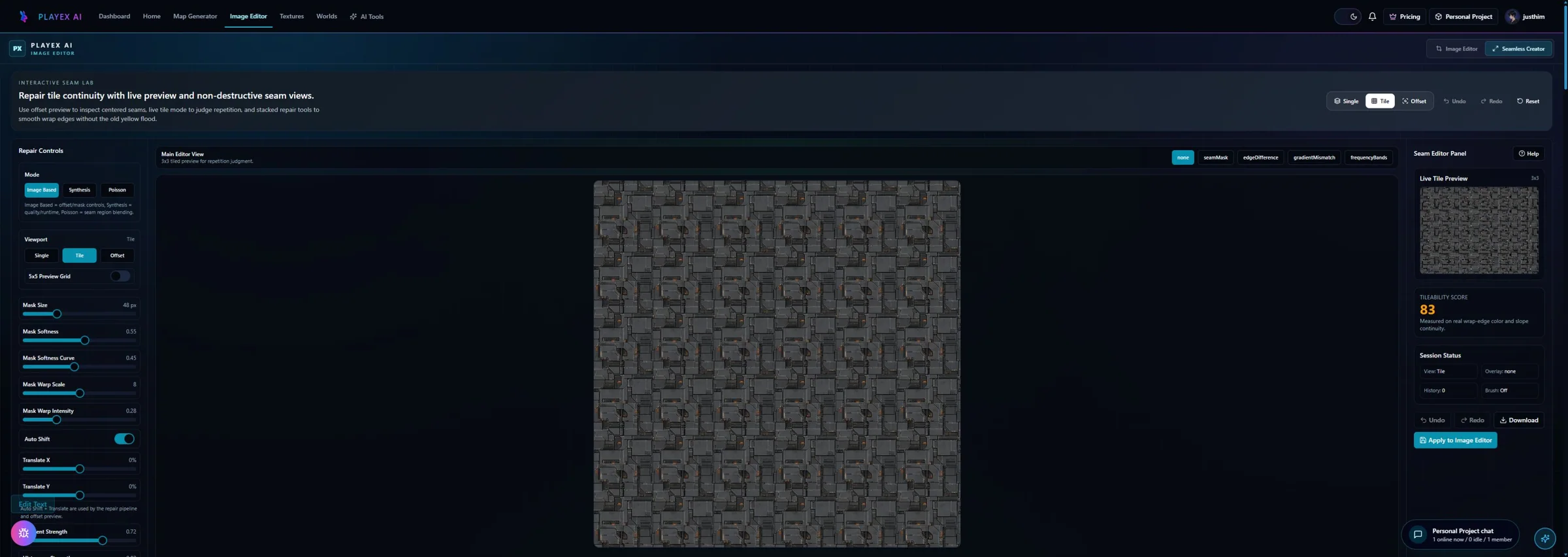
- A 3x3 or larger repeat preview shows no obvious border, central motif, or lighting discontinuity.
- Color and wear stay consistent with the project rather than drifting between generations.
- The selected result has moved downstream for cleanup or channel generation instead of being rerolled indefinitely.
How to generate a seamless texture from a prompt
A useful prompt-to-texture workflow is different from a normal AI image workflow. The goal is not a dramatic scene or a one-off picture. The goal is a surface that can repeat across a mesh, hold up at more than one camera distance, and become a base for cleanup, PBR maps, or library reuse. That is why the prompt should describe the surface, not a cinematic composition.
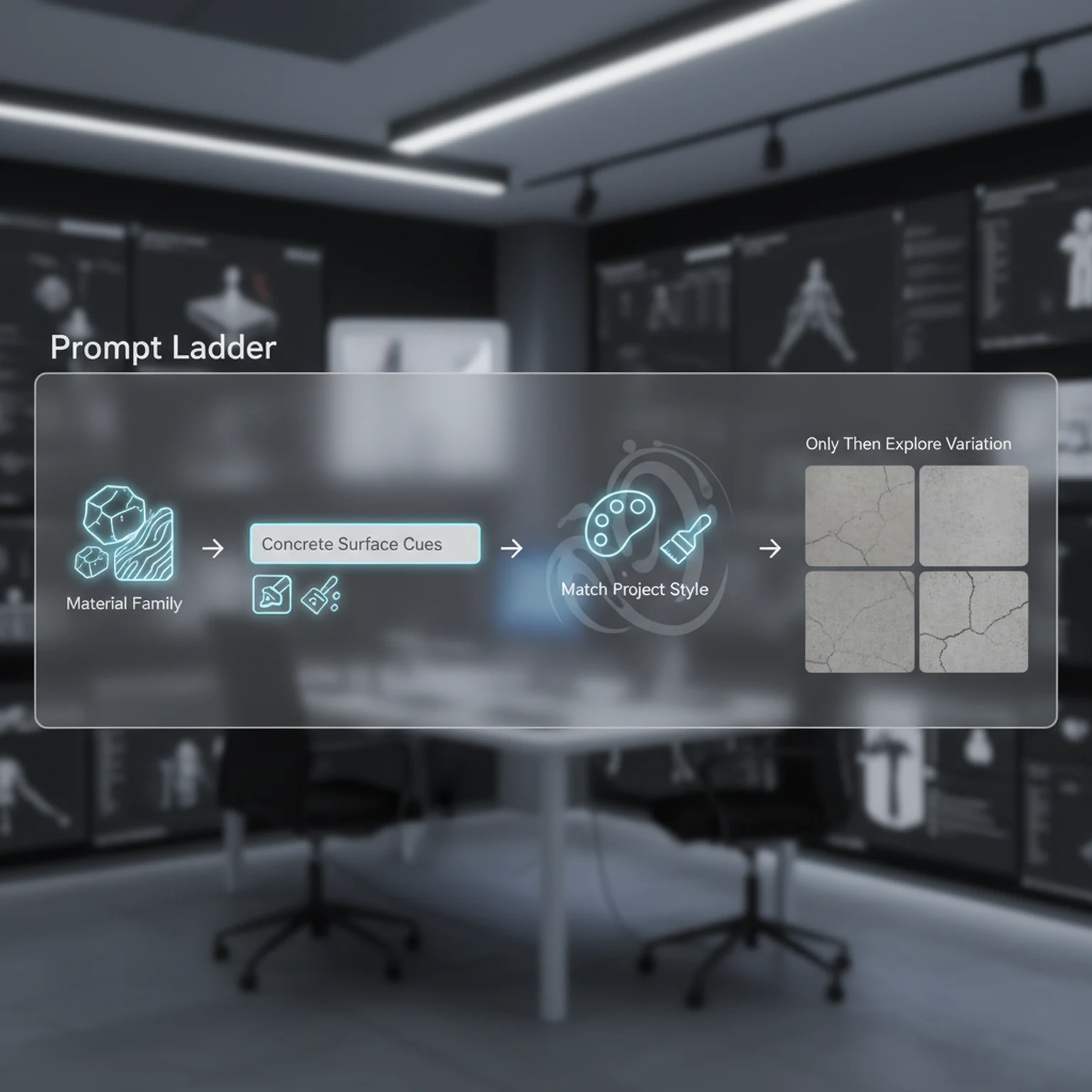
Good prompt language usually names the material family first, then the production details: worn concrete floor, damp mossy stone wall, chipped painted metal panel, compacted dirt path, stylized ceramic tile, or clean sci-fi bulkhead. After that, add finish, age, color, wear, and scale cues. If the output needs to tile, keep the seamless setting active and judge the result in repeated preview before treating it as usable.
This section also covers searches such as AI seamless texture generator, text to texture generator, prompt based texture generator, tileable texture from text, repeating game texture, and AI material generator for game surfaces. Those phrases describe the same user need: turn a written surface idea into a usable texture instead of a standalone illustration.
How presets create game-ready material ideas
One of the simplest improvements most users can make is to choose the preset before writing a long prompt. The preset establishes the material family. That means the tool already understands whether it should behave more like stone, wood, metal, fabric, facade, ground, sci-fi panel, UI surface, or another game material category. Once that baseline exists, the prompt can focus on the details that actually matter: cleanliness, wear, moisture, age, color cues, finish quality, scale of breakup, or art-direction language.
Users often overcomplicate prompts because they are trying to compensate for a missing baseline. They pile up adjectives, mood words, and contradictory traits in one sentence, then wonder why the output drifts. In practice, shorter and clearer prompts usually work better once the preset has done its job. You are refining the material preset, not writing a miniature novel about it.
Use preset sub-options before adding more prompt text. If you choose ground, set composition, moisture, coverage, particle size, compression, color tone, terrain shape, debris, or special effects. If you choose facade, choose material and window behavior. If you choose hair, use the hair material and color controls. These controls produce cleaner intent than burying every requirement in one sentence.
How to use style, scale, and variation without losing control
Style tells the generator how the surface should feel visually. Pattern scale controls the apparent size of the repeated detail. Variation controls how far the output is allowed to drift from the current direction. Together those three controls shape whether a texture reads like a clean prop surface, a broad environment material, a stylized game texture, or a more realistic surface pass. They are powerful because they affect the whole read of the texture before you ever reach map generation.
Variation deserves special attention because it is commonly misunderstood. It is not a quality slider and it is not automatically better when turned up. High variation is useful when you are exploring possible directions and the current baseline is too safe. Low variation is useful when you already have a winning direction and want consistency around it. If you treat variation as a default max setting, you usually make iteration less reliable, not more creative.
The same principle applies to pattern scale. A material intended for a wide floor surface should not necessarily carry the same detail scale as a close-up prop. If the repeated forms are too small, the texture can become noisy in-engine. If they are too large, the tile feels empty. A practical guide needs to name those tradeoffs because they affect real production outcomes, not just pretty previews.
Create matching texture sets from the winning material
A matching texture set starts after one generated material proves it belongs in the project. Instead of starting over with unrelated prompts, use the winning material as the visual anchor for companion surfaces. That is useful for environment kits, biome passes, prop families, level dressing, UI material families, and any scene where textures need to feel connected rather than randomly generated.
Matching sets are a different intent from normal variation. Variation explores alternate versions of the same prompt direction. A matching set creates related materials that can sit beside the original. The point is coherence: similar palette, compatible scale, and a material family that feels like it belongs in the same world.
This workflow answers searches like create matching texture set, generate companion textures, make texture variations from one material, matching game material pack, consistent texture set generator, and cohesive texture library. The useful next step is to save the strongest members to Library or send the best base texture into PBR Map Generator when it needs normal, roughness, metallic, AO, height, or emission maps.
Know when to stop generating and move downstream
A disciplined AI texture workflow has a stopping point. Once the texture is tile-safe, readable, and close to the art direction, the best next step is usually not another reroll. It is either cleanup or map generation. PLAYTEX AI already supports both of those paths. Image Editor is useful if the output is mostly correct but needs local correction, mask work, or polish. PBR Map Generator is the right next step if the base color is ready to become a full material stack.
This matters because endless generation is one of the easiest ways to waste time. Users often keep rolling because there might be something even better. In production, that instinct quickly becomes expensive. The real question is whether the current texture solves the asset need. If the answer is yes, then the workflow should advance. That is how you turn AI generation into pipeline value instead of just novelty.
Positioning PLAYTEX AI here is straightforward and credible: it is the place where the texture can start as a prompt-driven surface concept and then move into a broader material workflow. That is a more useful promise than simply saying the generator is powerful. It tells users how the product fits into work they already understand.
Settings Reference
Core generation controls
These are the highest-leverage controls in the tool.
- Prompt: In guided mode, prompt detail refines the selected preset. In describe mode, the description becomes the main generation brief while seamless rules stay enforced. Add material-specific cues such as finish, age, grain, damage, moisture, or scale. Remove contradictory adjectives when the output starts mixing incompatible surfaces.
- Style: Steers the texture toward photoreal, stylized, clean, or more directed output families. Change style when the material has the right subject but the wrong art direction.
- Pattern Scale: Controls the apparent size of repeating detail in the tile. Use larger scale for walls, cliffs, or big ground breakup. Use smaller scale for close-up detail materials.
- Seamless Toggle: Forces the output toward tile-safe edge behavior. Keep it on for almost every production texture that needs repetition.
- Variation: Changes how adventurous the generator can be relative to the base prompt and preset. Lower it for consistency, raise it for concept exploration.
Material targeting controls
These settings reduce generic results and push the output into a usable production lane.
- Preset: Sets the material family: wood, stone, metal, fabric, plastic, ground, sci-fi, facade, skin, hair, leather, glass, concrete, ceramic, rubber, liquid, organic, debris, or UI. Always set this first so the generator knows what kind of surface logic to emphasize.
- Game Type: Biases the texture toward realistic, stylized, mobile, pixel, anime, or other output expectations. Use it when the same prompt must fit different rendering targets.
- Palette Control: Lets you pin or prioritize specific colors instead of hoping the prompt lands there. Use it when the material has to match a faction, biome, UI system, or art bible.
- Preset Sub-Options: Adds surface-specific details such as wood species and finish, stone type and cut, metal type and condition, fabric weave, plastic finish, ground composition, facade material and windows, hair/skin detail, ceramic layout, liquid motion, debris severity, and UI use case. Use them when a broad preset is close but still too generic for the exact asset need.
- Matching Set: Generates related materials from a selected texture so a scene can share a coherent palette, scale, and material family. Use it after you have one strong result and need companion surfaces instead of unrelated rerolls.
Workflow
Generate repeatable surface candidates from a material brief, select for scale and tiling rather than spectacle, then move the strongest result into cleanup or PBR map generation.
Step 1: Generate a seamless texture from a prompt
Use the prompt to describe the surface traits that matter: material, age, finish, wear, scale, color, and use case. Keep seamless generation on when the texture must repeat across floors, walls, terrain, props, or environment surfaces.
Step 2: Start with a game-ready material preset
Choose the material family before overloading the prompt. Presets and sub-options give the generator a clearer baseline for wood, stone, metal, fabric, ground, sci-fi panels, facades, UI surfaces, and other game material categories.
Step 3: Tune style, palette, scale, and variation
Style changes the rendering attitude, palette keeps the output aligned with the project, pattern scale controls the size of repeated detail, and variation controls how far the result can drift from the baseline.
Step 4: Create a matching texture set or move the winner downstream
Once one texture works, generate related materials from it instead of rerolling unrelated surfaces. Save useful outputs to Library, clean them in Image Editor, or send the winner to PBR Map Generator for a full material stack.
Common Pitfalls
- Do not stack contradictory adjectives into the prompt.
- Do not use high variation when you are trying to stay close to a successful texture.
- Do not keep generating if the current result already works after a small cleanup pass.
Can an AI texture generator make seamless textures?
It can create strong candidates, but seamlessness must be verified in a repeated preview. Use Seamless Creator when the first generation still exposes borders, lighting drift, or a dominant center.
What should an AI texture prompt include?
Name the material, age, finish, feature scale, palette, camera orientation, and intended use. Exclude objects, horizons, dramatic perspective, text, logos, and directional scene lighting.
Can I use PLAYTEX AI textures in Roblox or Minecraft?
Yes, as source art. You still need to size, crop, compress, and package the export for the target platform, then test how its UVs or block repetition behave in the game.
Why does my generated texture look tiled?
A memorable crack, bright patch, central object, or lighting gradient is repeating. Reduce unique focal features, rebalance the source, and inspect a larger tile grid before export.
Should I generate PBR maps immediately?
Only after the color source has plausible scale, clean repetition, and no baked lighting you do not want propagated into the material channels.
Primary sources
Official specifications and renderer documentation
PLAYTEX AI guidance is paired with official specifications and platform documentation where the handoff depends on an outside convention.
Open the live workflow that this guide is documenting.
PBR Map Generator: Create Normal, Roughness, AO, Height, Metallic, and Emission MapsTurn one viable image or source-guided hybrid setup into a coherent map stack, review every channel as part of one material system, and export for the renderer you actually use.
Image to Texture: Convert a Photo into a Seamless TextureExtract a usable surface from a photo, scan, artwork crop, or generated reference; correct the source problems first; then tune seamless reconstruction while protecting the material character.
Image Editor for Textures: Clean, Mask, Make Seamless, and ExportCorrect framing, masks, tone, and local defects in a deliberate order so the next PLAYTEX AI tool receives clean source information instead of having to compensate for preventable problems.