Upload a surface photo, scan, screenshot, or artwork crop. Correct perspective and uneven lighting, match the edges, inspect the repeated tile, and export the result or continue into PBR map generation. A PLAYTEX AI account is required to generate; Free includes five one-time AI credits and generation up to 1K.
Updated : Added an Auto Extract paper-cut collage example alongside a 30-second video overview with English captions, chapters, and a full transcript.
What account and plan does Image to Texture require?
Generation requires an account. Free accounts receive five one-time AI credits and can generate and export up to 1K. Higher quality and x2/x4 upscaling follow the plan conditions below.
Condition
Current behavior
Detail
Accepted inputs
PNG, JPG, and WEBP
Upload a surface photo, scan, screenshot, artwork crop, AI image, or other image reference.
Account requirement
A PLAYTEX AI account is required to generate
The upload workspace is visible before sign-in, but generation redirects signed-out users to account access.
JPG/PNG to Texture: How to Create a Tileable Surface
To convert a JPG or PNG to a texture, upload the file, choose the closest material target, and generate a square result. PLAYTEX AI corrects perspective and uneven lighting, then lets you inspect the result as a repeating tile before export.
JPG is practical for camera photos, while PNG is better for lossless artwork, scans, and crisp source detail. Both formats can produce a tileable base texture; approve the repeat first, then send the image to the PBR Map Generator when you need material maps.
Four-step workflow
How to Make a Texture From an iPhone or Android Photo
Choose any source image: Start with a phone photo, screenshot, scan, artwork, or another image containing the surface or visual language you want to turn into a texture.
Upload from your phone: Open PLAYTEX AI in a mobile browser and choose a PNG, JPG, or WEBP image from your camera or camera roll.
Choose the material target: Select Auto, Floor, Wall, Ground, Fabric, or Metal, then choose 1K, 2K, or 4K when your plan supports it. The interface shows the exact credit cost before generation.
Check the repeat: Review the result in Tile or 3D preview. Download the texture, save it to your library, or continue into the PBR Map Generator.
Real source and result
What does a phone-photo texture workflow look like?
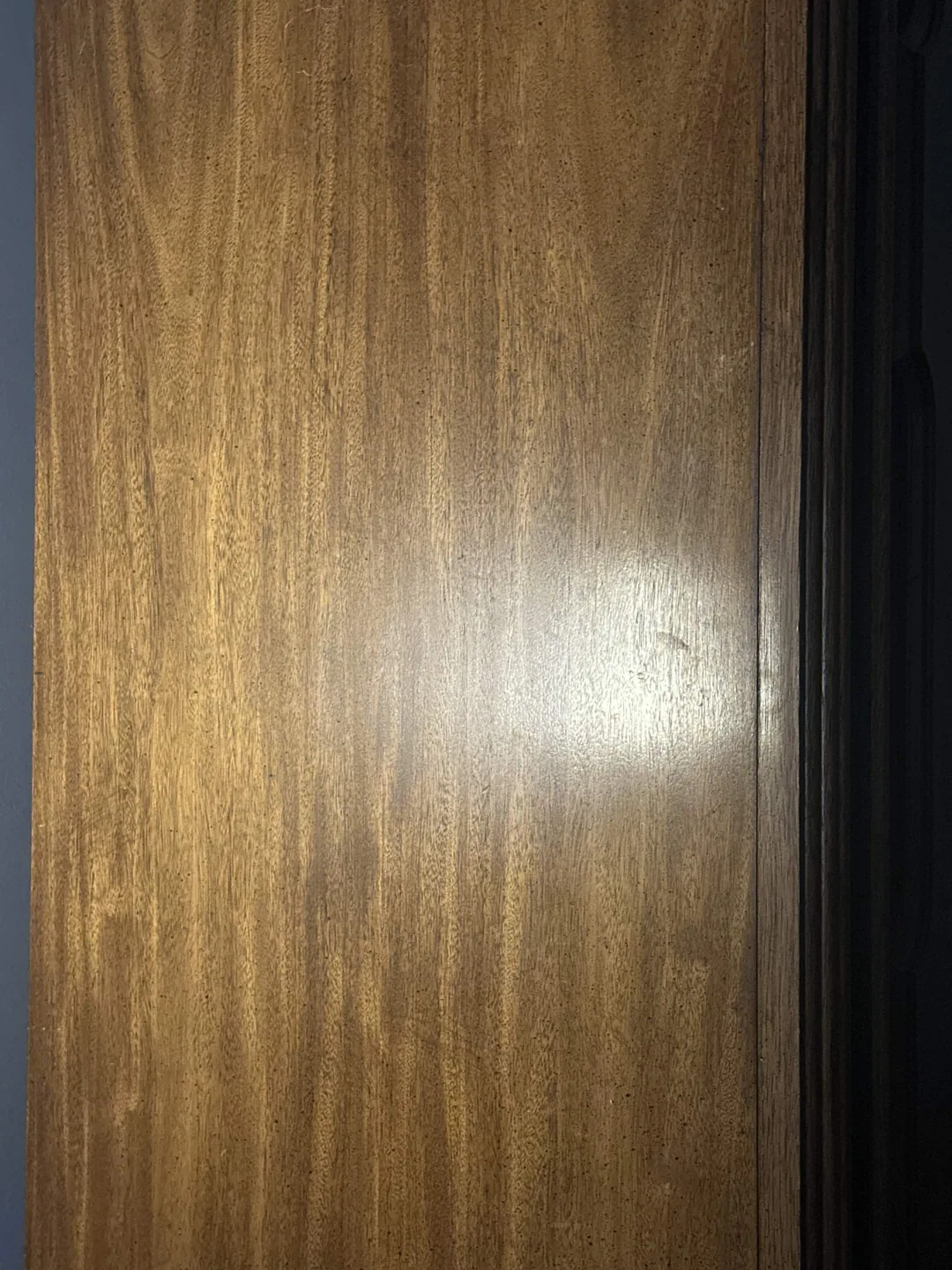
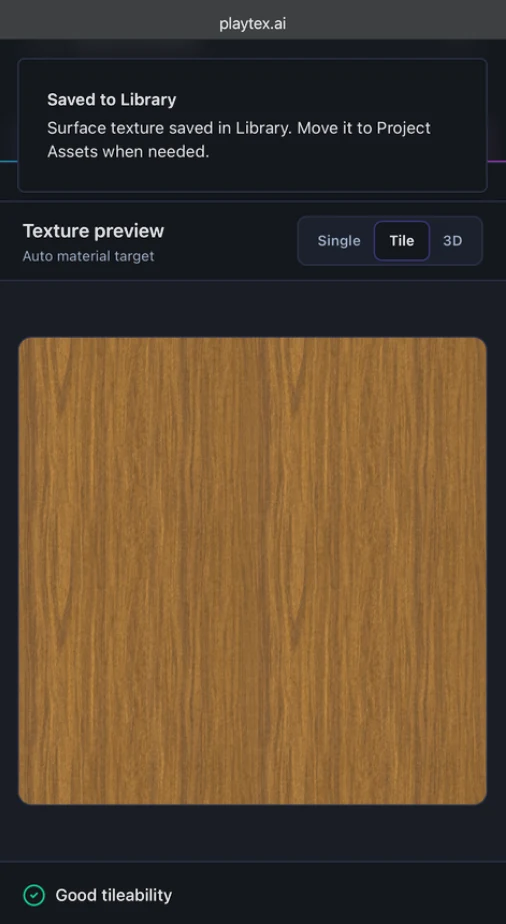
A casual wood photo can include glare and a dark edge. PLAYTEX AI turns the selected material into a square image, and Tile preview repeats that result so visible edge lines or obvious patterns can be caught before export.
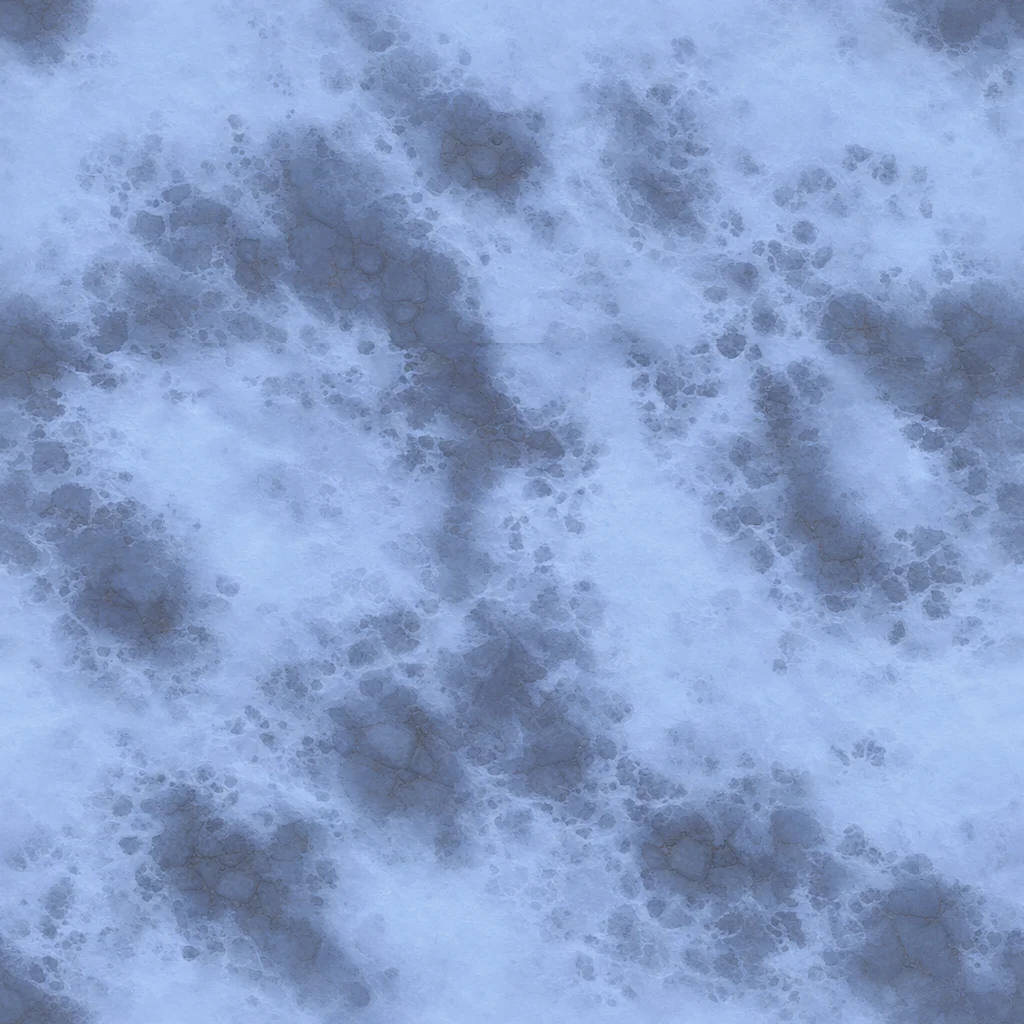
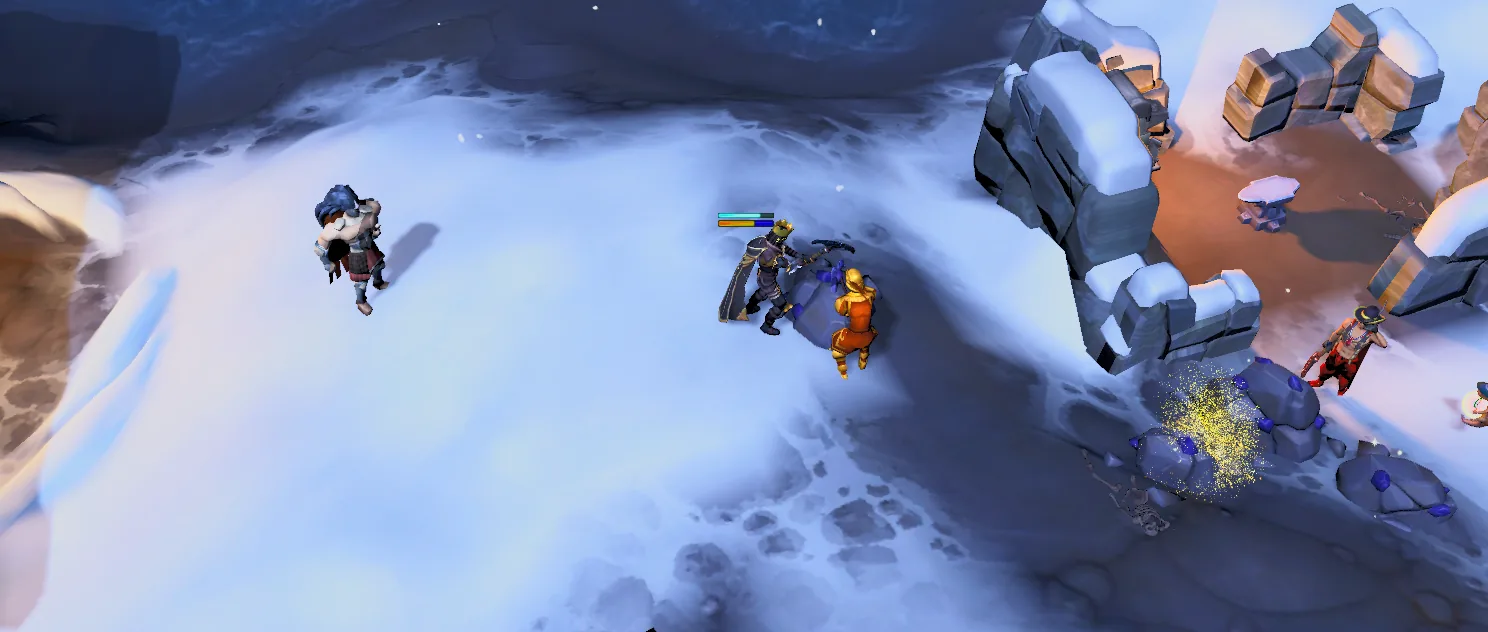
Phone photo: a wood surface captured with uneven light.Tile preview: the square wood material checked as a repeat on the same phone.Generated tile: a blue-white snow texture for terrain.In-game use: the snow surface language covering a larger top-down play area.
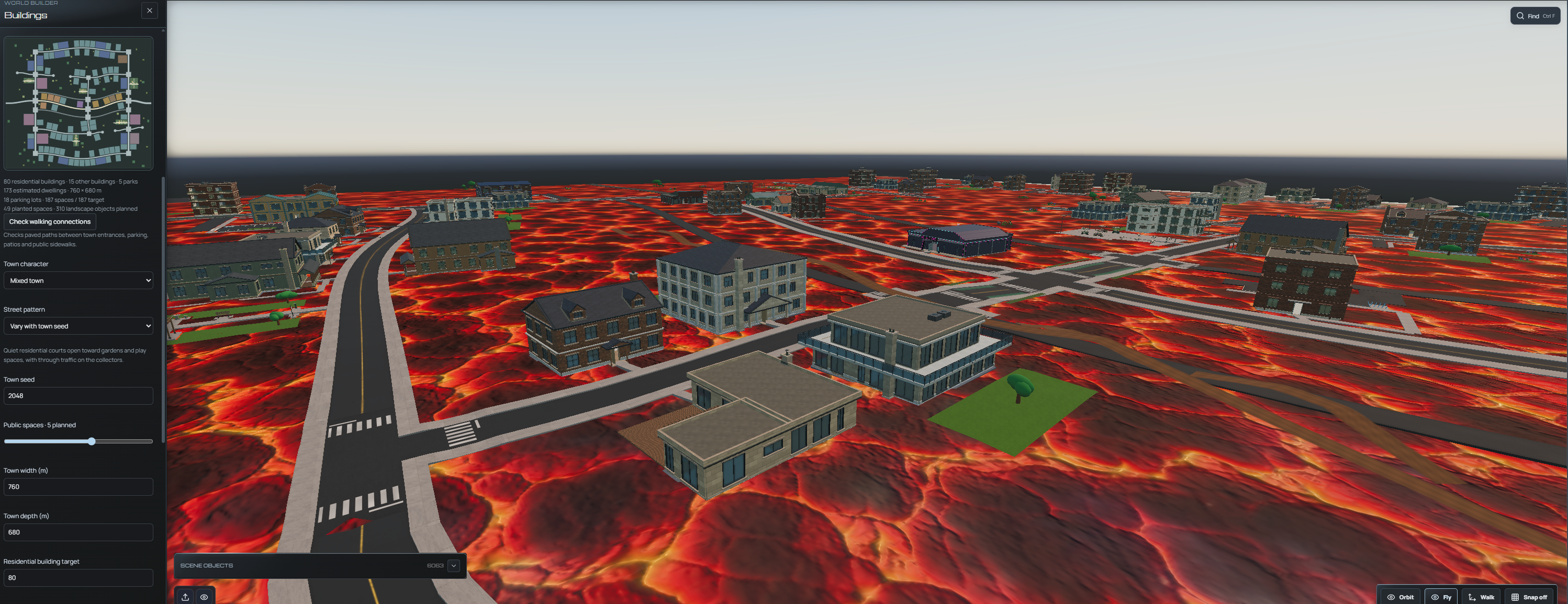
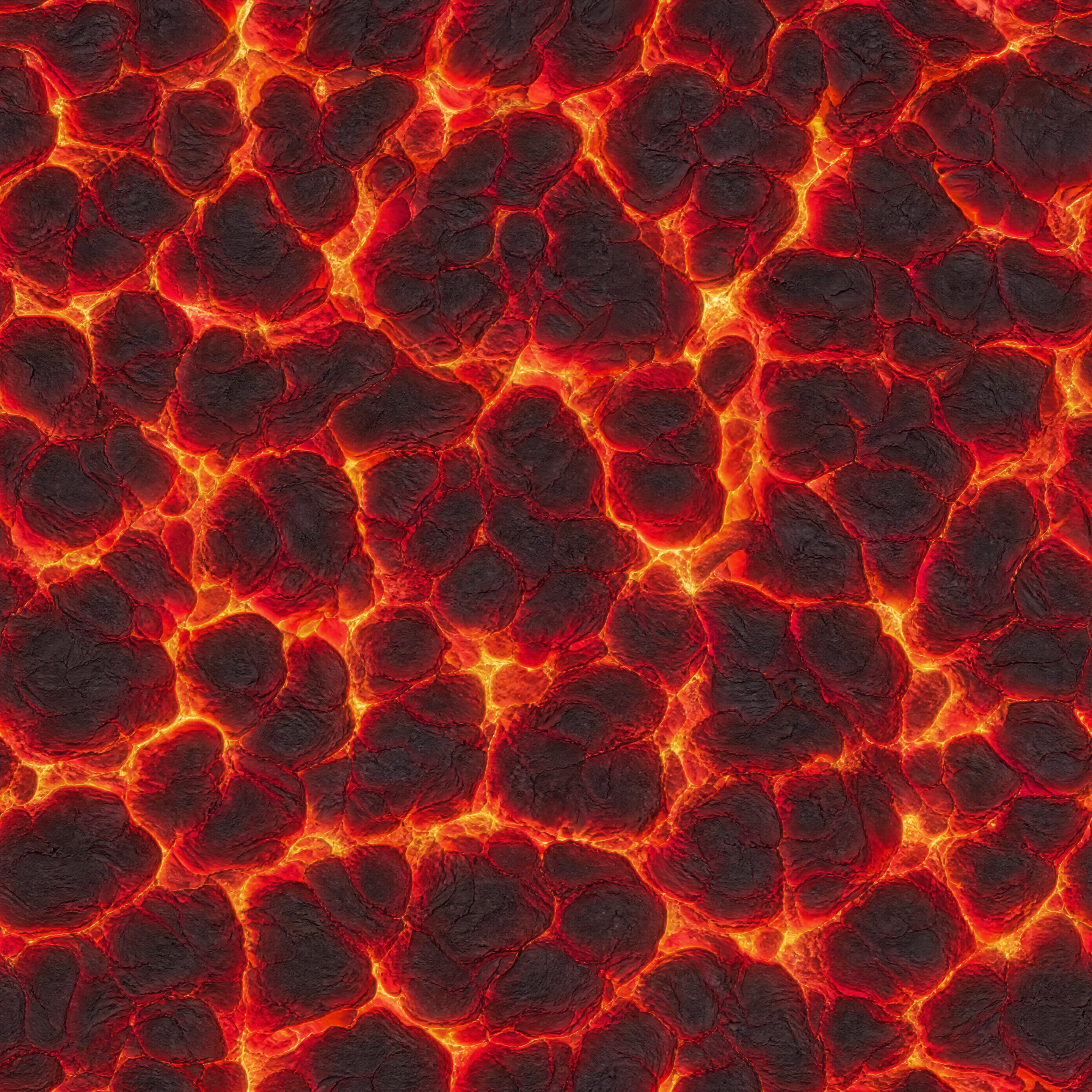
Example 3 · Lava screenshot to texture
Auto Extract turns the lava surface in a busy town screenshot into a square texture of volcanic rock and molten cracks.
Source screenshot · Lava terrain in a town scene. Select the image to inspect the full-resolution, lossless version.Auto Extract result · Lava texture. Select the image to inspect the full-resolution, lossless version.
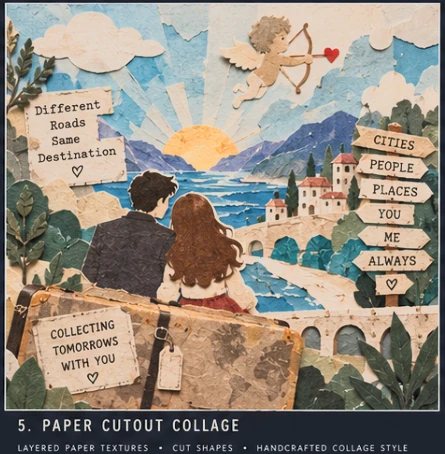
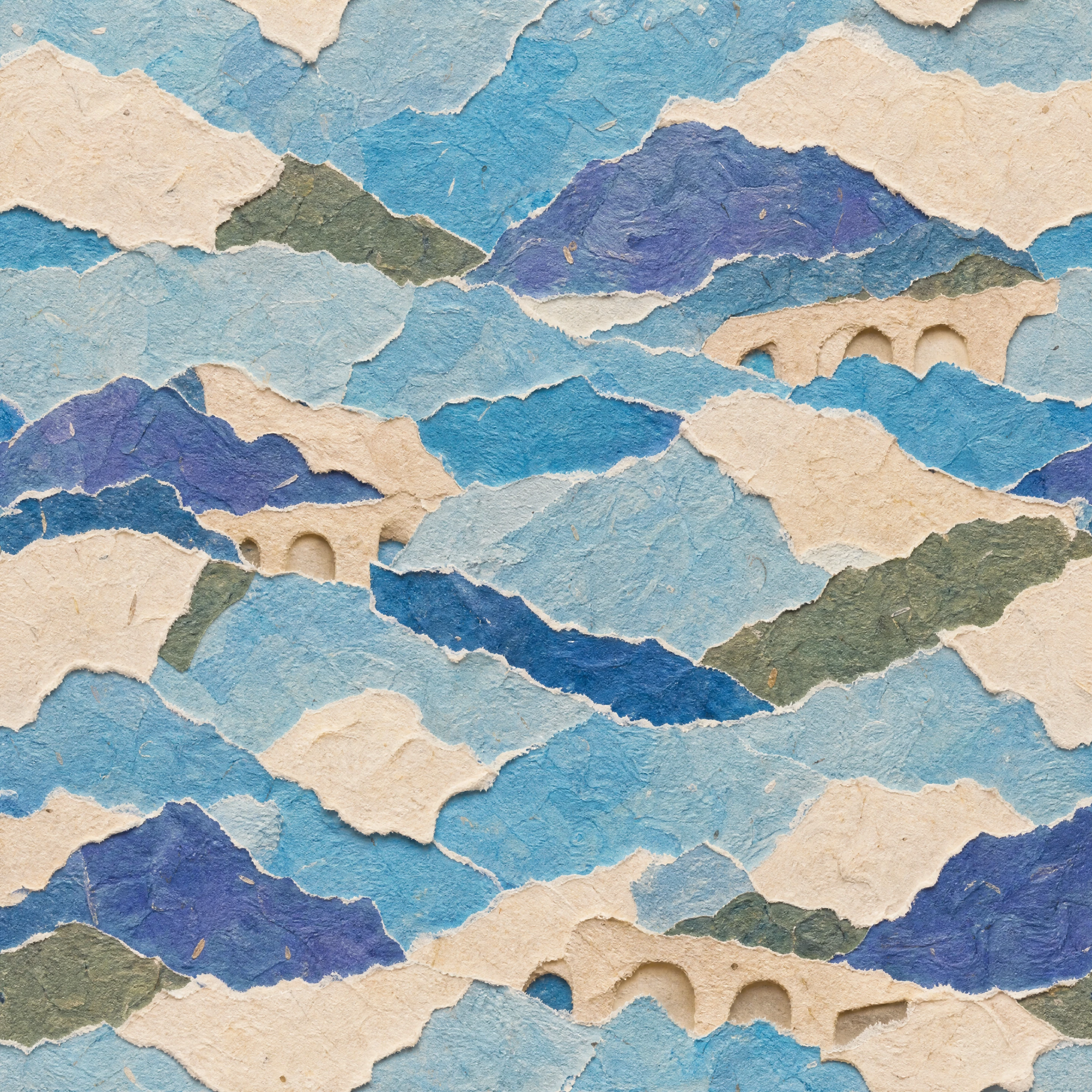
Example 5 · Paper cutout collage
Auto Extract turns this layered paper-cut illustration into a seamless surface texture, carrying its blue waterways, cream shapes, and handcrafted collage style into a repeatable tile.
Source image · Paper-cut collage artwork
The uploaded image combines paper-cut mountains, a town, winding roads, water, and story text.
Auto Extract result · Paper-cut collage texture
The output carries the source’s torn-paper shapes, textured edges, and blue-and-cream palette into a repeatable surface.
What kind of photo makes the best tileable texture?
Photograph one material straight on, fill the frame, and favor soft light. PLAYTEX AI can correct difficult source images, but a cleaner capture preserves more of the surface you chose.
Capture choice
What to do
Why it helps
Camera angle
Keep the phone parallel to the surface.
A straight-on photo reduces perspective correction and preserves scale across the frame.
Lighting
Use shade, overcast daylight, or another soft light source.
Soft light leaves fewer hard shadows and bright reflections in the finished texture.
Framing
Fill the frame with one repeatable material area.
More usable surface detail gives PLAYTEX AI a larger region for edge matching and variation.
Obstructions
Avoid object edges, people, deep gaps, and large cast shadows.
A clean surface sample needs less reconstruction and usually produces a more natural repeat.
Can a phone photo become a game-ready material source?
Yes. PLAYTEX AI turns the selected surface into a square, repeating image that can cover terrain, walls, floors, props, and environment meshes. Download the result as an image texture or save it to the PLAYTEX AI library.
What happens after the base texture?
Send an approved texture to the PLAYTEX AI PBR Map Generator when the material also needs normal, roughness, metallic, ambient occlusion, height, emission, or albedo maps.
Phone photo to texture FAQ
Can I turn a phone photo into a texture?
Yes. Open PLAYTEX AI in a mobile browser, upload a photo, choose the surface target, and select a supported quality. Free includes five one-time credits and output up to 1K; paid plans add monthly credits, higher generation quality, and plan-gated x2/x4 upscaling.
Does the Image to Texture Generator work on iPhone and Android?
PLAYTEX AI runs in a web browser, so the Image to Texture workflow is available in modern iPhone and Android browsers. Generation requires an internet connection and a PLAYTEX AI account.
What photos make the best game textures?
Flat, repeatable surfaces photographed straight on in soft, even light work best. Fill the frame with the material and avoid glare, hard shadows, object edges, people, and strong perspective.
How do I know whether the generated texture will tile?
Switch the PLAYTEX AI preview to Tile to repeat the image across a grid. Look for straight edge lines, sudden color changes, or one feature repeating too obviously before downloading the result.
Can I use the texture in Unity, Unreal Engine, Blender, or Godot?
Yes. Download the generated square image for use as a repeating material source in Unity, Unreal Engine, Blender, Godot, Three.js, and other tools that accept image textures.
Can a phone photo become a full PBR material?
Yes. First create and approve the tileable base texture, then send it to the PLAYTEX AI PBR Map Generator to create normal, roughness, metallic, ambient occlusion, height, emission, and albedo maps.