Getting Started
How to Make Game Textures with PLAYTEX AI: Complete Workflow
Start with the asset you actually have, move through only the tools that solve its current problem, and finish with a repeatable material or lighting handoff.
Direct answer
Which PLAYTEX AI tool should you use first?
Route by asset state: use AI Texture for a new idea, Image to Texture for an existing reference, Image Editor for source repair, PBR Map Generator for material behavior, and HDRI Sphere Generator for environment lighting.
How PLAYTEX AI helps: The dashboard keeps the handoffs connected. You can generate a surface, repair or tile it, build its PBR maps, and test the result without repeatedly downloading and re-uploading the same source.
What you will get
- Pick the correct tool before you spend credits or time.
- Understand the fastest route from concept art, photo, or prompt to usable material output.
- Know which upgrade matters next instead of guessing from a pricing page.
Best use cases
- You are new to PLAYTEX AI and want the shortest path to a finished material.
- You need to explain the product to teammates or clients.
- You want to know when to use AI Texture, Image to Texture, Image Editor, Map Generator, or HDRI.
Acceptance test
Approve the asset only when these are true
- The starting asset and target engine or renderer are named before any generation begins.
- The source is cropped, perspective-safe, and free of lighting that should not become part of the material.
- Repeated surfaces are reviewed as a grid, not only as one attractive square.
- PBR channels are inspected individually under more than one lighting condition.
- The final export is imported once in the destination shader before the asset is considered done.
Start with the actual job, not the fanciest tool
A good getting-started guide should reduce decision fatigue, not create more of it. That is especially important for a product like PLAYTEX AI because the platform covers several related but different jobs: generating a brand-new surface, converting an existing image into a seamless tile, cleaning up a source, building the technical PBR map stack, packaging outputs for engines, and managing reuse or handoff once a material is worth keeping. New users often lose time because they open the tool that sounds impressive instead of the tool that matches the source they already have.
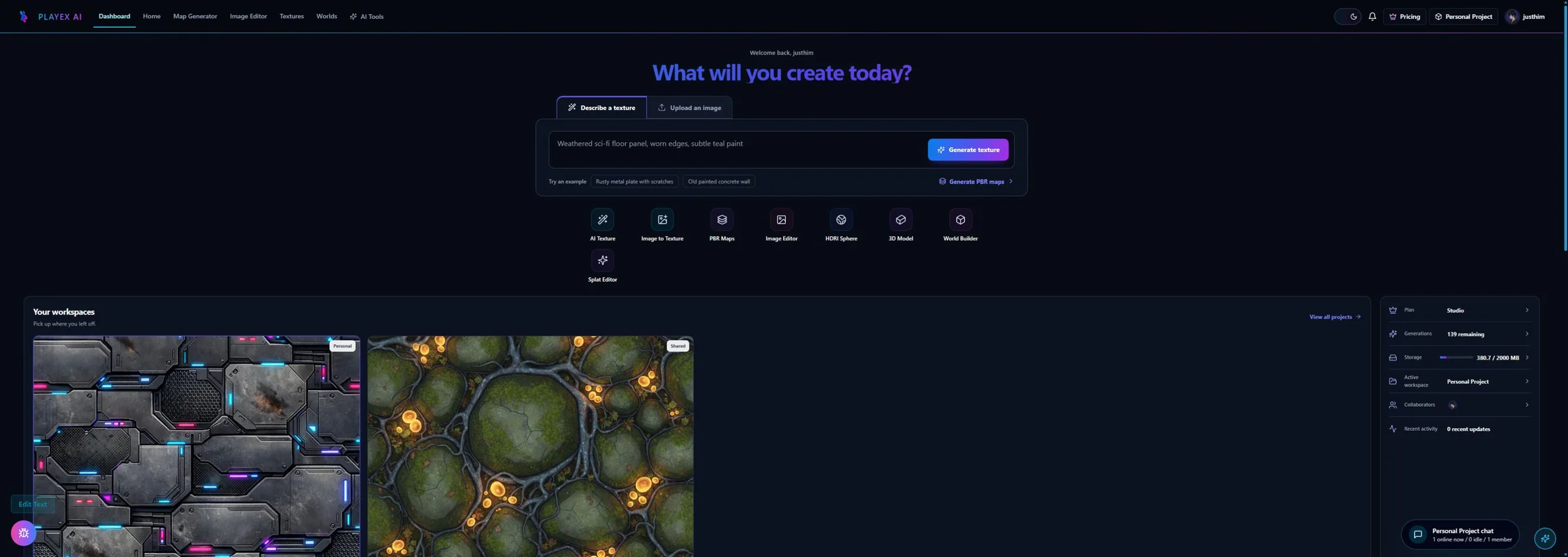
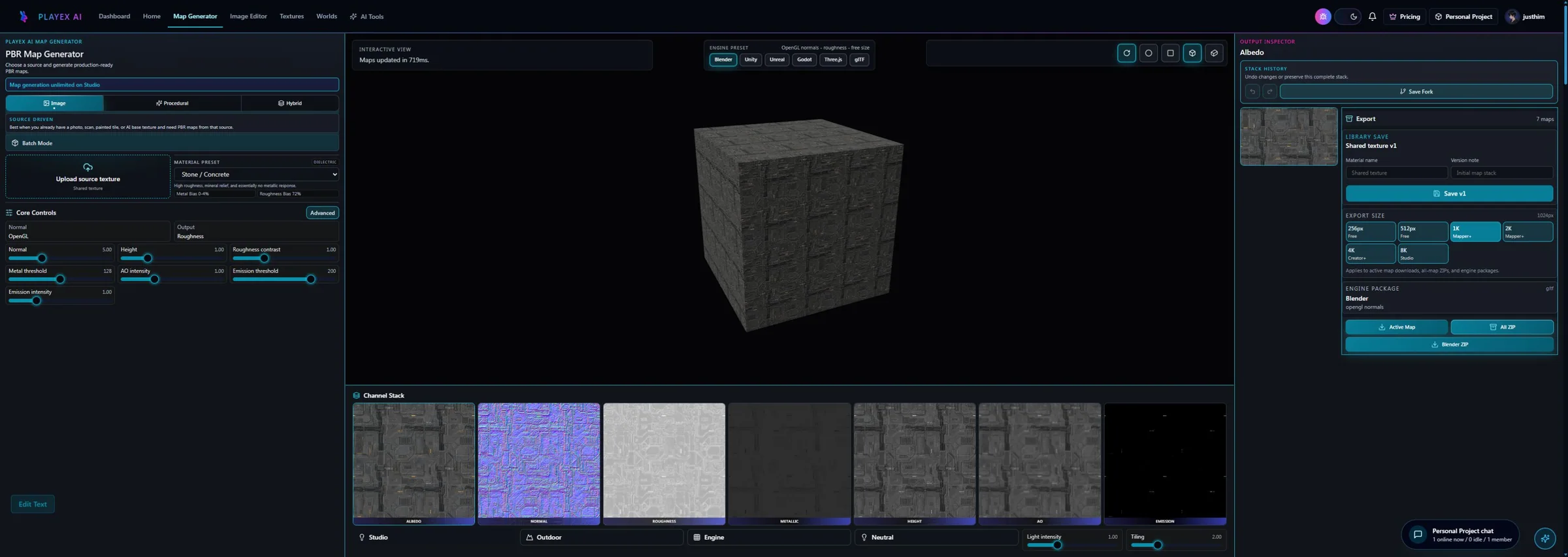
The simplest way to think about the platform is this. If you need to invent a material idea from scratch, start in AI Texture Generator. If you already have a photo, scan, or source image that needs to become tileable, start in Image to Texture Generator. If the source is almost ready but still needs cleanup, masks, crops, or local corrections, use Image Editor before you do anything technical with it. If you already have a strong base texture and the next job is to make it behave like a real material, open the web-based PBR mapping tool. That framing turns the dashboard from a menu into a workflow.
A practical first session should end with one saved result, not a tour of every button. Pick one material problem, complete the relevant source step, review the output in the correct preview, then either save it to Library or move it into the next tool. That gives you a real feel for the product faster than opening every page at random.
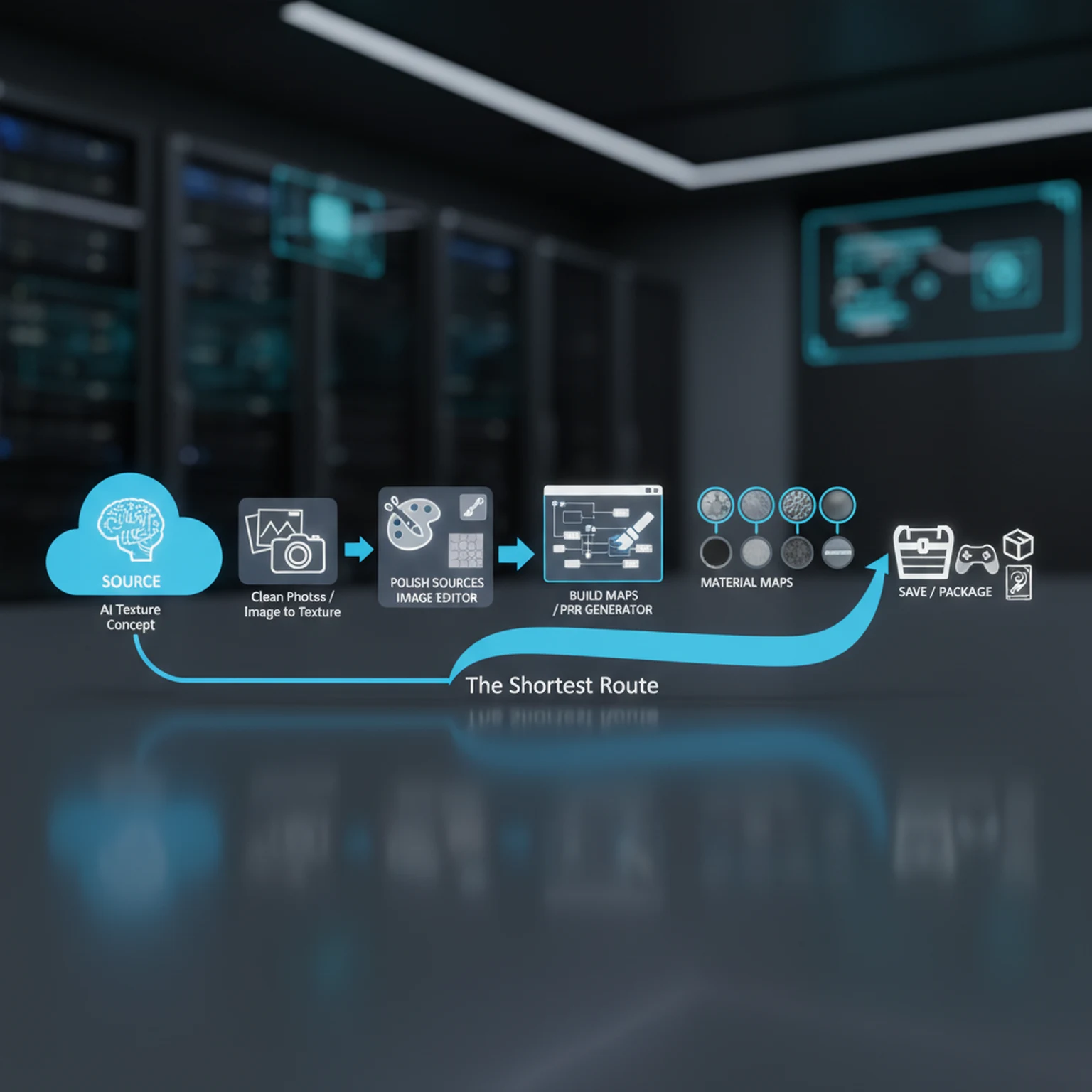
The shortest useful PLAYTEX AI workflow
For many users the shortest productive loop looks like this: choose the correct source workflow, make the texture tile cleanly, generate the map stack, then save or export only after you review the channels. That sequence sounds obvious, but most failed texture workflows skip one of those checkpoints. People jump from a rough image straight to map generation, or they keep rerolling a texture that was already good enough, or they export before checking roughness and AO individually. Each of those habits creates extra work later.
The practical advantage of PLAYTEX AI is that those stages already live close together. You can ideate a surface, clean an existing one, build the maps, and package the result without bouncing across a half-dozen unrelated applications. That does not mean every decision disappears. It means the workflow is easier to standardize. Once you know which stage you are in, the next action becomes clearer. That is what new users need most in the first hour: fewer branching paths and fewer avoidable mistakes.
If you are working alone, that sequence gives you a faster route to a finished asset. If you are evaluating the platform for a team, the same sequence becomes a way to explain the product internally. A teammate does not need to memorize every feature at once. They need to understand where sources enter the system, where map generation happens, and where the asset should live once it becomes reusable.
How to know which tool should own the next step
The most reliable decision rule is to ask what problem still exists in the asset right now. If the problem is that no usable surface exists yet, AI Texture Generator owns the next step. If the problem is that the surface exists but still does not tile cleanly, Image to Texture Generator owns the next step. If the problem is that the source is close but still has visual defects or local issues, Image Editor owns the next step. If the problem is no longer artistic but technical, and the surface needs normal, roughness, metallic, ambient occlusion, height, emission, or albedo maps, then the browser-based PBR map generator owns the next step.
This sounds basic, but it is the heart of a stable production workflow. A lot of rework comes from asking the wrong tool to solve the wrong class of problem. Users often expect map generation to fix weak source data, or expect AI generation to replace careful cleanup, or expect export packaging to solve a material that was never reviewed properly. The better mental model is to keep each tool responsible for the stage it is designed to handle well.
Once a material is good enough to keep, the workflow changes again. Library saves matter because they preserve usable results instead of forcing you to rediscover them later. Projects matter because not every texture is just a local experiment; some belong to a broader production context. Those features become more valuable as the asset shifts from idea to pipeline artifact.
What helpful adoption looks like inside a real team
Teams evaluating PLAYTEX AI usually do not need a page that says the platform is powerful. They need a page that explains how to test it intelligently. A good evaluation path is to run one surface through the full lifecycle. Start with either a generated material idea or an existing source image, clean it until the tile is believable, build the maps, review the channels, export for the engine you care about, then decide whether that asset is worth saving to library or pushing into a project workflow. That gives you a concrete answer about fit.
The important thing is not to overcomplicate the first trial. Pick one realistic surface category that matters to your work, such as worn painted metal, stone, bark, plaster, tile, or fabric. Use the platform the way you would actually use it in production. If the source intake, cleanup, map generation, and export handoff feel cleaner than your current process, that tells you more than any generic comparison page would.
For a team trial, document the exact controls that mattered: source mode, crop or preset, material intent, seamless settings, generated maps, export target, and where the saved result lives. Those notes make it easier to compare PLAYTEX AI against an existing workflow because the evaluation is based on a completed material, not a vague impression.
Settings Reference
How to choose the correct tool
Most wasted time comes from opening the wrong workflow first.
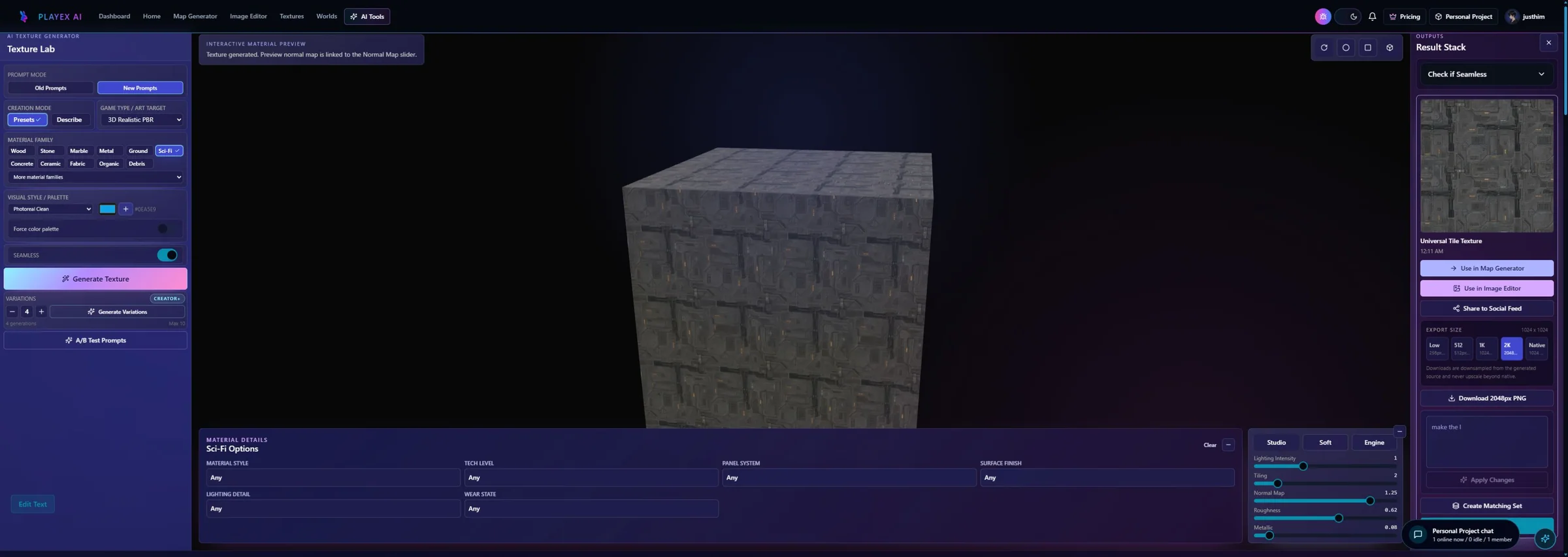
- AI Texture Generator: Creates a brand-new surface texture from prompts, presets, and material intent. Use it when you are ideating or when you have no usable source image yet.
- Image to Texture Generator: Turns a photo, scan, or artwork into a seamless tileable texture. Use it when the source already exists but needs cleanup, extraction, or tiling.
- Web-Based PBR Mapping Tool: Builds the technical map set required for physically based rendering. Use it after you already have a base color texture or procedural surface direction.
- Image Editor: Handles crop, masking, background removal, region work, tone correction, and final polish inside a full editing workspace. Use it when a source or generated texture is close but still needs deliberate cleanup before map generation or export.
- HDRI Sphere Generator: HDRI controls environment lighting direction for material and scene review. Use HDRI when scene lighting is part of the brief or when materials need environment-aware validation.
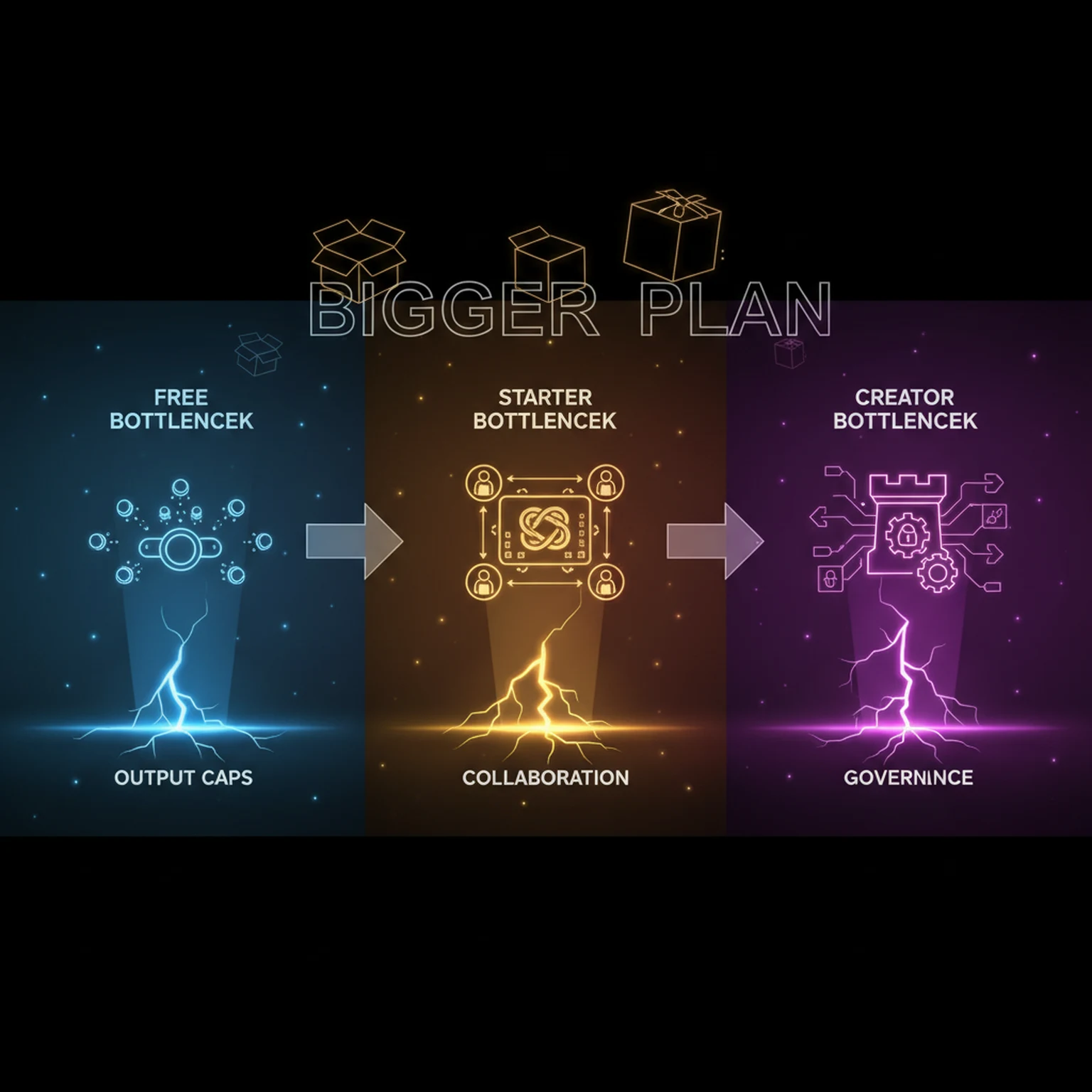
How subscription tiers change the workflow
The best next action is different on each plan.
- Free: Good for testing workflows and validating output quality on small experiments. Upgrade once you need more generations, downloads, saves, or export freedom.
- Starter: Adds real daily usability through save, export, downloads, and higher AI throughput. Upgrade to Creator when you need projects, collaboration, or validation-heavy workflows.
- Creator: Adds team-friendly project and asset workflows with better scale. Upgrade to Studio when governance, concurrency, or private delivery matters.
- Studio: Supports the operational side of a production pipeline, not just generation itself. Use it when multiple contributors, approvals, and throughput are part of the brief.
Workflow
Start with the asset you actually have, move through only the tools that solve its current problem, and finish with a repeatable material or lighting handoff.
Step 1: Start from the right source
Use AI Texture Generator when you need a fresh material concept, Image to Texture when you already have a photo or reference surface, and Image Editor when your source is close but still needs cleanup before generation.
Step 2: Make the texture tile cleanly
Before you worry about exports, make sure the source is physically believable and tile-safe. Image to Texture handles repeat-safe reconstruction, while Image Editor is the right stop for crops, masks, tone balance, and local cleanup.
Step 3: Convert a base texture into a real material
Use the web-based PBR mapping tool to build the full map stack: albedo, normal, roughness, metallic, ambient occlusion, height, and emission. This is where a flat image becomes a production asset.
Step 4: Package the material around the real workflow
Use library saves and project workspaces when a texture stops being a one-off image and starts becoming a reusable production asset. This is the shift from experimentation to an actual pipeline.
Step 5: Add lighting and team context where it matters
HDRI Sphere Generator helps when the environment lighting itself needs direction, while Creator and Studio plans add project, approval, and binder-oriented workflows that make team handoff much cleaner.
Common Pitfalls
- Do not send a noisy source directly into PBR generation if the tile itself is weak.
- Do not keep switching tools when the real problem is still source quality or unclear material intent.
- Do not treat every output as final. Image Editor, library saves, and project workflows exist to finish the last ten percent deliberately.
Which PLAYTEX AI tool should I start with?
Start with asset state. Use AI Texture for a new idea, Image to Texture for a photo or reference, Image Editor for cleanup, PBR Map Generator for material channels, and HDRI Sphere Generator for environment lighting.
Can I start with my own image?
Yes. Upload a front-facing photo, scan, artwork crop, or generated image. Clean perspective and baked lighting before asking a seamless or PBR workflow to interpret it.
Do I need PBR maps for every texture?
No. Use PBR maps when the destination shader needs surface response such as normal, roughness, metallic, AO, height, or emission. A UI image or unlit sprite may need only color and alpha.
How do I know when a game texture is finished?
Tile it beyond one square, inspect every generated channel, test more than one light angle, and complete one real import in the target engine at the intended world scale.
Can I move an output between PLAYTEX AI tools?
Yes. Connected handoffs let a generated or uploaded source move into editing, seamless conversion, or PBR map generation without rebuilding the workflow from scratch.
Primary sources
Official specifications and renderer documentation
PLAYTEX AI guidance is paired with official specifications and platform documentation where the handoff depends on an outside convention.
Open the live workflow that this guide is documenting.
PBR Map Generator: Create Normal, Roughness, AO, Height, Metallic, and Emission MapsTurn one viable image or source-guided hybrid setup into a coherent map stack, review every channel as part of one material system, and export for the renderer you actually use.
AI Texture Generator: Make Seamless Game Textures from a PromptGenerate repeatable surface candidates from a material brief, select for scale and tiling rather than spectacle, then move the strongest result into cleanup or PBR map generation.
Image to Texture: Convert a Photo into a Seamless TextureExtract a usable surface from a photo, scan, artwork crop, or generated reference; correct the source problems first; then tune seamless reconstruction while protecting the material character.