Engine handoff video · 35 seconds
Export one PBR texture set for Unity and Unreal Engine
Watch a PBR stack move from generation to engine handoff, then download the Unity import script, Unreal Python helper, and the exact cross-engine export profile.
Reviewed by the PLAYTEX AI Editorial Team · Updated
Direct answer
What should you do?
Export a neutral source stack, then adapt the delivery package: Unity needs explicit texture importer roles and shader-specific smoothness handling; Unreal commonly uses DirectX-style tangent normals and packed occlusion, roughness, metallic channels. Keep the source maps as masters and make engine-specific files as derived outputs.
Video chapters
-
0:00 — Start from one reviewed source
Treat the aligned material stack as the engine-neutral master.
-
0:05 — Choose the generation mode
Resolve source decisions before target-specific conversion.
-
0:11 — Review every channel
Catch missing or shifted maps before packing and normal conversion.
-
0:18 — Tune material behavior
Approve the physical response before deriving engine files.
-
0:24 — Freeze the source manifest
Record convention, color space, and channel roles.
-
0:28 — Create Unity and Unreal packages
Derive importer settings, packed maps, helper code, and validation notes.
Step-by-step implementation
- Preflight the set. Confirm dimensions, bit depth, alpha use, normal convention, and missing channels before conversion.
- Choose the target profile. Select the Unity render pipeline and shader or the Unreal material layout before packing data.
- Generate derived files. Flip normal Y only when needed, invert roughness to smoothness where required, and pack channels for the selected shader.
- Run the editor helper. Apply importer settings, create the native material, then verify it under an engine light rig.
Key decisions
- Do not overwrite engine-neutral master maps with target-specific packed files.
- Confirm the normal Y convention instead of trusting a filename suffix.
- Scalar data maps must bypass sRGB sampling in both engines.
- Packing reduces texture fetches only when the target shader actually reads that channel layout.
Key frames and map details
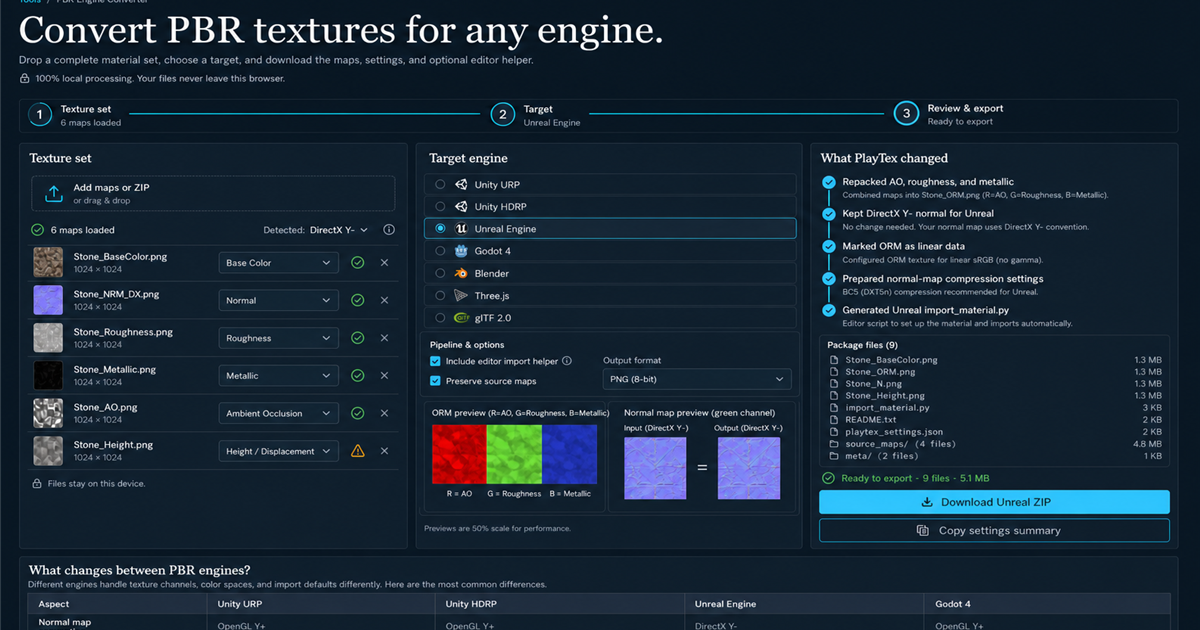
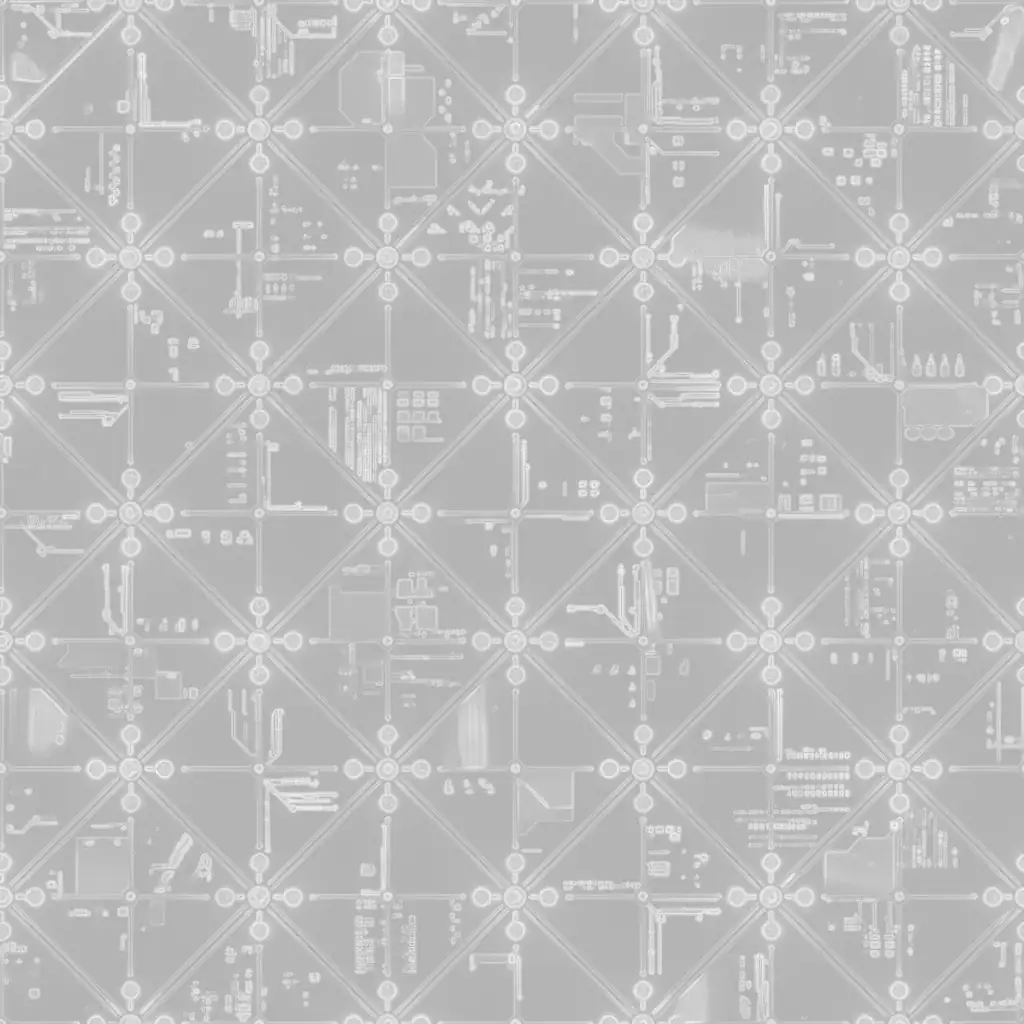
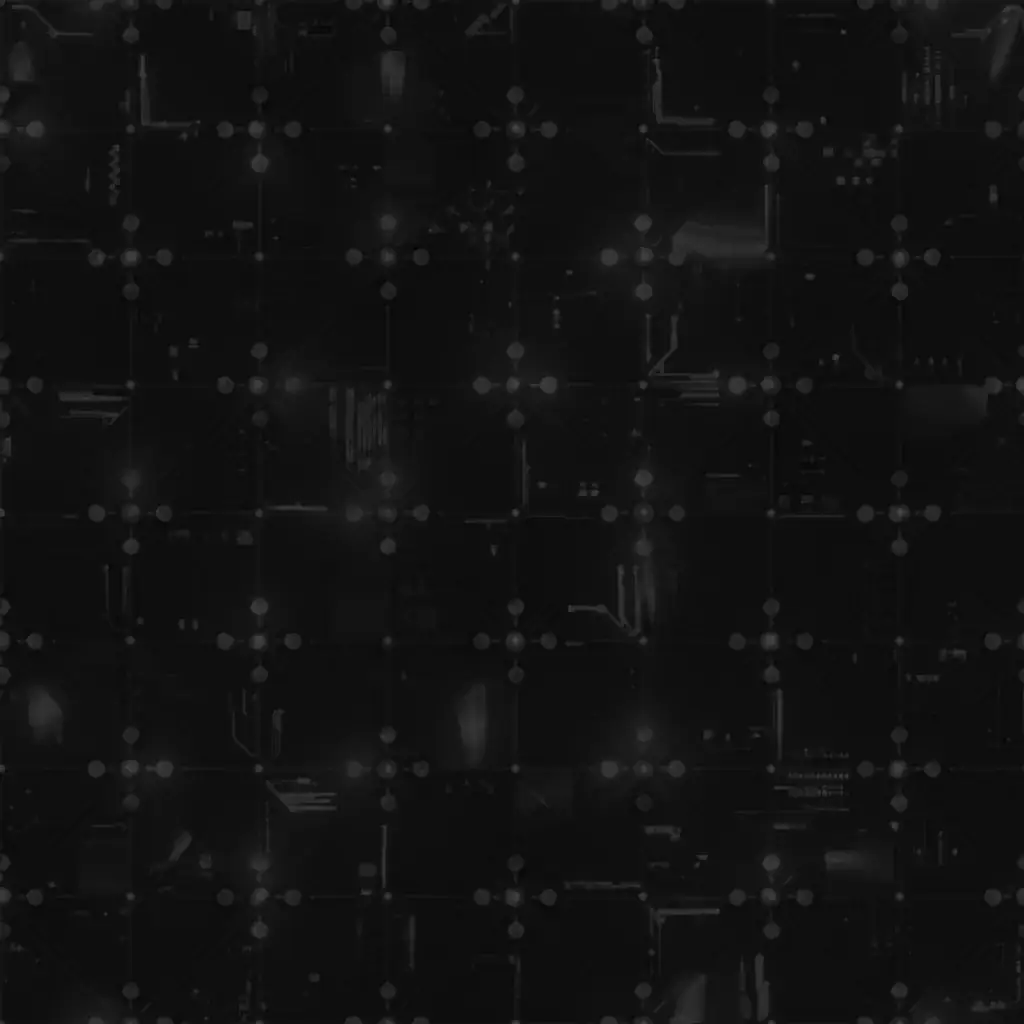
Sample and code/configuration
- Download the engine export profile (JSON) — Source convention plus Unity and Unreal derived-output rules.
- Download the Unity importer helper (C#) — Editor script that applies color-space and normal-map importer settings.
- Download the Unreal importer helper (PY) — Unreal Python helper for sRGB, normal compression, and packed-mask settings.
Cross-engine export profile excerpt
{
  "sourceNormal": "OpenGL-Y+",
  "unity": { "normalY": "project-dependent", "packed": "shader-dependent" },
  "unreal": { "normalY": "DirectX-Y-", "packed": "R=AO,G=roughness,B=metallic" },
  "dataMapsUseSRGB": false
}
How to know the result is correct
Compare the same neutral sphere in Unity and Unreal under equivalent white lighting. Check highlight width, normal direction, metal/dielectric boundaries, AO strength, and texture import flags—not just whether files loaded without errors.
Video transcript
0:00 The PBR map workflow begins with one source and one aligned material stack.
0:05 Choose image, procedural, or hybrid generation before engine conversion.
0:11 Review albedo, normal, roughness, metallic, AO, height, and emission together.
0:18 Tune material response and validate the surface under changing light.
0:24 Keep deterministic settings and the reviewed source stack as the master.
0:28 Export target-specific packages for Unity, Unreal, and the other supported renderers.