Unreal Engine environment workflow
HDRI Sphere Generator for Unreal Engine
Create and inspect the complete environment, then choose the Sky Light or HDRI Backdrop handoff your scene actually needs.
Direct answer: Generate a full 2:1 environment in PLAYTEX AI, inspect the seam, horizon, poles, exposure direction, and rear hemisphere in the 360-degree viewer, then select Unreal Engine and click Export to engine once for the environment pack. In Unreal, use the imported environment as a specified cubemap on Sky Light when lighting and reflections are the priority, or use HDRI Backdrop when you also need a visible background and ground projection. Validate cubemap import, intensity, rotation, projection center, recapture behavior, and scene exposure.
Reviewed:
Generate an Unreal environment

What this HDRI Sphere Generator page covers
The generated HDR is an AI-estimated creative environment, not a calibrated on-location capture. The engine ZIP does not install plugins, create .uasset files, or configure the level.
How to use HDRI Sphere Generator with Unreal Engine
Prompt for a complete lighting environment
Describe time, weather, horizon, surrounding ground, dominant light direction, contrast, and exclusions. Avoid camera framing language that only solves the forward view.
The panorama has an intentional job as a scene environment.
Inspect all directions before projection
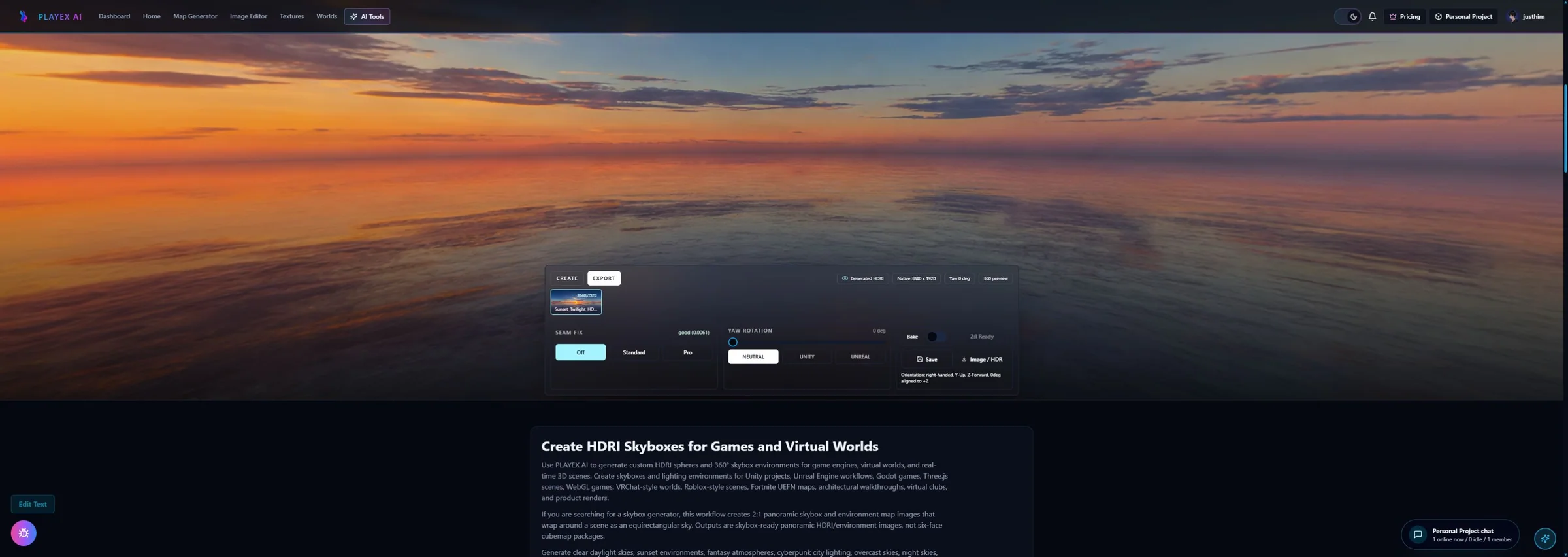
Rotate through the environment and check the wrap seam, poles, horizon, sun size, bright clipping, repeated structures, and whether the lighting direction matches the intended shot.
The Unreal import begins from a reviewed spherical source.
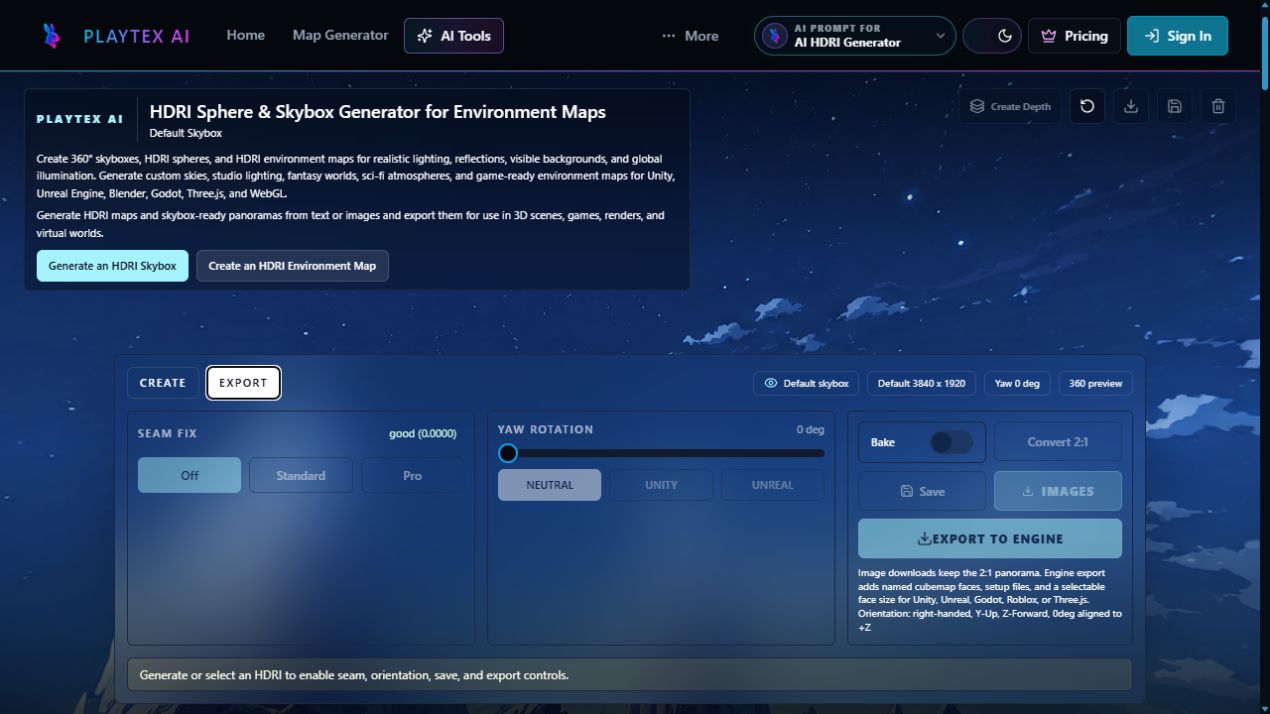
Select Unreal and export once
Choose Unreal Engine and the cubemap face size, then click Export to engine. Keep the original 2:1 panorama as the source of truth for later reprojection.
One package contains the reviewed panorama, projected faces, labels, and setup context.
Choose Sky Light or HDRI Backdrop
Use a specified cubemap on Sky Light for ambient illumination and reflections. Use HDRI Backdrop for a visible projected environment with integrated Skylight and ground-catching behavior. Test recapture and exposure.
The environment is attached through the Unreal system that matches the shot.
Unreal environment paths and validation
Sky Light and HDRI Backdrop overlap in environment work, but they are not the same setup.
| PLAYTEX AI output | Unreal Engine destination | Verify in engine |
|---|---|---|
| Imported cubemap or HDR | Sky Light → Source Type: Specified Cubemap | Cubemap angle, resolution, intensity, mobility, and recapture behavior. |
| HDR environment | HDRI Backdrop Cubemap slot | Backdrop size, projection center, intensity, and ground alignment. |
| Environment assets | Texture Asset Editor and project content | Compression, sRGB/HDR handling, max resolution, mips, and streaming are intentional. |
One click builds the Unreal-oriented environment pack
After selecting Unreal Engine and the face resolution, click Export to engine once.
What remains after the click
The ZIP does not enable HDRI Backdrop, import assets, create a Sky Light, set recapture mode, place the projection center, or tune exposure.
Included in this handoff
- Reviewed 2:1 panorama
- Six projected cubemap faces
- Unreal labels, manifest, and setup guidance
Virtual production concepts
Create an art-directed background and reflection context for look development and shot blocking.
Sky Light direction
Explore ambient color and reflection direction before committing to captured lighting.
HDRI Backdrop scenes
Build a visible environment around products, vehicles, characters, and presentation assets.
Pre-handoff QA
- The source panorama passes full 360-degree seam and pole review.
- Sky Light mobility and recapture behavior are understood.
- HDRI Backdrop size and projection center do not distort the horizon or ground.
- Exposure, reflections, texture import, and performance are tested in the final Unreal version.
HDRI Sphere Generator and Unreal Engine FAQ
Should I use Sky Light or HDRI Backdrop in Unreal Engine?
Use Sky Light with a specified cubemap when ambient illumination and reflections are the main need. Use HDRI Backdrop when you also want the environment visible around the subject with background projection and ground-catching behavior.
Why did my Unreal sky not update after I changed the cubemap?
Static or Stationary Sky Lights may need a recapture after the source changes unless the workflow uses real-time capture. Check mobility, source type, and capture settings for the project version.
Why does HDRI Backdrop look stretched near the ground?
Check the backdrop mesh, Size, and Projection Center. If the projected ground and camera position do not match the source environment, the horizon and nearby ground can distort.
Does the Unreal engine ZIP create .uasset files?
No. It packages the source panorama, projected faces, and setup context. Unreal still performs the import and creates project-native assets.
Can a generated HDRI provide physically accurate lighting?
It can provide useful creative direction, color, reflections, and approximate lighting, but PLAYTEX AI does not claim the generated values are a calibrated bracketed measurement of a real location.
Sky Light can use a specified cubemap
Epic documents source type, cubemap angle, resolution, mobility, recapture, and real-time capture behavior for Sky Light.
HDRI Backdrop combines background and lighting roles
Epic documents the cubemap, intensity, size, projection center, integrated Sky Light, reflections, and ground projection in the current HDRI Backdrop workflow.
Texture import settings remain project-side
Epic documents cubemap types, HDR handling, compression, sRGB, mips, and resolution controls in the Texture Asset Editor.