Core Material Workflow
How to Convert PBR Textures for Unity, Unreal, Godot, Blender, Three.js, and glTF
As of August 2026, PLAYTEX AI can identify a complete PBR texture set, convert roughness and smoothness, repack channels, switch tangent-space normal conventions, apply target-specific naming and color-space guidance, and package optional editor helpers for Unity URP, Unity HDRP, Unreal Engine, Godot 4, Blender, Three.js, and glTF 2.0.
Direct answer
How do you convert PBR textures between game engines?
Choose the destination profile before changing pixels. Channel packing, normal-map Y orientation, data color space, filenames, and importer behavior belong to the target renderer—not to a generic definition of “PBR.”
How PLAYTEX AI helps: PBR Engine Converter performs the browser-safe part locally: role detection, scalar inversion, channel extraction and packing, normal green-channel conversion, deterministic naming, validation, metadata, and ZIP creation. When the destination needs native material assets or importer state, the ZIP includes code designed to run inside that editor.
What you will get
- Choose the correct packed-channel layout and normal convention for each supported target.
- Separate browser pixel conversion from editor-side native material creation.
- Export a traceable package with target filenames, settings, source maps, and an optional import helper.
When an engine converter is the right tool
- Move a material library from Unreal Engine to Unity, Godot, Blender, or a web renderer.
- Turn separate AO, roughness, and metallic files into an Unreal or Godot ORM texture.
- Build Unity URP metallic-smoothness or HDRP Mask Map textures from a roughness workflow.
- Prepare correct color-space bindings and ready-to-paste code for Three.js MeshStandardMaterial.
- Create a glTF metallic-roughness texture with roughness in green and metallic in blue.
Acceptance test
Approve the asset only when these are true
- Every source image is assigned the correct semantic role and duplicate roles are resolved.
- The source normal convention is confirmed as OpenGL Y+ or DirectX Y- before conversion.
- Base color and emissive textures use color space; masks, roughness, metallic, AO, normal, and height use linear or Non-Color data handling.
- Packed-channel outputs are inspected against the destination profile instead of inferred from the filename alone.
- High-precision height or displacement masters remain in a 16-bit or floating-point desktop workflow.
- The native editor helper is reviewed in a test project before it changes production assets.
- The imported material is checked under moving light and compared with the source material intent.
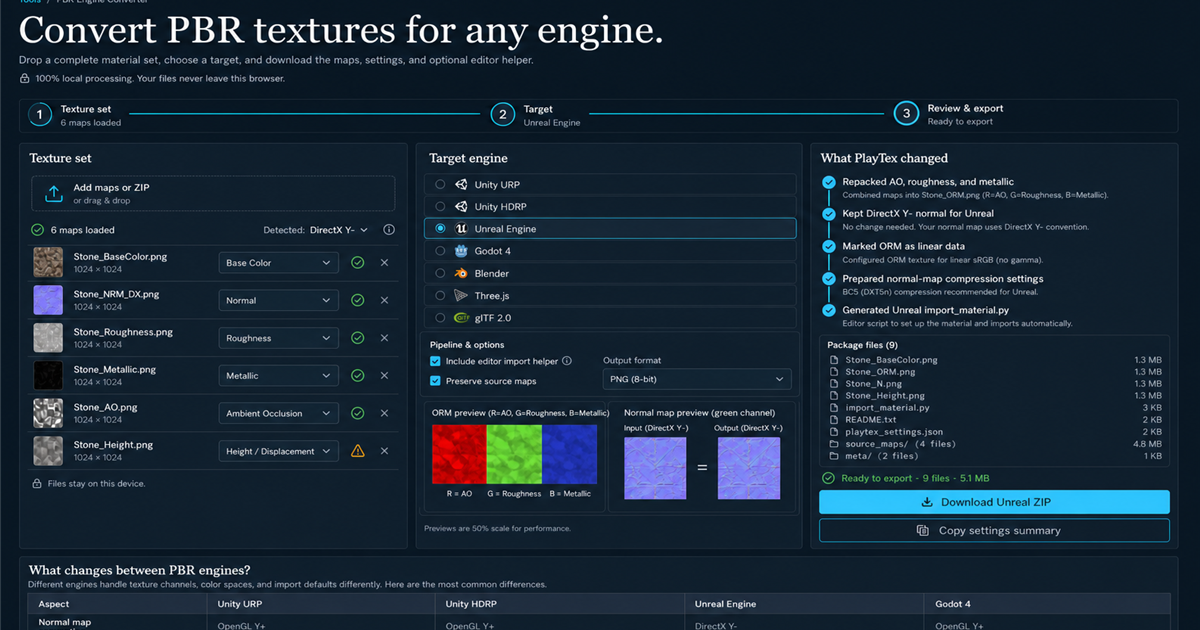
Why PBR texture conversion is more than renaming files
Physically based renderers share concepts such as base color, microsurface roughness, metallic response, occlusion, and tangent-space normals. They do not share one universal delivery layout. Unity pipelines read smoothness from alpha in common workflows, Unreal commonly combines AO, roughness, and metallic as ORM, HDRP assigns a four-channel Mask Map, and glTF gives exact meanings to the green and blue channels of metallicRoughnessTexture.
A file can import successfully and still shade incorrectly. The most common silent failures are a green normal channel with the wrong sign, a roughness image treated as smoothness, an sRGB transfer applied to scalar data, or a packed texture read in the wrong order. A converter has to make those semantic decisions explicit before it rearranges bytes.
How normal-map conversion works across the seven targets
The converter treats OpenGL Y+ and DirectX Y- as two encodings of the same tangent-space direction field. When source and target differ, each normal texel keeps red X, blue Z, and alpha while green becomes 255 minus green. Unity URP, Unity HDRP, Godot 4, Blender, Three.js, and glTF use the OpenGL-style profile in this workflow; Unreal uses the DirectX-style profile.
Filename hints such as NormalGL, NormalDX, NRM, or Normal are useful but not proof. Arbitrary normal pixels do not contain enough context to infer which side of a real surface should face positive tangent Y. This is why the converter blocks export until an uncertain source convention is confirmed.
How packed channels are resampled and given safe defaults
Separate maps and known packed formats are normalized into semantic scalar sources. If dimensions differ, source channels are sampled to the chosen output canvas so every target channel remains aligned. Roughness can come directly from a roughness map, from a known packed channel, or from an inverted smoothness or gloss map.
When a required packed channel is optional in the source, the package explanation records the neutral fallback instead of silently inventing detail. AO defaults to white, metallic defaults to black, HDRP detail mask defaults to black, and missing roughness uses a mid value only where a packed output must still be written. A real authored map remains preferable whenever that fallback changes the intended surface.
Why editor helpers are part of the ZIP
Browser code can create portable image, text, JSON, JavaScript, Python, C#, and GDScript files. It cannot directly create a Unity Material asset, mutate an Unreal Texture importer, add Blender shader nodes to an open scene, or save a Godot material resource because those APIs exist inside each editor.
The optional helper crosses that boundary without requiring a separate PLAYTEX AI desktop application. It runs inside the destination editor, locates the generated textures, applies normal and color-space settings, creates a material with the intended shader, and binds the files. Studios with their own import automation can omit the helper and use the settings manifest as a stable handoff contract.
Target profiles, source decisions, and package options
Source map classification
The converter needs semantic roles before it can safely read or repack channels.
- Detected role: Maps filename patterns such as BaseColor, Albedo, NRM, Roughness, Gloss, Metallic, AO, ORM, RMA, MRA, and MaskMap to a source role. Correct low-confidence, custom, or conflicting names. Never approve a packed file until its exact channel order is known.
- Source normal convention: Defines whether stored green represents OpenGL Y+ or DirectX Y-. The converter flips green only when the target uses the opposite convention. Use the source tool documentation, filename suffix, or a directional-light test. Purple appearance alone cannot prove the Y sign.
- Material name: Creates deterministic, engine-safe filenames and the native material name used by helper code. Set the final library or project name before export so generated assets do not need a second rename pass.
Channel conversion
Scalar maps are sampled in linear data space and written to the channels defined by the selected target.
- Roughness and smoothness: Converts with roughness = 1 - smoothness and smoothness = 1 - roughness. Use the semantic source role; do not infer the value direction from whether the image looks bright or dark.
- Packed AO, roughness, and metallic: Extracts source channels or separate grayscale maps and repacks them into Unity, ORM, or glTF layouts. Confirm the source packed-map order. RMA and MRA contain the same signals as ORM in different positions.
- Missing optional data: Uses documented neutral defaults where the target pack requires a channel that was not supplied. Review the explanation panel. Add a real map when white AO or detail mask, mid roughness, or black metallic does not represent the material.
Engine handoff
The browser prepares portable files; editor code completes native asset creation when requested.
- Include editor import helper: Adds C#, Python, GDScript, JavaScript, or glTF material configuration appropriate to the selected target. Enable it for a one-package handoff. Disable it when a studio already has a controlled importer or material-template pipeline.
- Preserve source maps: Copies original bytes into Sources/ so the export retains provenance and high-precision inputs. Keep it on for review, migrations, and 16-bit height inputs; turn it off only for a deliberately minimal delivery package.
- PNG 8-bit output: Writes lossless, deterministic browser-canvas outputs without pretending to perform target GPU compression. Apply BCn, ASTC, ETC, Basis, or KTX2 in the validated engine or offline build pipeline after visual QA.
Convert the material with target-owned rules
As of August 2026, PLAYTEX AI can identify a complete PBR texture set, convert roughness and smoothness, repack channels, switch tangent-space normal conventions, apply target-specific naming and color-space guidance, and package optional editor helpers for Unity URP, Unity HDRP, Unreal Engine, Godot 4, Blender, Three.js, and glTF 2.0.
Step 1: Add maps or a ZIP
Choose one complete material set. PLAYTEX AI expands supported images locally, reads dimensions and PNG bit depth, and assigns likely map roles from filenames.
Step 2: Confirm uncertain roles and the source normal convention
Review low-confidence filenames, resolve duplicate roles, and identify the normal map as OpenGL Y+ or DirectX Y-. The export stays blocked while a required decision is unresolved.
Step 3: Choose the target engine and pipeline
Select Unity URP, Unity HDRP, Unreal Engine, Godot 4, Blender, Three.js, or glTF 2.0. Each target owns its channel layout, normal convention, filenames, and import defaults.
Step 4: Review what PLAYTEX AI will change
Inspect the conversion explanation, packed-channel diagram, normal conversion, defaults for missing data, resolution resampling, output files, and browser precision warning.
Step 5: Download and run the optional editor helper
Download the ZIP. Browser conversion prepares pixels and metadata; the included helper runs inside the destination editor to create a native material and apply texture settings.
Compare the target layouts before you pack any channels.
| Target | Normal convention | Packed texture | Included helper |
|---|---|---|---|
| Unity URP | OpenGL Y+ | Metallic in RGB, smoothness in A | Unity Editor C# material importer |
| Unity HDRP | OpenGL Y+ | R metallic, G AO, B detail mask, A smoothness | Unity Editor C# material importer |
| Unreal Engine | DirectX Y- | R AO, G roughness, B metallic (ORM) | Unreal Editor Python material importer |
| Godot 4 | OpenGL Y+ | R AO, G roughness, B metallic (ORM) | Godot EditorScript for ORMMaterial3D |
| Blender | OpenGL Y+ | Separate Non-Color data maps | Blender Python Principled BSDF setup |
| Three.js | OpenGL Y+ | R AO, G roughness, B metallic (shared ORM) | MeshStandardMaterial ES module |
| glTF 2.0 | OpenGL Y+ | G roughness, B metallic; optional AO in R | Material-library .gltf file |
PBR conversion mistakes that survive a successful import
- Do not label every non-color-looking image as sRGB. Roughness, metallic, AO, masks, normals, and height are data textures.
- Do not copy a normal map between engines without confirming its tangent Y convention.
- Do not treat ORM, RMA, MRA, Unity Mask Map, and glTF metallic-roughness as interchangeable filenames for the same channel order.
- Do not use smoothness as roughness without inversion, or invert it twice when Unity expects smoothness in alpha.
- Do not assume a JSON file can create a native Unity, Unreal, Godot, or Blender material outside the editor.
- Do not destroy 16-bit or floating-point displacement masters by making an 8-bit Canvas export the new source of truth.
Can a browser create a native Unity, Unreal, Godot, or Blender material?
A browser can transform pixels, rename maps, write settings, and build the ZIP. Native material assets and importer settings must be created by code running inside the destination editor, so PLAYTEX AI includes an optional editor helper instead of pretending JSON configures the engine by itself.
Does Unity use DirectX or OpenGL normal maps?
Current Unity documentation states that Unity uses Y+ normal maps, commonly called OpenGL format. PLAYTEX AI therefore converts DirectX Y- normals to OpenGL Y+ for both Unity URP and Unity HDRP profiles.
What is the difference between ORM and glTF metallic-roughness?
ORM stores ambient occlusion in red, roughness in green, and metallic in blue. glTF reads roughness from green and metallic from blue; its occlusion texture reads red separately, so one ORM image can legally serve both bindings when they share UV coordinates.
Does the converter support glossiness or smoothness maps?
Yes. PLAYTEX AI converts glossiness or smoothness to roughness with roughness = 1 - smoothness, then uses the resulting values in the selected target layout. Unity targets invert roughness back to smoothness for their alpha channel.
Are 16-bit height maps preserved?
No. The browser Canvas export is an 8-bit PNG workflow. PLAYTEX AI detects 16-bit PNG input and warns before export; keep the original source in the ZIP and use a precision-preserving desktop pipeline when 16-bit or floating-point displacement is required.
Do uploaded texture files leave the device?
No. Supported images and ZIP entries are decoded, transformed, previewed, and packaged in the current browser tab. The converter does not upload texture bytes to a PLAYTEX AI service.
Primary sources
Official specifications and renderer documentation
PLAYTEX AI guidance is paired with official specifications and platform documentation where the handoff depends on an outside convention.
Open the live workflow that this guide is documenting.
PBR Map Generator: Create Normal, Roughness, AO, Height, Metallic, and Emission MapsTurn one viable image or source-guided hybrid setup into a coherent map stack, review every channel as part of one material system, and export for the renderer you actually use.
How to Rotate a Normal Map Correctly: PBR Texture-Set Rotator GuideRotate albedo, normal, roughness, metallic, AO, height, emissive, opacity, packed, and custom maps as one aligned PBR set while transforming tangent-space normal vectors and OpenGL or DirectX Y conventions correctly.
What Is a Normal Map? How It Works and When to Use OneUnderstand how tangent-space direction data changes lighting across a low-detail mesh, when normal maps are the right tool, and how to avoid strength and Y-axis mistakes during engine import.
Image to Three.js: Turn a Reference Image into Procedural 3D CodeConnect the coding agent you already use to a short-lived browser relay, watch a staged procedural Three.js reconstruction, and review the live preview, source, sculpt spec, and evidence together.