Core Material Workflow
How to Rotate a Normal Map Correctly: PBR Texture-Set Rotator Guide
Rotate albedo, normal, roughness, metallic, AO, height, emissive, opacity, packed, and custom maps as one aligned PBR set while transforming tangent-space normal vectors and OpenGL or DirectX Y conventions correctly.
Direct answer
Why can't you rotate a normal map like a color texture?
Treat a normal map as a direction field, not a color image. Every material map receives the same spatial rotation, but only tangent-space normal maps also receive the corresponding X/Y vector transform.
How PLAYTEX AI helps: PBR Texture-Set Rotator applies one spatial transform to every map, then performs the extra X/Y vector transform required by tangent-space normals. It also handles Y+ and Y- conventions, renormalization, naming, and synchronized ZIP export locally.
What you will get
- Understand why rotating normal-map pixels alone produces incorrect lighting.
- Apply one aligned transform to a complete PBR texture stack.
- Choose the correct normal convention and export a traceable ZIP package.
When a set rotator is the right tool
- A purchased or generated material faces the wrong direction on the target UV layout.
- A wall, floor, trim sheet, terrain tile, or decal set needs a 90-degree or custom reorientation.
- An OpenGL Y+ normal must become DirectX Y- during the same set transform.
- Multiple PBR channels need identical dimensions, framing, filenames, and rotation metadata.
Acceptance test
Approve the asset only when these are true
- Every file in the material uses the same clockwise angle and the same expand-or-crop framing choice.
- Normal files are assigned the Normal role before processing; object-space normals remain outside this tangent-space workflow.
- The input Y convention matches the source normal map and the output convention matches the destination renderer or importer.
- The before-and-after normal preview shows the same surface features and a physically rotated direction field.
- Output dimensions and alpha are reviewed before the ZIP becomes the canonical material set.
- 16-bit or floating-point height data stays in a precision-preserving editor instead of an 8-bit browser export.
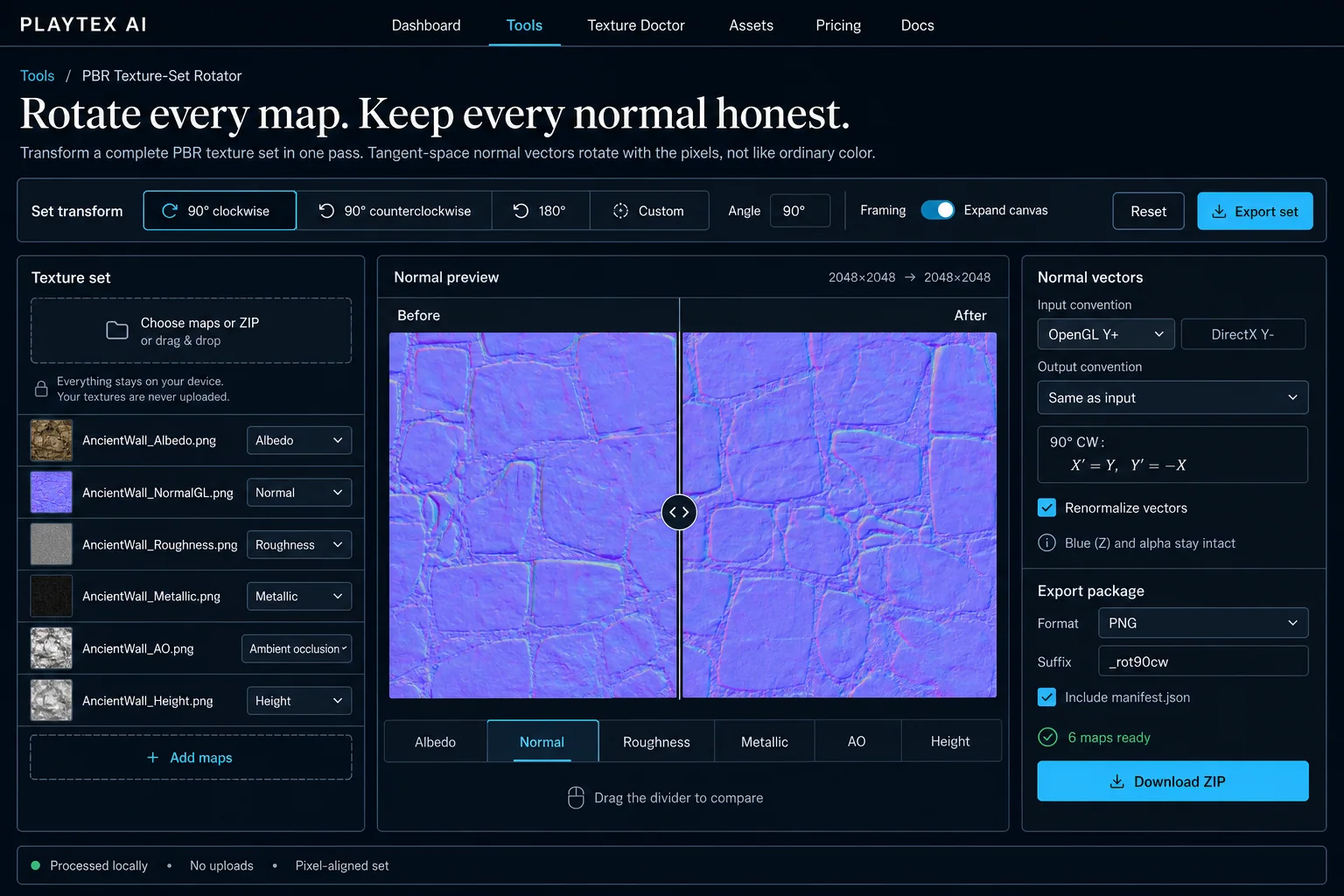
Why a normal map is not an ordinary color texture
A base-color image can be rotated by moving pixels because each pixel still means the same color after it changes location. A tangent-space normal map is different. Its red, green, and blue channels encode a local surface direction. Red represents the tangent X axis, green represents tangent Y, and blue represents the direction away from the surface. If the image rotates but those directions do not, the visual feature and the lighting field disagree.
That disagreement can be subtle under flat environment light and obvious under a moving key light. Mortar seams may brighten from the wrong side, brushed grain may respond as though it runs in the old direction, and dents can appear skewed. Correct rotation therefore has two parts: move every texel to its new location and rotate the decoded tangent vector by the same screen-space angle.
The browser tool performs that sequence only on files assigned the Normal role. Albedo, roughness, metallic, AO, height, emission, opacity, packed masks, specular, glossiness, and custom maps remain ordinary image data because their channels describe color or scalar values rather than a tangent-space direction.
The exact X and Y transform used by the rotator
PLAYTEX AI defines positive input angles as clockwise on the image canvas. After normalizing the input convention into a canonical Y-up tangent basis, the transformed components are X prime equals cosine theta times X plus sine theta times Y, and Y prime equals negative sine theta times X plus cosine theta times Y. Z is carried through the rotation, and alpha remains untouched.
For a 90-degree clockwise turn, the formula simplifies to X prime equals Y and Y prime equals negative X. For a 90-degree counterclockwise turn, X prime equals negative Y and Y prime equals X. A 180-degree turn negates both X and Y. These formulas are why a normal-safe rotator cannot be replaced by a generic image rotate command.
OpenGL and DirectX labels describe how tangent Y is encoded, not a different physical surface. The tool first decodes either convention into the same canonical basis. It then rotates the vector and finally encodes Y for the requested output. That order avoids mixing convention conversion with the actual spatial transform.
Keep every PBR channel spatially aligned
A material is a coordinated set of signals. Rotating only albedo and normal leaves roughness highlights, metallic regions, AO cavities, height relief, emissive masks, or opacity cutouts in the old location. The result may still load, but it no longer describes one surface. This is why the tool applies one angle and framing mode to the entire loaded set.
Packed maps deserve the same discipline. An ORM texture may store occlusion in red, roughness in green, and metallic in blue. Rotation must move the texel but must not swap those packed channels. Assigning the Packed ORM or RMA role makes that intent explicit while preserving the stored channel layout.
Output dimensions also belong to alignment. A 90-degree rotation swaps width and height for a non-square image. A custom angle can require a larger bounding rectangle. Expand Canvas keeps the complete result; fixed framing center-crops it. Whichever choice you make, apply it to the whole set and verify the reported dimensions before download.
Use the ZIP manifest as a material handoff record
A transformed material is easier to trust when the package explains itself. The generated manifest lists every input and output file, its assigned role, original and transformed dimensions, the signed clockwise angle, the input and output normal conventions, the vector formula, and whether renormalization was enabled. This is useful evidence during review and a practical hook for later automation.
The precision note matters as much as the transform record. Browser Canvas output is 8-bit per channel. That is common for base color, masks, packed maps, and tangent-space normals, but it is not a substitute for a 16-bit or floating-point height master when the material depends on fine displacement range. Use the rotator for delivery-grade 8-bit sets and keep higher-precision sources in a compatible desktop pipeline.
Finally, import the rotated package into the destination shader and move a directional light across it. A correct file transform is necessary, but engine import flags, normal conventions, compression, color-space settings, UV orientation, and shader bindings still determine the final result.
Rotation and normal-vector settings
Set transform
These controls define the spatial operation shared by every map in the material.
- 90° clockwise, 90° counterclockwise, and 180°: Uses exact cardinal rotations that exchange or reverse image axes and produce predictable output dimensions. Use a cardinal preset for UV islands, trim sheets, walls, floors, and tileable materials that only need a quarter-turn or half-turn.
- Custom angle: Rotates the set by a signed clockwise angle between -360 and 360 degrees and resamples the image data. Use it when the destination UV orientation is not axis-aligned. Inspect masks and normals closely because arbitrary-angle interpolation softens high-frequency data.
- Expand canvas: Calculates a new bounding rectangle large enough to contain the entire rotated source. Leave it on when content cannot be cropped. Turn it off only when the destination requires the original dimensions and a center crop is acceptable.
Tangent-space normal vectors
These controls affect files assigned the Normal role; all other map roles remain ordinary image data.
- Input convention: Decodes green as canonical Y-up for OpenGL Y+ or inverts it first for DirectX Y-. Red remains tangent X and blue remains tangent Z. Use the convention that describes the source file, not the renderer you hope to use later. Filenames such as NormalGL or NormalDX are hints, not proof.
- Output convention: Encodes the transformed canonical Y value back into the input convention or converts it to OpenGL Y+ or DirectX Y-. Choose Same as input for a pure rotation. Choose the opposite convention when the destination shader expects a green channel with the other sign.
- Renormalize vectors: Normalizes X, Y, and Z after spatial sampling so interpolated texels return to unit length. Alpha is preserved. Keep it on for custom angles and resized previews. Turn it off only when exact stored channel values matter more than correcting interpolation length.
Export package
These settings control the files handed to the next tool or engine.
- PNG or WebP: Exports every transformed canvas in one consistent 8-bit format. PNG is lossless; WebP can reduce package size with adjustable quality. Use PNG for masks, normals, and deterministic source control. Use WebP only when the destination accepts it and its compression tradeoff has been reviewed.
- Filename suffix: Appends a readable rotation marker such as _rot90cw while keeping the original base filename and map naming convention. Keep a suffix whenever the original and rotated sets may coexist. Remove it only when a controlled pipeline will replace the source files deliberately.
- manifest.json: Records input and output names, roles, dimensions, angle, normal conventions, formula, output format, and the browser precision note. Leave it enabled for team handoff, automation, QA, or any material library where provenance matters.
Rotate the material as one system
Rotate albedo, normal, roughness, metallic, AO, height, emissive, opacity, packed, and custom maps as one aligned PBR set while transforming tangent-space normal vectors and OpenGL or DirectX Y conventions correctly.
Step 1: Collect the complete texture set
Add the individual images or one ZIP. Include every map bound to the material, not only the base color and normal, because roughness, metallic, AO, height, emission, opacity, and packed channels must remain spatially aligned.
Step 2: Verify the detected roles
Filename detection recognizes common albedo, normal, roughness, metallic, AO, height, emissive, opacity, ORM or RMA, specular, glossiness, and custom labels. Correct any ambiguous role manually. Only files assigned Normal receive tangent-space vector math.
Step 3: Choose the shared rotation and framing
Use 90 degrees clockwise, 90 degrees counterclockwise, 180 degrees, or a custom clockwise angle. Expand Canvas preserves the complete rotated rectangle; turning it off keeps the original dimensions and center-crops content that extends outside them.
Step 4: Set the normal-map conventions
Choose OpenGL Y+ or DirectX Y- for the input, then keep that convention or convert it on output. Renormalization is useful after custom-angle interpolation; cardinal rotations do not change vector length by themselves.
Step 5: Preview every map and export the ZIP
Switch through the map tabs, compare source and result orientation, verify the output dimensions, then download the synchronized PNG or WebP set. Keep manifest.json when another artist or build step needs the exact angle, convention, and filename record.
Mistakes that break rotated PBR materials
- Do not rotate only the normal-map pixels; its red and green direction values must rotate too.
- Do not label an object-space or world-space normal as tangent-space Normal. Its basis depends on the object or world axes and needs a different transform.
- Do not mix crop and expand behavior across the set. Matching angles are not enough when output framing or dimensions differ.
- Do not assume every purple normal file is OpenGL Y+. Confirm the source convention or test it under directional light.
- Do not use an 8-bit browser export as the master copy of a 16-bit height or displacement map.
Why does a rotated normal map light incorrectly?
The texture features moved but the tangent-space X and Y directions stored in red and green did not. The renderer therefore shades the rotated groove or bump as though it still pointed in the original direction.
What channel changes for a 90 degree normal-map rotation?
After decoding the input Y convention, a 90-degree clockwise transform uses X prime equals Y and Y prime equals negative X. A 90-degree counterclockwise transform uses X prime equals negative Y and Y prime equals X.
Is flipping the green channel the same as rotating a normal map?
No. Flipping green converts the tangent Y convention between Y+ and Y-. Rotation mixes or negates both X and Y according to the chosen angle. The tool can perform both operations in one canonical calculation.
Should I renormalize a normal map after rotation?
A mathematically exact cardinal rotation preserves vector length, but image interpolation at custom angles can shorten decoded vectors. Renormalization restores unit length after that sampling step.
Can I rotate ORM, RMA, or other packed maps?
Yes. Packed channel data is spatially rotated without color interpretation, so AO, roughness, metallic, or other masks remain in their original channels and stay aligned with the rest of the set.
Are my texture files uploaded?
No. Browser decoding, canvas transforms, vector processing, previews, and ZIP creation happen locally on the device.
Primary sources
Official specifications and renderer documentation
PLAYTEX AI guidance is paired with official specifications and platform documentation where the handoff depends on an outside convention.
Open the live workflow that this guide is documenting.
PBR Map Generator: Create Normal, Roughness, AO, Height, Metallic, and Emission MapsTurn one viable image or source-guided hybrid setup into a coherent map stack, review every channel as part of one material system, and export for the renderer you actually use.
What Is a Normal Map? How It Works and When to Use OneUnderstand how tangent-space direction data changes lighting across a low-detail mesh, when normal maps are the right tool, and how to avoid strength and Y-axis mistakes during engine import.
Image to Texture: Convert a Photo into a Seamless TextureExtract a usable surface from a photo, scan, artwork crop, or generated reference; correct the source problems first; then tune seamless reconstruction while protecting the material character.