Texture Cleanup
Straight Alpha vs Premultiplied Alpha: Fix Black and White Outlines
Use the Alpha Mode Inspector to compare straight and premultiplied blend equations, reproduce dark or bright fringes, inspect partially transparent RGBA pixels, and export a corrected straight-alpha PNG.
Direct answer
What is the difference between straight and premultiplied alpha?
Diagnose the handoff before editing the artwork: a black fringe usually means premultiplied RGB was multiplied by alpha again, while a bright or white fringe usually means straight RGB skipped its alpha multiplication or still contains a matte color.
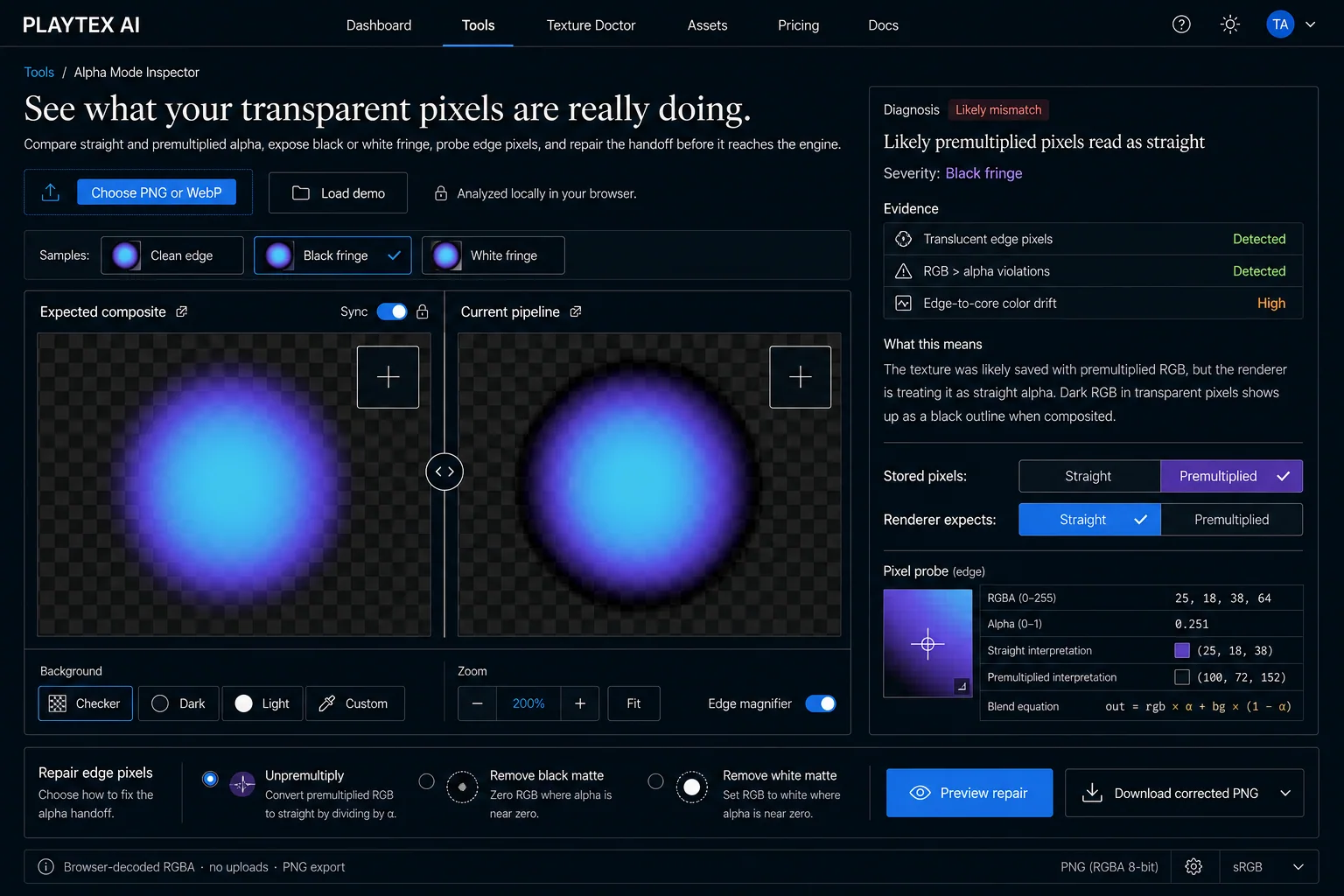
How PLAYTEX AI helps: Alpha Mode Inspector renders the same stored RGBA through both blend equations, probes an edge pixel, reports evidence and ambiguity, and previews a focused repair. The comparison makes a pipeline mismatch visible before you alter the source artwork.
What you will get
- Tell a double-alpha multiplication from a missing-alpha multiplication by its edge behavior.
- Use RGBA constraints and blend equations without treating an ambiguous image as mathematically proven.
- Choose an unpremultiply or matte-removal repair and export a straight-alpha PNG.
When should you inspect the alpha mode?
- Sprites, decals, foliage cards, particles, VFX sheets, icons, and UI cutouts with dark or bright outlines.
- Texture handoffs that change appearance between a paint app, browser canvas, game engine, video tool, or custom shader.
- Renderer migrations where a texture is correct in one blend state and visibly wrong in another.
- PNG exports that were flattened against black or white before transparency was restored.
Acceptance test
Approve the asset only when these are true
- The image contains partially transparent edge pixels; fully opaque or hard-cut alpha cannot demonstrate the same fringe math.
- The stored-pixel assumption names whether RGB is independent from alpha or already multiplied by it.
- The renderer expectation uses the matching source factor for that representation.
- The edge is checked over both a light and a dark background at enlarged zoom.
- At least one edge pixel is reviewed numerically instead of approving the preview by eye alone.
- A repaired PNG is re-imported with straight-alpha handling because PNG stores non-premultiplied color samples.
What is straight alpha?
Straight alpha, also called unassociated or non-premultiplied alpha, stores red, green, and blue independently from opacity. A partially transparent cyan pixel can keep its full cyan RGB while alpha describes how much of that source covers the destination. Source-over compositing multiplies the source color by alpha, then adds the background contribution multiplied by one minus alpha.
PNG uses this representation. The W3C PNG specification states that PNG color values are not premultiplied by their alpha samples. That is why a corrected PNG export should contain straight color even if a renderer later converts it to a premultiplied working buffer. File storage and runtime blending are separate stages.
What is premultiplied alpha?
Premultiplied alpha, also called associated alpha, stores RGB after multiplication by alpha. If straight RGB is 100, 72, 152 and alpha is 0.25, the premultiplied byte values are approximately 25, 18, 38. Source-over blending then adds those stored values directly and scales only the background by one minus alpha.
Premultiplication is useful in render buffers and filtering because RGB and coverage travel together. It is not inherently better or worse than straight alpha. The failure begins when the consumer applies the equation for the other representation.
Why does a black outline appear?
A dark outline appears when premultiplied RGB is interpreted as straight alpha. The RGB was already scaled down by alpha during export or an earlier render pass, then the straight blend multiplies it by alpha again. At 25 percent alpha, that double multiplication reduces the source contribution to one sixteenth of the original color instead of one quarter.
The outline follows the antialiased silhouette because only partial-alpha pixels receive the extra darkening. Opaque pixels still look correct, and fully transparent pixels are invisible, so the error can seem like a mysterious one-pixel border even though it is a blend-equation mismatch.
Why does a white or bright outline appear?
A bright outline appears when straight RGB is interpreted as if it were already premultiplied. The premultiplied blend adds full source RGB without the missing alpha multiplication. Low-alpha edge pixels therefore contribute far too much color over a dark background.
A white matte can produce a similar result even with the nominally correct blend mode. If an image was antialiased or flattened against white, the edge RGB contains part of that old white background. Removing the matte solves a different equation from merely switching the renderer state, which is why the inspector exposes both diagnosis and repair controls.
What can pixel values prove?
For valid 8-bit premultiplied color, no RGB channel can exceed alpha because each original color channel was between zero and 255 before multiplication. A translucent pixel with alpha 64 and red 180 therefore cannot be premultiplied data. This makes RGB-greater-than-alpha a useful disqualifying test.
The inverse is not true. A dark straight-alpha pixel with alpha 180 and RGB 40, 60, 90 also satisfies the constraint. The inspector combines violations, edge-to-core drift, unpremultiplication improvement, the selected pipeline context, and a live composite, but it labels genuinely ambiguous evidence instead of claiming certainty that the bytes cannot support.
How should a corrected image leave the browser?
The repair preview changes partial-alpha RGB according to the selected unpremultiply or matte-removal equation while preserving alpha. The PNG export is straight alpha because that matches the PNG specification. If a game engine prefers premultiplied alpha internally, let the import or runtime stage perform that conversion once and use the matching blend state.
The inspector works on browser-decoded RGBA. Browsers may normalize color or lose hidden RGB where alpha is exactly zero, so the tool focuses its visible repair on partially transparent transition pixels. For forensic preservation of fully transparent RGB, use a byte-level PNG pipeline such as the companion Alpha Bleed Fixer export path.
Alpha storage, renderer, evidence, and repair controls
Stored pixels and renderer expectation
These two controls define the handoff. Matching them produces one alpha multiplication; mismatching them reproduces the outline.
- Stored pixels: Straight: Treats RGB as the original color, independent from alpha coverage. Use it for ordinary PNG RGBA and any source whose edge RGB remains full color as alpha falls.
- Stored pixels: Premultiplied: Treats RGB as color that has already been multiplied by alpha. Use it for an associated-alpha buffer or a source whose edge RGB scales down with alpha.
- Renderer expects: Straight: Uses source RGB multiplied by source alpha, then adds the remaining background. Use it when the destination blend state applies source alpha to RGB.
- Renderer expects: Premultiplied: Adds stored RGB directly, then scales only the background by one minus source alpha. Use it when the incoming buffer is already premultiplied and the blend state uses a one source factor.
Pixel evidence
The inspector reports constraints and comparisons, not a false certainty score for every dark image.
- Translucent edge pixels: Counts pixels whose alpha is greater than zero and less than 255. Use the count to confirm that the image contains the antialiased transition where alpha-mode fringes appear.
- RGB greater than alpha: Finds 8-bit pixels where at least one RGB channel exceeds alpha beyond a rounding tolerance. Any such value is incompatible with valid premultiplied 8-bit RGB, but the absence of a violation does not prove premultiplication.
- Edge-to-core color drift: Compares partially transparent stored RGB with the average color in high-alpha pixels. Use it with the preview and probe to spot edge RGB that collapses toward black or moves toward a matte color.
- Premultiplied compatibility: Reports the share of partial-alpha pixels that satisfy the RGB less-than-or-equal-to-alpha constraint. Treat it as compatibility evidence only. Dark straight-alpha art can pass the same constraint.
Background, zoom, and pixel probe
A contrasting background exposes the outline while the probe shows the exact source of that visual change.
- Checker, dark, light, and custom background: Composites the same RGBA over a controlled destination color. Use light for dark fringes, dark for white or bright fringes, and the real scene color for final confirmation.
- Zoom and edge magnifier: Enlarges a linked region of both previews with nearest-neighbor pixel visibility. Inspect a diagonal or curved edge where several partial-alpha levels are visible.
- Pixel probe: Shows stored RGBA, normalized alpha, unpremultiplied RGB, and both composite results. Use it whenever the final image looks wrong but the storage-versus-renderer mismatch is not obvious by eye.
Repair modes
Every repair changes RGB in partially transparent pixels while preserving the alpha channel.
- Unpremultiply: Divides partial-alpha RGB by alpha and clamps the result to the 8-bit range. Use it when the source contains premultiplied RGB but the next file or renderer expects straight alpha.
- Remove black matte: Solves the foreground color from pixels previously composited against black. Use it when dark edge RGB follows a known black matte rather than an intentional dark outline.
- Remove white matte: Subtracts the remaining white-background contribution, then divides by alpha. Use it when partial-alpha pixels retain a pale or white fringe from an earlier flattening step.
How to diagnose an alpha-mode outline
Use the Alpha Mode Inspector to compare straight and premultiplied blend equations, reproduce dark or bright fringes, inspect partially transparent RGBA pixels, and export a corrected straight-alpha PNG.
Step 1: Load the transparent image
Choose a PNG or WebP with antialiased transparency, or open a controlled demo that contains a clean edge, black fringe, or white fringe.
Step 2: Compare the same pixels over contrasting backgrounds
Use checker, dark, light, and custom backgrounds. A dark outline is easiest to see over light colors; a white or bright halo is easiest to see over dark colors.
Step 3: Match storage with the blend equation
Set whether RGB is straight or already multiplied by alpha, then set what the renderer expects. A mismatch reproduces the double-multiply or missing-multiply failure.
Step 4: Probe a partially transparent edge pixel
Inspect stored RGBA, normalized alpha, unpremultiplied RGB, and the output of both blend equations instead of judging only the final preview.
Step 5: Preview and export the repair
Unpremultiply RGB or remove a known black or white matte from partial-alpha pixels, compare the repaired edge, and download a straight-alpha PNG for the next tool.
Compare the methods
| Visible problem | Stored pixels | Renderer expects | Cause | Repair |
|---|---|---|---|---|
| Black or dark outline | Premultiplied RGB | Straight-alpha blend | RGB is multiplied by alpha twice. | Unpremultiply RGB or use premultiplied blending. |
| White or bright outline | Straight RGB | Premultiplied-alpha blend | Full RGB is added without the missing alpha multiplication. | Use straight blending or premultiply at the expected stage. |
| Matte-colored fringe | RGB contaminated by a black or white matte | Either blend mode | Edge RGB already includes the old background color. | Remove the known matte from partial-alpha pixels. |
Common alpha-mode diagnosis mistakes
- Do not call every transparent-edge artifact alpha bleed. A blend-mode mismatch and hidden-RGB padding are different problems.
- Do not assume RGB less than or equal to alpha proves premultiplication. Dark straight-alpha pixels can satisfy the same constraint.
- Do not judge only on checkerboard; test solid light and dark backgrounds where the fringe has maximum contrast.
- Do not premultiply a PNG file and label that byte pattern as a new PNG alpha mode. The PNG format stores non-premultiplied color samples.
- Do not repair fully transparent RGB as if it can always be recovered after browser decoding. Zero-alpha color may already be discarded.
- Do not change alpha while removing a matte unless the silhouette itself is known to be wrong.
- Do not fix the file and leave a mismatched engine blend state in place. The representation and the renderer must still agree.
What is the difference between straight alpha and premultiplied alpha?
Straight alpha stores the original RGB separately from coverage, so the blend multiplies RGB by alpha. Premultiplied alpha stores RGB after that multiplication, so the blend adds stored RGB directly and only scales the background by one minus alpha.
Why does premultiplied alpha create a black outline?
A black outline appears when RGB that was already multiplied by alpha is treated as straight and multiplied a second time. Partially transparent edge pixels become too dark before they reach the background.
Why does a transparent PNG have a white halo?
A white or bright halo can appear when straight RGB is treated as premultiplied and added without its alpha multiplication, or when antialiased pixels were exported against a white matte before transparency was restored.
Can the inspector prove the alpha mode from pixel values alone?
Not in every image. Any premultiplied 8-bit pixel must have each RGB channel less than or equal to alpha, so values above alpha disprove premultiplication. Dark straight-alpha art can also satisfy that constraint, which makes some files genuinely ambiguous without pipeline context.
Does the uploaded image leave my browser?
No. The image is decoded, analyzed, composited, repaired, and exported locally in the browser. The inspector does not upload the source image.
What does the corrected PNG export change?
The export changes RGB in partially transparent pixels using the selected repair while keeping the alpha channel. Fully transparent RGB may not be recoverable after browser decoding, so the repair is intentionally focused on visible transition pixels.
Primary sources
Official specifications and renderer documentation
PLAYTEX AI guidance is paired with official specifications and platform documentation where the handoff depends on an outside convention.
Open the live workflow that this guide is documenting.
How to Fix Alpha Bleed on Transparent PNG TexturesAs of August 2026, Alpha Bleed Fixer fills hidden RGB around visible texture edges, preserves every alpha byte, previews filtering on light or dark backgrounds, and exports a corrected PNG in the browser.
Image Editor for Textures: Clean, Mask, Make Seamless, and ExportCorrect framing, masks, tone, and local defects in a deliberate order so the next PLAYTEX AI tool receives clean source information instead of having to compensate for preventable problems.
How to Extract Textures from a GLB File: Embedded Images and Material ManifestDrop a binary glTF file into the GLB Texture Extractor, inspect its material bindings, and download the original embedded images with a JSON manifest that records where every texture belongs.
PBR Map Generator: Create Normal, Roughness, AO, Height, Metallic, and Emission MapsTurn one viable image or source-guided hybrid setup into a coherent map stack, review every channel as part of one material system, and export for the renderer you actually use.