3D Workflows
How to Extract Textures from a GLB File: Embedded Images and Material Manifest
Drop a binary glTF file into the GLB Texture Extractor, inspect its material bindings, and download the original embedded images with a JSON manifest that records where every texture belongs.
Direct answer
How do you extract textures from a GLB file?
Use this workflow when the texture bytes are inside one .glb file. If the scene points to separate image URIs, collect those external files or re-export the model with embedded resources before expecting a complete texture package.
How PLAYTEX AI helps: GLB Texture Extractor parses the binary container locally, preserves each embedded image byte-for-byte, traces texture and image indexes back to material slots, and packages the files with a readable materials.json manifest. External image URIs must still be collected separately.
What you will get
- Recover every image payload physically embedded in a GLB without recompressing it.
- Understand which material and PBR slot references each extracted file.
- Hand off a predictable ZIP and JSON manifest instead of a folder of unidentified images.
When a GLB texture extractor is the right tool
- You received a GLB and need its original texture files for Blender, Unity, Unreal Engine, Godot, or Three.js.
- You need to audit a purchased or generated 3D asset before it enters a project.
- A material looks wrong and you need to confirm texture indexes, UV sets, alpha mode, or metallic-roughness bindings.
- You want to reuse one embedded image without manually rebuilding the GLB container.
Acceptance test
Approve the asset only when these are true
- The dropped file is a glTF 2.0 binary GLB rather than a text .gltf with separate resources.
- The extraction report distinguishes embedded images from external image references.
- Every expected base color, normal, metallic-roughness, occlusion, and emissive binding is visible on the correct material.
- KTX2, WebP, AVIF, or DDS payloads are kept in their original format when the browser cannot display a thumbnail.
- The downloaded ZIP contains the original texture files and materials.json.
- Texture color space and engine-specific channel conventions are verified again in the destination renderer.
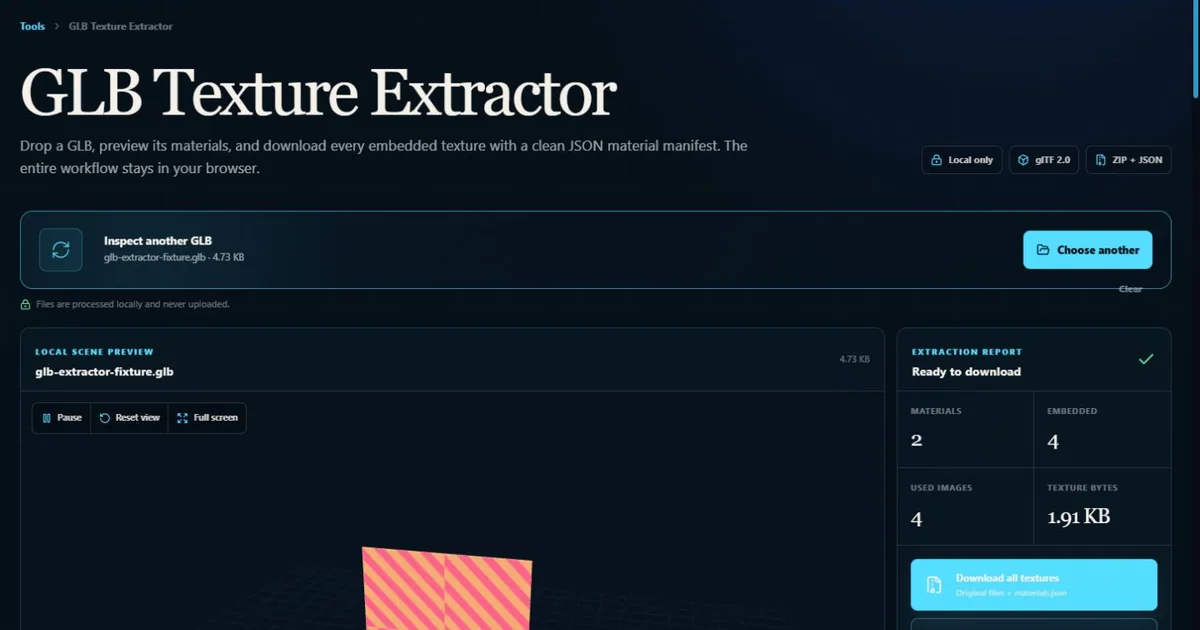
What is inside a GLB file?
A GLB is the binary form of glTF 2.0. Instead of shipping a readable .gltf document beside separate geometry buffers and texture images, a GLB can place the scene description and binary payloads into one container. That makes the asset easier to transfer, upload, cache, or attach to a project, but it also hides the familiar image files from ordinary folder view.
The container begins with a header, then normally includes a JSON chunk and a binary chunk. The JSON describes scenes, nodes, meshes, accessors, materials, textures, images, samplers, and extensions. The binary chunk stores byte ranges referenced through buffer views. An embedded image is often one of those ranges, with a declared MIME type such as image/png, image/jpeg, image/webp, or image/ktx2.
A reliable GLB image extractor therefore needs to do more than search the binary file for PNG signatures. It must read the glTF document, resolve image buffer views and data URIs, preserve exact byte boundaries, and trace material slots through texture indexes to image sources. That structured route is what keeps filenames and bindings useful after export.
Why the material manifest matters after extraction
A folder of images is only half of a material handoff. One image may be base color, another may be a tangent-space normal map, and a third may pack roughness and metallic into separate channels. Two materials can reuse the same image, one material can reference a second UV set, and extension-based materials can add clearcoat, sheen, transmission, thickness, iridescence, anisotropy, or compressed source variants.
The generated materials.json keeps that context beside the files. It records the material name and index, base color factor, metallic and roughness factors, emissive factor, alpha mode, double-sided state, texture slot path, texture index, image index, extracted filename, and texCoord value. It also records unassigned embedded images and external image URIs so missing bindings are visible instead of silently discarded.
That manifest is intentionally simple. It is not a replacement glTF and it does not promise to rebuild an engine material automatically. Its job is to answer the practical questions that appear during handoff: which file is this, where was it used, which UV set did it expect, and which settings should be checked in the target renderer?
Embedded textures versus external image references
The word binary can create a misleading expectation that every resource must be inside the GLB. In practice, an image entry can point to a buffer view, a data URI, or another URI. Buffer-view and data-URI images are self-contained and can be extracted from the dropped file. A relative or remote URI is only a reference; the image bytes live somewhere else.
When the extraction report lists external images, the safest fix is to return to the source scene or conversion pipeline and export a self-contained GLB. If that is not possible, collect the referenced images with their original path relationship. The extractor includes those URIs in materials.json, but it does not guess network locations or fetch files that were not provided.
This distinction also explains why a model may render on the site where it was published but appear incomplete after the GLB is copied elsewhere. The original viewer may still have access to neighboring files or remote URLs. A portable asset should be tested after moving it to a clean location where only the intended package is available.
How to validate extracted GLB textures in a renderer
Start with base color and alpha, then check normal, metallic-roughness, occlusion, and emissive bindings. Color textures and data textures should not be treated identically. Base color and emissive images usually represent color, while normal, metallic-roughness, and occlusion images carry numeric material data. Let the destination renderer apply the correct color-space handling for each role.
For metallic-roughness, remember that glTF uses green for roughness and blue for metallic. Occlusion commonly reads the red channel and can reference its own UV set. A normal texture may include a scale value, while occlusion may include strength. Material extensions can introduce additional factors and texture slots that need corresponding shader support.
Finally, rotate the model and the light. A correct texture export can still produce an incorrect material if the shader uses the wrong channel packing, UV set, alpha mode, tangent basis, or extension fallback. The extraction tool gives you the source evidence; the destination preview proves the hookup.
How to read the GLB extraction report
Source and package status
Start with the counts. They tell you whether one dropped file can produce a complete texture handoff.
- Embedded textures: Counts image payloads stored in GLB buffer views or data URIs and available for direct download. If the count is lower than expected, check the external image list or re-export the source scene with resources embedded.
- External images: Lists image URIs referenced by the glTF document but not physically stored in the dropped GLB. Collect the referenced files beside the original .gltf workflow or create a new self-contained GLB export.
- Texture bytes: Totals the compressed image payload bytes stored in the file, not the decoded GPU memory after upload. Use Texture Budget Analyzer after extraction when the next question is runtime VRAM rather than package contents.
Material bindings
A glTF texture index points to an image source, while a material slot explains how the renderer expects to use it.
- Base color: Supplies visible surface color and may also carry alpha for masked or blended materials. Treat it as color data and confirm that the destination renderer reads it in the appropriate color space.
- Metallic + roughness: Uses a packed image where glTF reads roughness from green and metallic from blue. Do not split, invert, or rename channels until you know the destination shader packing convention.
- Normal: Changes surface lighting direction without changing the mesh silhouette. Confirm tangent data and normal-map orientation when the destination material looks dented or inside out.
- Occlusion: Darkens contact and cavity regions and can use a selected UV set. Check the reported texCoord value because some renderers require a second UV channel for occlusion.
- Emissive: Adds self-lit color that can be scaled by the material emissive factor or an emissive-strength extension. Review both the extracted image and material factor before assuming the image alone defines final brightness.
File formats and variants
The extractor preserves original bytes so compressed and fallback texture sources remain auditable.
- PNG and JPEG: Download as ordinary browser-previewable image files without conversion. Use PNG when alpha or lossless data matters; keep JPEG only when the original GLB already stored JPEG.
- WebP and AVIF: Remain in their modern compressed image containers and may be paired with a fallback image source. Keep both encoded variants until destination support is known.
- KTX2 and DDS: Remain GPU-oriented texture containers even when the browser cannot show a flat thumbnail. Use a renderer or texture utility that understands the container; do not rename the extension to PNG.
- UV set: The texCoord value records which set of mesh texture coordinates a material slot expects. Preserve UV 0 versus UV 1 assignments during a manual material rebuild.
How to extract embedded textures from a GLB
Drop a binary glTF file into the GLB Texture Extractor, inspect its material bindings, and download the original embedded images with a JSON manifest that records where every texture belongs.
Step 1: Open the GLB Texture Extractor
Open the local browser tool before moving the asset into an editor. The extractor does not request an account and does not upload the model.
Step 2: Drop one binary GLB file
Drop the .glb or choose it from the device. The tool validates the GLB header, reads the glTF JSON chunk, and locates the binary buffer that can contain geometry and image payloads.
Step 3: Confirm the scene and extraction report
Orbit the local model preview, then compare the material count, embedded image count, referenced image count, and total texture bytes. A failed geometry preview does not prevent independent texture extraction.
Step 4: Inspect each material binding
Select every material and read its base color factor, metallic and roughness factors, alpha mode, double-sided state, texture slots, image indexes, and UV set. This is the step that turns anonymous image files into a useful material package.
Step 5: Download the ZIP or individual images
Download a single texture when you know the file you need. Choose Download all textures for a ZIP containing the original embedded files under textures/ plus materials.json at the package root.
Step 6: Validate the material in its destination
Import the files into the target renderer and verify color space, normal orientation, packed metallic-roughness channels, occlusion UVs, transparency, and extension support. The manifest describes the GLB; the destination shader still owns the final hookup.
Common GLB texture extraction mistakes
- Assuming every image referenced by a GLB is embedded. A GLB can still contain URI references that require separate files.
- Recompressing extracted images before checking whether packed channels or alpha carry non-color data.
- Treating a metallic-roughness texture as a normal RGB color image instead of a packed data texture.
- Renaming KTX2 or DDS files to PNG instead of using a compatible decoder or conversion workflow.
- Ignoring texCoord values and rebuilding every material against the first UV set.
- Judging the package only from a beauty render instead of comparing every material slot and manifest entry.
How do I extract textures from a GLB file?
Open the GLB Texture Extractor, drop the .glb, inspect the material report, then download individual images or a ZIP containing every embedded texture plus materials.json.
Are GLB textures always embedded?
No. A GLB usually packages resources into one binary container, but its glTF JSON can still reference external image URIs. The extractor lists those references separately because their bytes are not in the dropped file.
Does extracting a GLB texture reduce its quality?
No. The extractor downloads the original embedded byte range without resizing or recompressing it. Any later conversion can change quality, color, channels, or alpha.
Why can I download a KTX2 texture but not preview it as an image?
KTX2 is a texture container intended for GPU-friendly delivery and may require transcoding. Browser image elements do not universally render it, so the extractor preserves the file and labels the preview as unavailable.
What is the difference between a glTF texture index and image index?
A material points to a texture object. That texture object selects an image source and can also select a sampler or extension-based image variant. The manifest records both indexes so the chain remains visible.
Can I use the extracted textures in Blender or a game engine?
Yes, when you have the right to reuse the asset. Import the images, follow the material slots in materials.json, then verify color space, packed channels, UV sets, transparency, and extension support in the destination.
Primary sources
Official specifications and renderer documentation
PLAYTEX AI guidance is paired with official specifications and platform documentation where the handoff depends on an outside convention.
Open the live workflow that this guide is documenting.
Image to Three.js: Turn a Reference Image into Procedural 3D CodeConnect the coding agent you already use to a short-lived browser relay, watch a staged procedural Three.js reconstruction, and review the live preview, source, sculpt spec, and evidence together.
PBR Map Generator: Create Normal, Roughness, AO, Height, Metallic, and Emission MapsTurn one viable image or source-guided hybrid setup into a coherent map stack, review every channel as part of one material system, and export for the renderer you actually use.
How to Make Game Textures with PLAYTEX AI: Complete WorkflowStart with the asset you actually have, move through only the tools that solve its current problem, and finish with a repeatable material or lighting handoff.