Video workflow · 30 seconds
Image to seven PBR maps: the complete workflow
Watch one source image become aligned albedo, normal, roughness, metallic, AO, height, and emission maps, then download the sample and exact generation manifest.
Reviewed by the PLAYTEX AI Editorial Team · Updated
Direct answer
What should you do?
Start with a clean, tileable source; choose image, procedural, or hybrid mode; generate all seven channels from the same source state; tune material response rather than each image in isolation; then validate the aligned stack in a lit preview before engine export.
Video chapters
-
0:00 — The source-to-material goal
See the complete PBR stack as the intended result, not seven unrelated files.
-
0:05 — Choose the source mode
Select image, procedural, or hybrid input according to the source you actually have.
-
0:11 — Generate seven aligned channels
Build albedo, normal, roughness, metallic, AO, height, and emission from one shared state.
-
0:17 — Tune material response
Adjust relief, gloss, metal response, occlusion, and glow while watching the shaded result.
-
0:23 — Keep the output repeatable
Preserve the settings that produced the reviewed map stack.
-
0:27 — Export for the renderer
Package the approved maps for the destination engine.
Step-by-step implementation
- Prepare the source. Remove accidental lighting, correct perspective, and confirm the image can repeat before generating maps.
- Generate one aligned stack. Create all requested channels from the same source dimensions and material classification.
- Tune in dependency order. Set structure and normal strength first, then roughness, metal response, occlusion, height, and emission.
- Validate and export. Rotate the light, inspect channel files, save the manifest, and package only maps used by the target material.
Key decisions
- Every channel must share the same crop, seam, scale, and orientation.
- Albedo is color; lighting response belongs in normal, roughness, metallic, AO, height, and emission.
- Review the maps as a material under moving light before approving the ZIP.
Key frames and map details
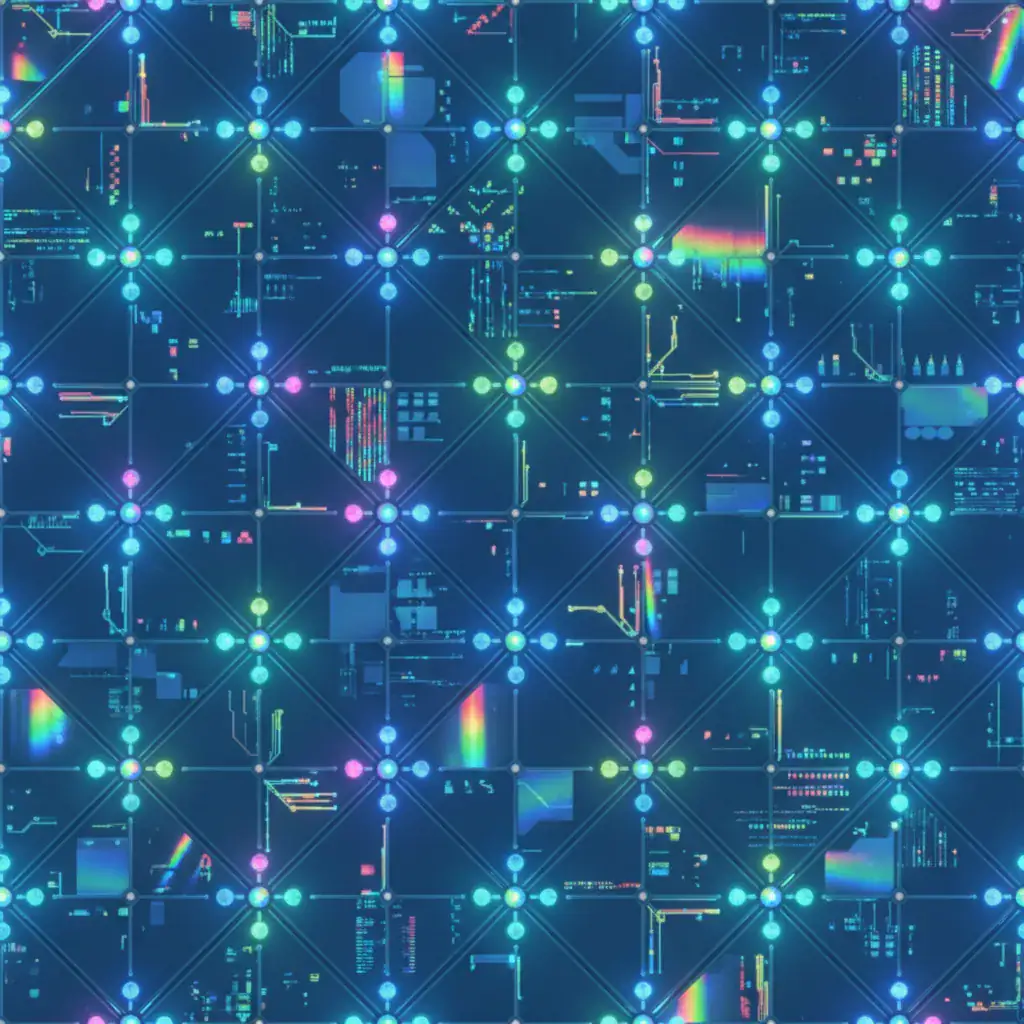
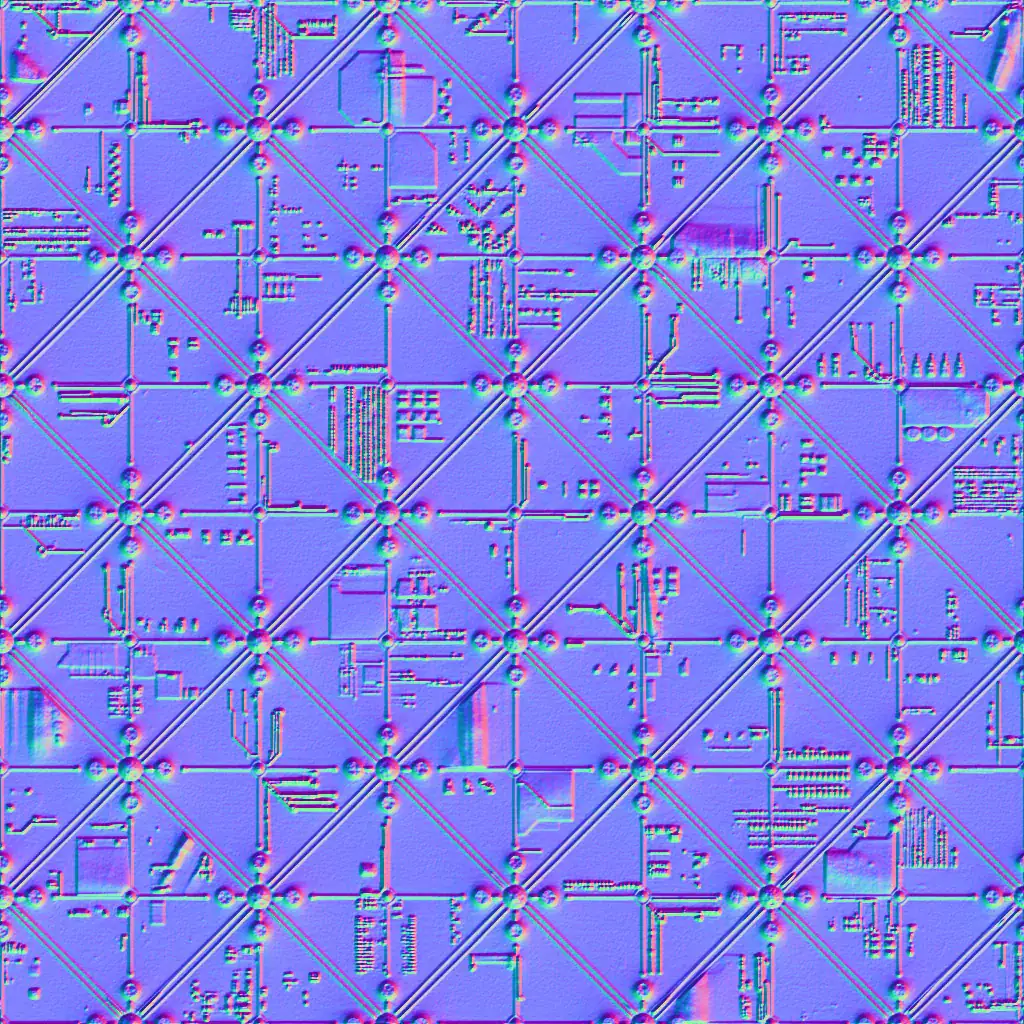
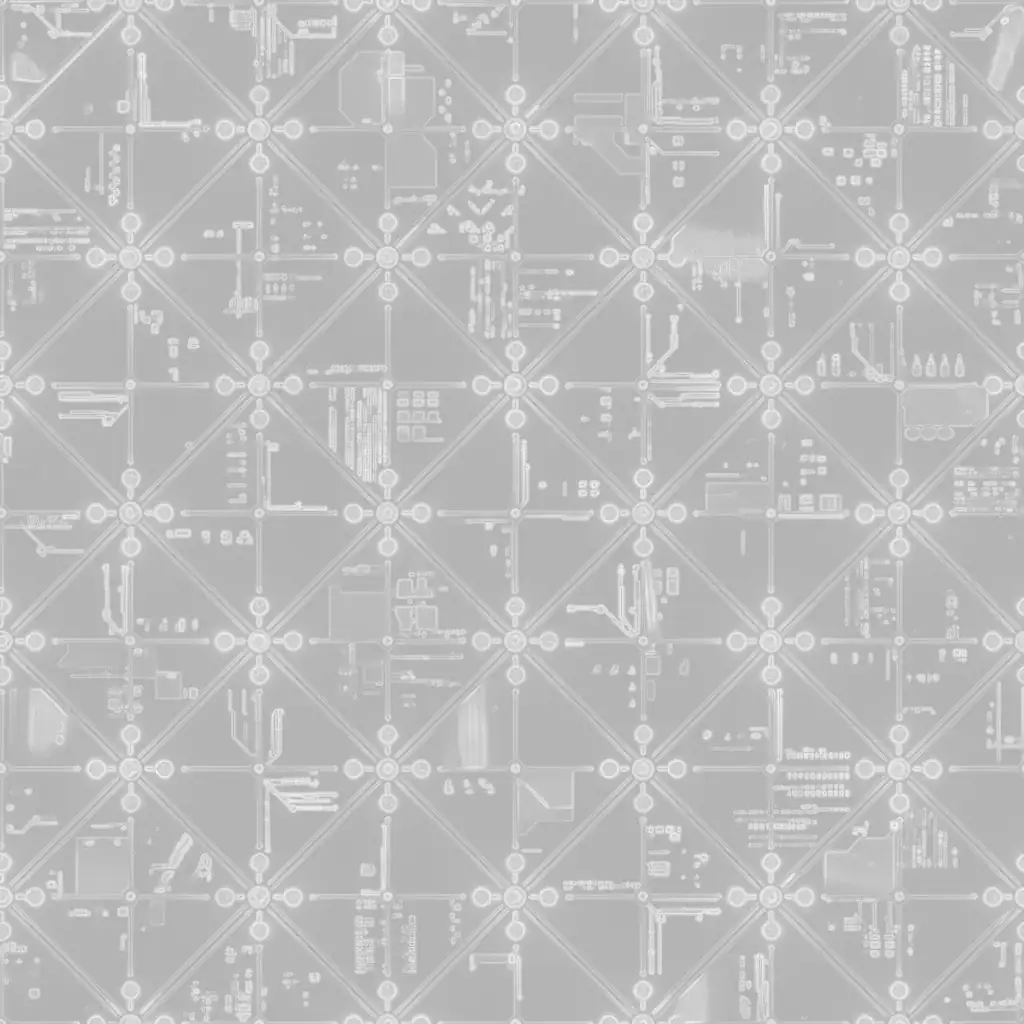
Sample and code/configuration
- Download the source albedo sample (WEBP) — 1024 × 1024 WebP source used by the companion stack.
- Download the seven-map manifest (JSON) — Map roles, color spaces, dimensions, and normal convention in a portable JSON manifest.
Seven-map manifest excerpt
{
  "material": "playtex-sample",
  "normalConvention": "OpenGL-Y+",
  "maps": {
    "albedo": { "colorSpace": "sRGB" },
    "normal": { "colorSpace": "linear" },
    "roughness": { "colorSpace": "linear" },
    "metallic": { "colorSpace": "linear" },
    "ao": { "colorSpace": "linear" },
    "height": { "colorSpace": "linear" },
    "emission": { "colorSpace": "sRGB" }
  }
}
How to know the result is correct
Apply the stack to a neutral sphere and plane, rotate a white key light, inspect the tile boundary, and confirm no channel shifts relative to albedo. The material should remain believable under both broad and grazing light.
Video transcript
0:00 PLAYTEX AI PBR Map Generator: turn one source into a complete material stack.
0:05 Source mode: image, procedural, or hybrid. Start with the texture you have or controlled material rules.
0:11 Seven channels unfold: albedo, normal, roughness, metallic, ambient occlusion, height, and emission.
0:17 Tune the physics: strength, relief, gloss, metal response, occlusion, and glow.
0:23 Deterministic output keeps the same settings tied to the same reviewed stack.
0:27 Export the material maps for Blender, Unity, Unreal, Godot, Three.js, or glTF.