Unity skybox and environment workflow
HDRI Sphere Generator for Unity Skyboxes
Review the entire environment first, then choose a panorama workflow or export the Unity-oriented cubemap pack.
Direct answer: Create a 2:1 equirectangular environment in PLAYTEX AI, inspect its seam, horizon, poles, and lighting direction in the 360-degree viewer, then either download the panorama or select Unity and click Export to engine once. In Unity, use a Skybox/Panoramic material for a 2:1 image or import a supported layout as a Cubemap for Skybox/Cubemap. Assign the skybox material through Lighting Environment settings and validate exposure, rotation, reflections, and mobile memory.
Reviewed:
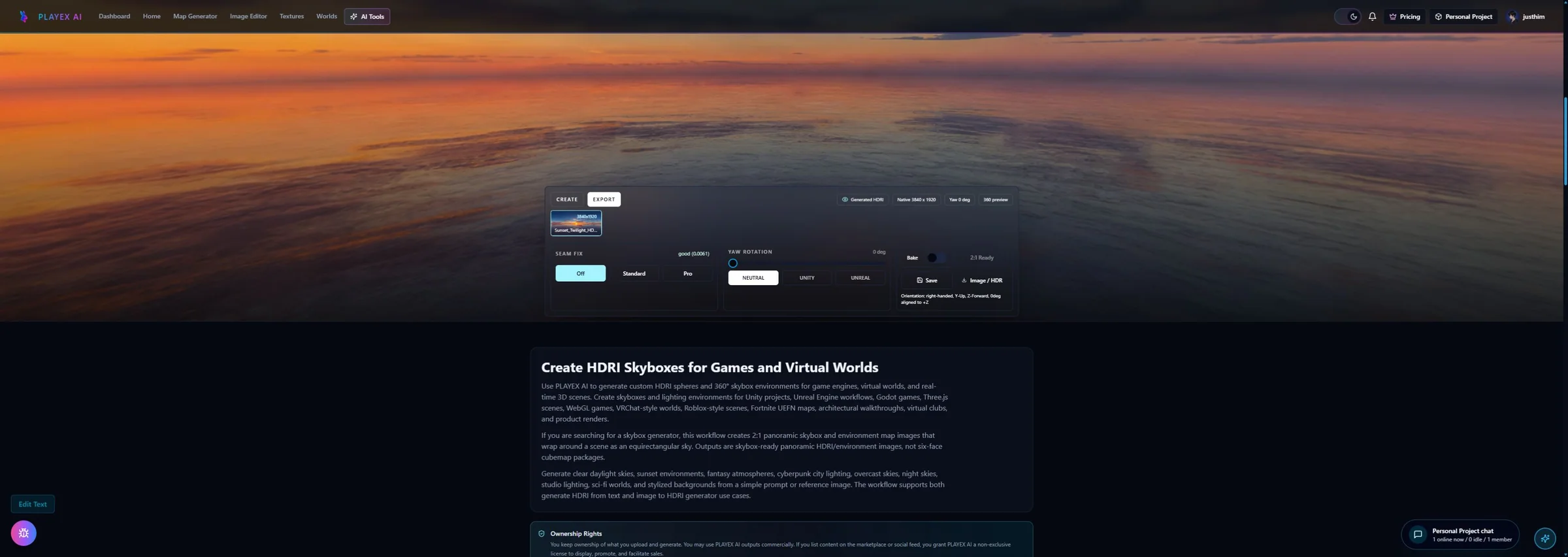
What this HDRI Sphere Generator page covers
PLAYTEX AI environment generation creates a creative sky and reflection source. Its HDR values are AI-estimated, not a calibrated bracketed capture, and the export does not modify the Unity project.
How to use HDRI Sphere Generator with Unity
Describe the scene around the camera
Specify time, weather, horizon, cloud structure, ground context, dominant light, and exclusions. A skybox prompt must cover all directions, not just a cinematic front view.
The generated asset contains an intentional full environment.
Rotate through the 360-degree proof
Inspect the left-right seam, horizon height, zenith, nadir, sun position, and repeated objects. Test the neutral starting rotation before export.
Visible projection failures are caught outside Unity.
Choose panorama or Unity engine pack
Download the 2:1 image or HDR for panoramic workflows, or select Unity and a face size before clicking Export to engine once for six projected faces and setup files.
The handoff matches the Unity skybox path the project will use.
Assign and validate in Unity
Create Skybox/Panoramic or Skybox/Cubemap material as appropriate, assign it in Lighting Environment settings, and test rotation, exposure, reflection probes, color space, compression, and build target.
The environment works as both a visible sky and a scene-lighting input where intended.
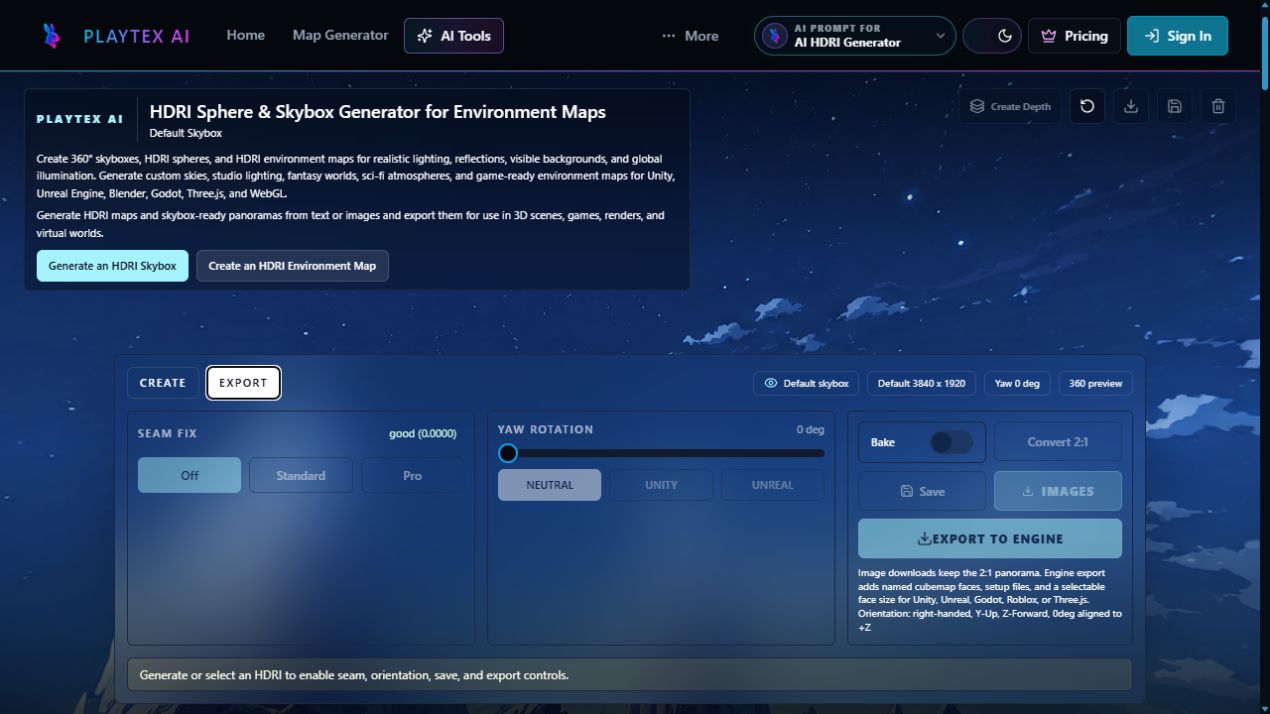
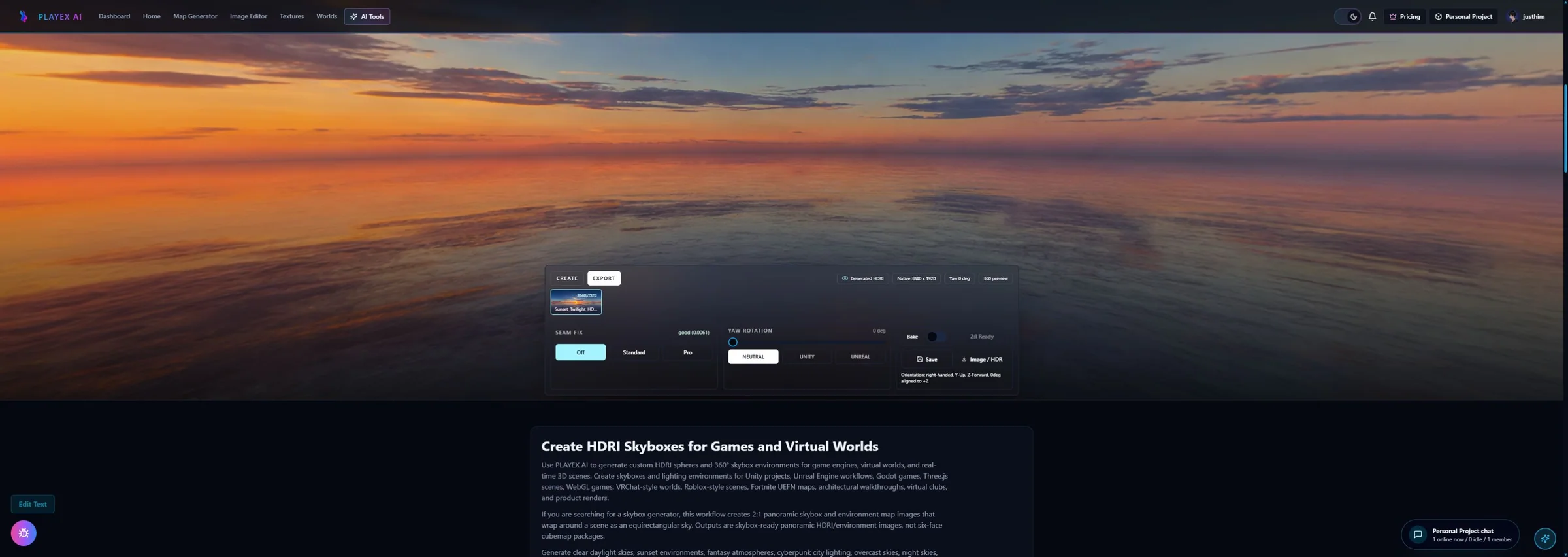
Unity skybox paths and what to verify
Do not treat panorama and cubemap imports as interchangeable without checking shape, shader, and project settings.
| PLAYTEX AI output | Unity destination | Verify in engine |
|---|---|---|
| 2:1 panorama | Skybox/Panoramic material | Mapping is Latitude Longitude, rotation and exposure are intentional. |
| Unity cubemap pack | Cubemap asset → Skybox/Cubemap material | Face orientation is correct and no edge seam appears. |
| Skybox material | Window → Rendering → Lighting → Environment | Scene lighting, reflections, ambient mode, and runtime camera behavior match expectations. |
One click builds the Unity-oriented environment pack
Select Unity and the cubemap face size, then click Export to engine once.
What remains after the click
The ZIP contains environment assets and setup context; it does not create a Unity Material, assign Lighting settings, bake reflection probes, or choose platform compression.
Included in this handoff
- Reviewed 2:1 color panorama
- Six projected cubemap faces
- Target labels, manifest, and Unity setup guidance
Game skyboxes
Create a bespoke world background for levels, menus, prototypes, and stylized scenes.
Reflection context
Provide surrounding color and direction for reflective surfaces, then validate with Unity probes.
Lighting concepts
Explore time-of-day and atmosphere quickly before replacing with a captured or authored production environment.
Pre-handoff QA
- The panorama is complete 2:1 coverage and passes seam review.
- Cubemap face orientation is tested after Unity import.
- Skybox material is assigned through the intended Lighting profile or scene workflow.
- Exposure, reflections, compression, and memory are checked on the target platform.
HDRI Sphere Generator and Unity FAQ
Should I use a panoramic or cubemap skybox in Unity?
Use the format that matches the project and shader. A 2:1 equirectangular image fits Skybox/Panoramic; a Cubemap asset fits Skybox/Cubemap. Compare quality, memory, import behavior, and runtime needs.
Why is my Unity skybox rotated or upside down?
Verify the panorama mapping or cubemap face orientation first, then use the skybox material rotation control when available. Do not repair a target-side orientation issue by randomly flipping source faces.
Why is there a seam in the Unity cubemap?
Inspect the original panorama seam, confirm every face came from the same projection and size, and check Unity import filtering and edge behavior. Mixing manually cropped faces is a common cause.
Does the Unity engine ZIP install the skybox?
No. It downloads the panorama, projected faces, and setup context. You still import assets, create the skybox material, assign it in Lighting settings, and validate probes and builds.
Can a Unity skybox light the scene?
It can contribute to environment lighting and reflections depending on the Lighting settings and render pipeline. Treat the generated HDR values as creative estimates and tune or replace them when calibrated illumination is required.
Unity supports cubemap import from several layouts
Unity documents Texture Shape Cube and supported cubemap source layouts, including latitude-longitude panoramas.
Panoramic skyboxes use a dedicated material workflow
Unity documents Skybox/Panoramic projection and assignment through Lighting Environment settings.
Texture import settings still control the asset
Shape, color, filtering, resolution, compression, and platform overrides remain Unity-side decisions.