Unity base-texture workflow
AI Texture Generator for Unity Materials
Generate the color source first; let Unity control import, tiling, compression, and the final shader.
Direct answer: Use PLAYTEX AI Texture Lab when a Unity material needs a new visual source rather than a conversion of an existing photo. Generate and compare tileable results, inspect scale on 3D preview meshes, choose the export resolution, and click Download PNG once. Import the PNG as a Default 2D texture, keep sRGB enabled for a color Base Map, use Repeat wrapping for tiled surfaces, and assign it to the URP Lit, HDRP Lit, or project shader. Technical PBR maps are a separate workflow.
Reviewed:
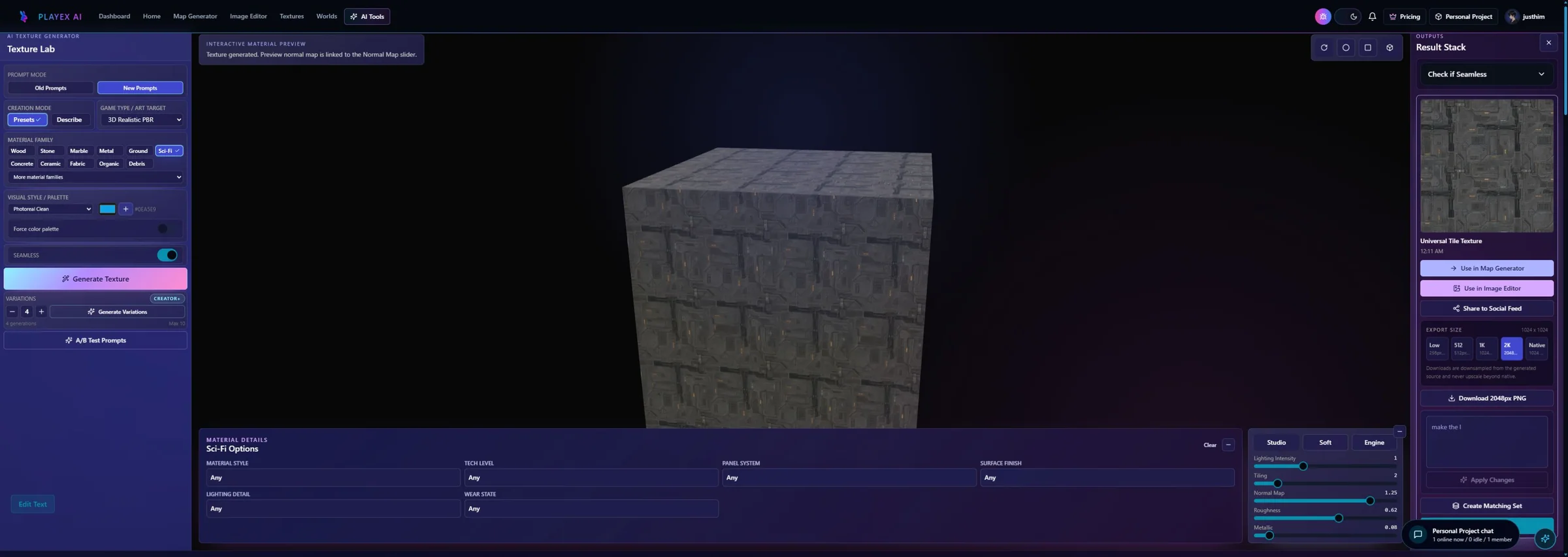
What this AI Texture Generator page covers
The downloaded PNG is a base-color source. It is not a Unity Material asset, URP packed map, HDRP Mask Map, normal map, or skybox.
How to use AI Texture Generator with Unity
Write a material-only prompt
Describe the surface type, pattern, scale, condition, and color. Exclude perspective scenes, floating objects, letters, and strong directional light that Unity would later relight.
The generated result behaves like a reusable texture source.
Review variations at expected world scale
Use the plane to inspect repeat rhythm and a 3D preview to expose stretched features. Estimate the Unity meters-per-tile target before selecting a result.
The approved variant has an intentional scale instead of arbitrary repetition.
Choose resolution and download once
Select the PNG export size based on the asset’s screen coverage and platform budget, then click Download PNG. Keep a master outside the Unity Library folder.
A clean source is ready for Unity import and platform-specific compression.
Import as color and apply to the material
Use the Default texture type, leave sRGB on for Base Map color, choose Repeat for tiled use, and set Material tiling rather than baking a larger repeated bitmap.
URP or HDRP can sample the texture efficiently at the project’s intended scale.
Unity import decisions for the generated color PNG
A color texture and a technical data texture need different importer settings. This page covers the color source only.
| PLAYTEX AI output | Unity destination | Verify in engine |
|---|---|---|
| Generated color PNG | Texture Type: Default; Material Base Map or Base Color | sRGB on, alpha behavior intentional, no baked directional light. |
| Tiled surface behavior | Wrap Mode: Repeat; Material tiling X/Y | Tile count matches world scale and no seam is visible. |
| Platform copy | Unity platform override and compression settings | Resolution and format fit the target device budget. |
The one click is a PNG download—not a Unity package
Choose the output size and click Download PNG once after the result passes review.
What remains after the click
Unity still handles Assets import, texture type, sRGB, wrapping, compression, material assignment, and platform overrides.
Included in this handoff
- Approved AI-generated color source
- Chosen PNG resolution
- Input for Unity Base Map or later PBR mapping
Rapid material ideation
Explore environment surfaces before a photo shoot, scan, or procedural graph is justified.
Stylized worlds
Generate coherent visual families for props, terrain, buildings, and set dressing.
Prototype production
Create a replaceable source quickly while keeping the Unity material hookup realistic.
Pre-handoff QA
- The prompt describes a surface rather than a scene.
- Repeat rhythm is checked at the Unity world scale.
- sRGB remains enabled for the color Base Map.
- Resolution and compression are tested on the actual target platform.
AI Texture Generator and Unity FAQ
Does PLAYTEX AI create a Unity Material when I download?
No. Download PNG saves the source texture. Import it into Assets and assign it to the shader used by your URP, HDRP, or custom material.
Why does my Unity texture show a seam?
Confirm the generated result was reviewed as a tile, the importer Wrap Mode is Repeat, the material uses suitable UVs, and filtering or compression has not exposed edge mismatch.
Should a generated Base Map use sRGB?
Yes for ordinary display color. Disable sRGB on technical data textures such as packed masks, not on the generated color source described here.
Can this PNG be used as a Unity skybox?
Not if it is a square tile. A skybox needs full panoramic coverage or a cubemap. Use the dedicated Unity HDRI Sphere page and its environment export path.
Unity’s default texture type covers ordinary color textures
The Unity importer exposes type, shape, sRGB, alpha, and platform settings for 2D texture assets.
Repeat wrapping tiles the texture
Unity defines Repeat as tiling the texture beyond the zero-to-one coordinate range.
URP Lit provides Base Map, Normal, Metallic, and Smoothness roles
The shader separates surface color from technical material response, which is why this generated PNG is only the Base Map source.