Engine Workflow
Emission Map Generator for Roblox: Create and Apply Emissive Masks
Author a controlled grayscale emission mask in PLAYTEX AI, assign it to Roblox SurfaceAppearance or MaterialVariant correctly, then tune strength, tint, exposure, and bloom in the scene where the asset will ship.
Direct answer
How do Roblox emission maps work?
Treat emission as a mask first: black means no emissive contribution and white means full contribution. Keep scene-level brightness decisions in Roblox Studio so the same texture remains reusable.
How PLAYTEX AI helps: PLAYTEX AI turns a texture into a controlled grayscale emission mask and lets you inspect that channel separately. Roblox Studio remains responsible for final strength, tint, bloom, exposure, and whether the glow fits the shipped scene.
What you will get
- Generate a clean emission output in PLAYTEX AI without washing out the whole material.
- Map PLAYTEX AI output names to Roblox Studio properties accurately.
- Choose SurfaceAppearance for mesh-specific materials and MaterialVariant for reusable Roblox materials.
Best Roblox Use Cases
- Neon signs, sci-fi panels, screens, decals, and powered props that need controlled glow.
- Tileable world materials where bright mask regions should appear self-lit in Roblox.
- MeshPart assets that already use albedo, normal, roughness, and metalness maps.
- Reusable materials that should share one Roblox MaterialVariant across many parts or terrain details.
Acceptance test
Approve the asset only when these are true
- Only the intended self-lit regions are bright in the exported emission mask.
- The mask is assigned to EmissiveMaskContent rather than ColorMap.
- SurfaceAppearance is used for mesh-specific UV work; MaterialVariant is used when the material must be reused.
- EmissiveStrength and EmissiveTint are tuned without clipping the surface to white.
- Exposure and Bloom are reviewed separately because an emissive mask does not automatically light the scene.
- The result is checked at intended camera distance on representative devices and graphics-quality levels, with supporting lights added only when nearby geometry must be illuminated.
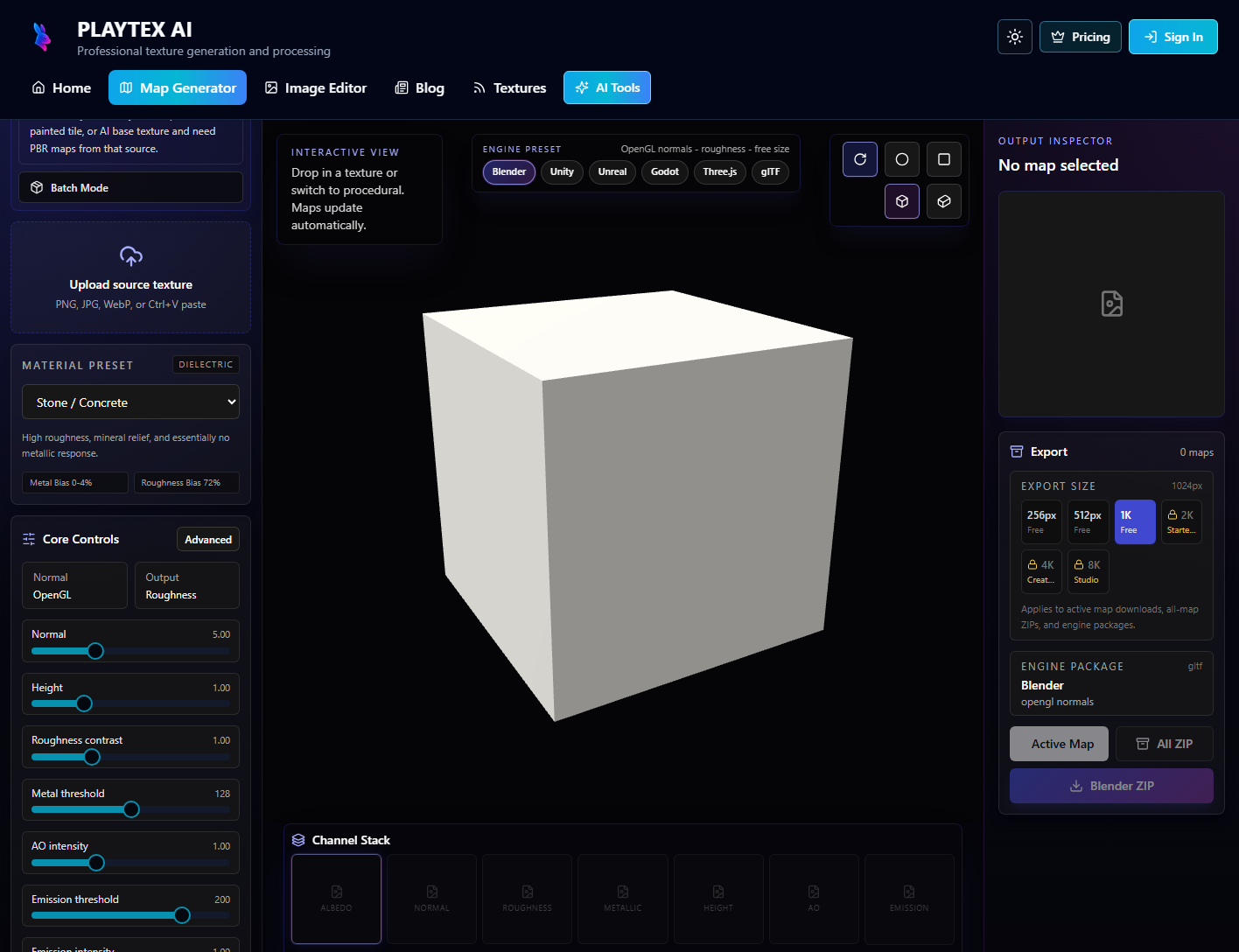
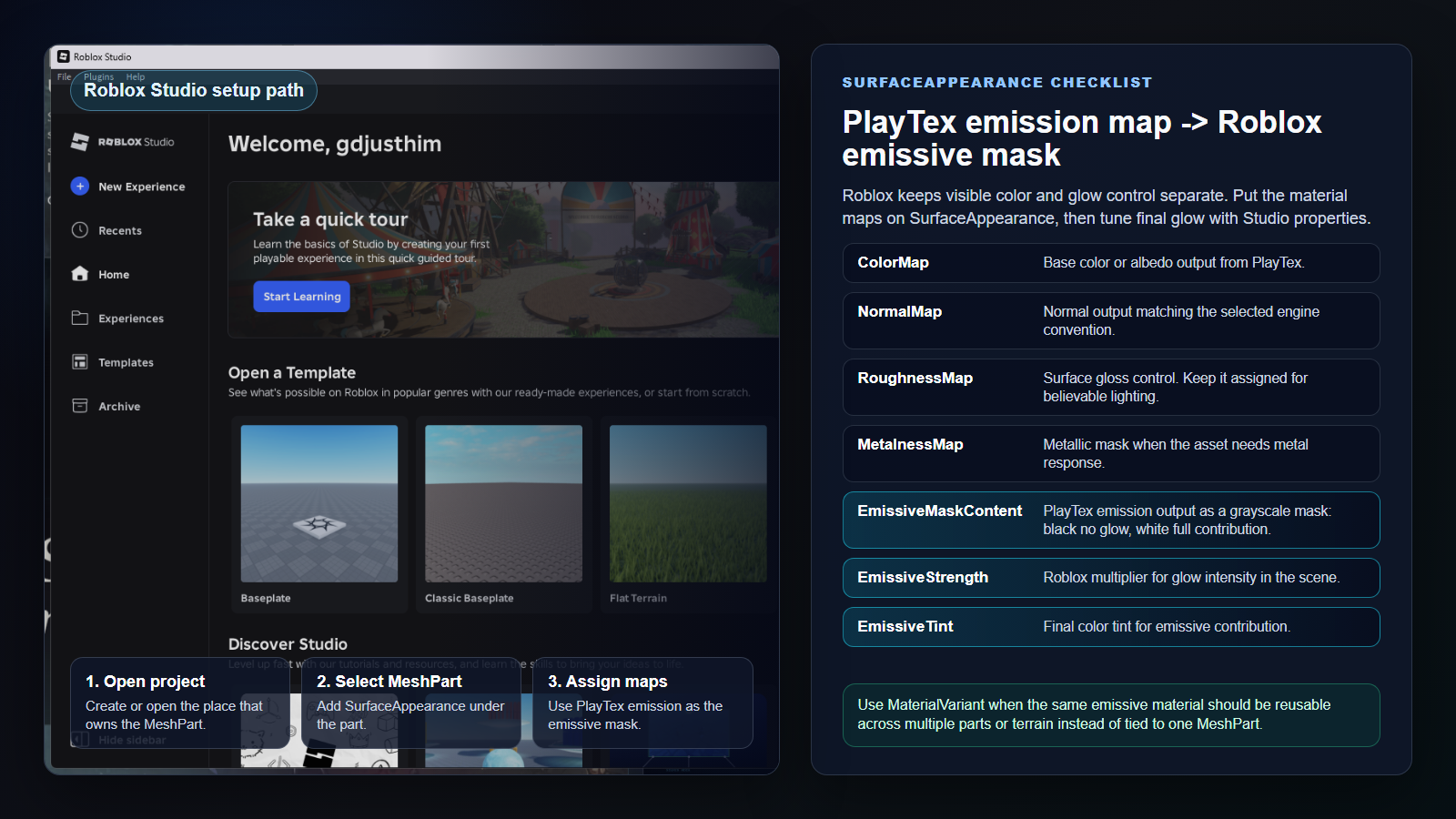
Think mask first when targeting Roblox
PLAYTEX AI uses the familiar material-authoring term emission map because the generator is creating the channel that describes self-lit regions. Roblox currently exposes the destination property as an emissive mask. That distinction matters. A Roblox emissive mask is not where you place the full visible color of the material. It is where you define the intensity pattern for emissive contribution across the surface.
The simplest mental model is black equals no glow, white equals full glow, and gray values sit between those extremes. Keep the visible material color in the ColorMap or albedo texture. Keep the glow shape in the emission output. Then use EmissiveTint and EmissiveStrength in Roblox Studio to make the glow fit the scene.
Build the map in PLAYTEX AI before tuning it in Studio
A clean Roblox emissive result starts before you open Roblox Studio. In PLAYTEX AI, use emission threshold to decide which regions should glow, then use intensity, soft threshold, falloff, and glow radius to make that mask readable. The flat Emission channel is the key review view because it tells you whether the mask is precise or whether the whole material has accidentally become self-lit.
Export only after checking the emission channel next to albedo, normal, roughness, and metalness. A strong emission mask still needs the rest of the PBR stack to be believable. The glow should enhance the surface story, not replace every other material channel.
Choose the Roblox container by reuse pattern
SurfaceAppearance is usually the right path for imported MeshPart assets because it follows the mesh UVs and keeps the map stack attached to that specific object. That makes it a natural fit for props, signs, sci-fi panels, accessories, crystals, screens, and anything with a deliberate UV layout.
MaterialVariant is better when the material itself is the reusable thing. If you want one glowing wall panel, road stripe, lava tile, or terrain-adjacent material to appear across many surfaces, MaterialVariant keeps the workflow cleaner. The guide should teach both paths, but the first capture should focus on SurfaceAppearance because it is the most direct mesh workflow.
Final glow is a scene decision
Do not judge the emissive result only from the texture file. Roblox lighting, exposure, post effects, and Bloom influence how strong the glow appears. EmissiveStrength can make a mask feel more present, but pushing it too far can flatten detail or clamp bright regions. A good workflow is to generate a clean mask in PLAYTEX AI, then tune final strength and tint in the Roblox scene where the asset will actually be used.
That makes the guide useful beyond a simple import checklist. The point is not only to tell creators which property receives which file. It is to teach where each decision belongs: PLAYTEX AI controls mask quality, Roblox Studio controls scene response.
Settings Reference
PLAYTEX AI emission controls
Use PLAYTEX AI to make the mask intentional before it reaches Roblox Studio.
- Emission threshold: Chooses which bright regions become part of the emission output. Higher values isolate only the brightest source pixels. Raise it when too much of the material glows. Lower it when the intended neon, screen, decal, or hot-surface region is missing.
- Emission intensity: Brightens the emission output before export and preview. It helps reveal whether mask regions are too weak or too broad. Keep it moderate for Roblox and use EmissiveStrength in Studio for final scene tuning.
- Mode and source: Mode controls solid, gradient, or color-matched output. Source controls whether emission comes from luminance, color, or mask interpretation. Use luminance for simple bright-source extraction, color for neon accents, and mask mode when the source image already separates glow regions clearly.
- Soft threshold and falloff: Controls how hard or gradual the mask edge becomes. Softer falloff avoids brittle glowing edges. Use soft edges for screens, lamps, crystals, holograms, and stylized energy. Use tighter edges for graphic signage and panel lines.
- Glow radius: Adds a soft bloom-like spread inside the exported emission map. Use it lightly. Roblox still needs clean mask data, and over-spread masks can make the whole surface feel lit.
Roblox Studio properties
Roblox uses the generated map stack through SurfaceAppearance or MaterialVariant properties.
- SurfaceAppearance: Applies PBR texture maps to a MeshPart and is the primary path for UV-mapped mesh assets. Use it for props, meshes, signs, panels, accessories, and imported assets with their own UV layout.
- EmissiveMaskContent: Receives the grayscale emissive mask. Black pixels do not glow; white pixels contribute full emissive intensity. Use the PLAYTEX AI emission output here after confirming it behaves like an intensity mask, not a regular color texture.
- EmissiveStrength: Multiplies the emissive contribution in Roblox. Tune this in Studio after the mask is assigned. Reduce it if emissive regions clamp or turn flat white.
- EmissiveTint: Adds the final tint color to the emissive contribution. Use it when the PLAYTEX AI mask should stay grayscale but the Roblox material needs blue, orange, green, or stylized glow color.
- MaterialVariant: Defines a reusable custom Roblox material that can be assigned across multiple surfaces. Use it for repeated world materials, terrain-like surfaces, and studio-wide material libraries. Keep SurfaceAppearance for one-off mesh UV assets.
Roblox Emission Workflow
Author a controlled grayscale emission mask in PLAYTEX AI, assign it to Roblox SurfaceAppearance or MaterialVariant correctly, then tune strength, tint, exposure, and bloom in the scene where the asset will ship.
Step 1: Generate the material stack in PLAYTEX AI
Open PBR Map Generator, choose the source mode that matches your material, then generate the map stack. Use the Simple rail for Emission threshold and Emission intensity before moving into Advanced emission controls.
Step 2: Shape the emission channel
In Advanced, use the Emission tab to choose mode, source, falloff, threshold, soft threshold, intensity, glow radius, color or gradient behavior, and invert output. For Roblox, keep the exported emission readable as a mask: black should mean no glow, white should mean full emissive contribution.
Step 3: Export the maps you will use in Roblox
Download the map stack or individual maps after checking the Emission channel in the flat map viewer. Keep the albedo, normal, roughness, metalness, and emission files named clearly so the Roblox Studio properties are easy to assign later.
Step 4: Apply maps with SurfaceAppearance
In Roblox Studio, select a MeshPart, add a SurfaceAppearance child, then assign ColorMap, NormalMap, RoughnessMap, MetalnessMap, and EmissiveMaskContent. Use EmissiveStrength and EmissiveTint to control the final glow response in Roblox rather than baking every glow decision into the PLAYTEX AI image.
Step 5: Use MaterialVariant for reusable materials
Use MaterialVariant when the same glowing material should be reusable across many Roblox parts or terrain surfaces. Keep SurfaceAppearance for mesh-specific UV work where one MeshPart owns the look.
Step 6: Check lighting and bloom in the final scene
Preview the asset in the Roblox lighting setup where it will ship. Emissive masks affect the visible surface contribution, while scene lighting, exposure, post effects, and Bloom determine how strong the glow feels in context.
Common Roblox Emission Mistakes
- Do not put the PLAYTEX AI emission output into ColorMap. In Roblox, it belongs in EmissiveMaskContent.
- Do not expect the mask alone to create scene lighting. Review Bloom, exposure, and the Roblox lighting setup.
- Do not make the whole texture white in the emission map unless the whole material should appear self-lit.
- Do not use MaterialVariant for a one-off UV-mapped mesh when SurfaceAppearance is the cleaner fit.
- Do not over-bake tint into the mask if you plan to tune EmissiveTint in Roblox Studio.
What is a Roblox emission map?
It is a grayscale mask that tells SurfaceAppearance which pixels contribute emissive color. Black contributes none, white contributes fully, and gray values create partial intensity.
Where does the emission map go in Roblox Studio?
Assign the grayscale output to SurfaceAppearance EmissiveMaskContent on a MeshPart, then control the result with EmissiveStrength and EmissiveTint.
Does an emissive texture light nearby Roblox objects?
Treat it as a self-lit surface effect, not a replacement for scene lights. Use Roblox lighting, exposure, and post-processing when nearby geometry must receive visible light.
Why is my Roblox emission solid white?
The mask may be too broad or EmissiveStrength may be clipping the result. Return to the grayscale mask, isolate only the intended pixels, then lower strength and review exposure.
Should the emission color be baked into the map?
A grayscale mask is usually more reusable because EmissiveTint can set the final color in Studio. Bake color only when the asset needs multiple emissive colors that cannot be represented by one tint.
Should I use SurfaceAppearance or MaterialVariant?
Use SurfaceAppearance for a mesh-specific UV material. Use MaterialVariant when the same custom material needs to be reused across multiple compatible surfaces.
Primary sources
Official specifications and renderer documentation
PLAYTEX AI guidance is paired with official specifications and platform documentation where the handoff depends on an outside convention.
Open the live workflow that this guide is documenting.
PBR Map Generator: Create Normal, Roughness, AO, Height, Metallic, and Emission MapsTurn one viable image or source-guided hybrid setup into a coherent map stack, review every channel as part of one material system, and export for the renderer you actually use.
How to Rotate a Normal Map Correctly: PBR Texture-Set Rotator GuideRotate albedo, normal, roughness, metallic, AO, height, emissive, opacity, packed, and custom maps as one aligned PBR set while transforming tangent-space normal vectors and OpenGL or DirectX Y conventions correctly.
Image to Texture: Convert a Photo into a Seamless TextureExtract a usable surface from a photo, scan, artwork crop, or generated reference; correct the source problems first; then tune seamless reconstruction while protecting the material character.
AI Texture Generator: Make Seamless Game Textures from a PromptGenerate repeatable surface candidates from a material brief, select for scale and tiling rather than spectacle, then move the strongest result into cleanup or PBR map generation.
How to Make Game Textures with PLAYTEX AI: Complete WorkflowStart with the asset you actually have, move through only the tools that solve its current problem, and finish with a repeatable material or lighting handoff.