Roblox Skybox Generator
Turn one 360-degree sky into six correctly named Roblox faces.
Roblox Sky uses six square images, not one 2:1 panorama. PLAYTEX AI projects a selected 360-degree sky into the six required cube directions, bakes Roblox's Up and Down rotations, names every PNG for the matching Sky property, and adds setup Lua to the same ZIP.
Platform facts checked against Roblox Creator Hub and Roblox Staff guidance on .
Create a Roblox skybox · See the exact face map
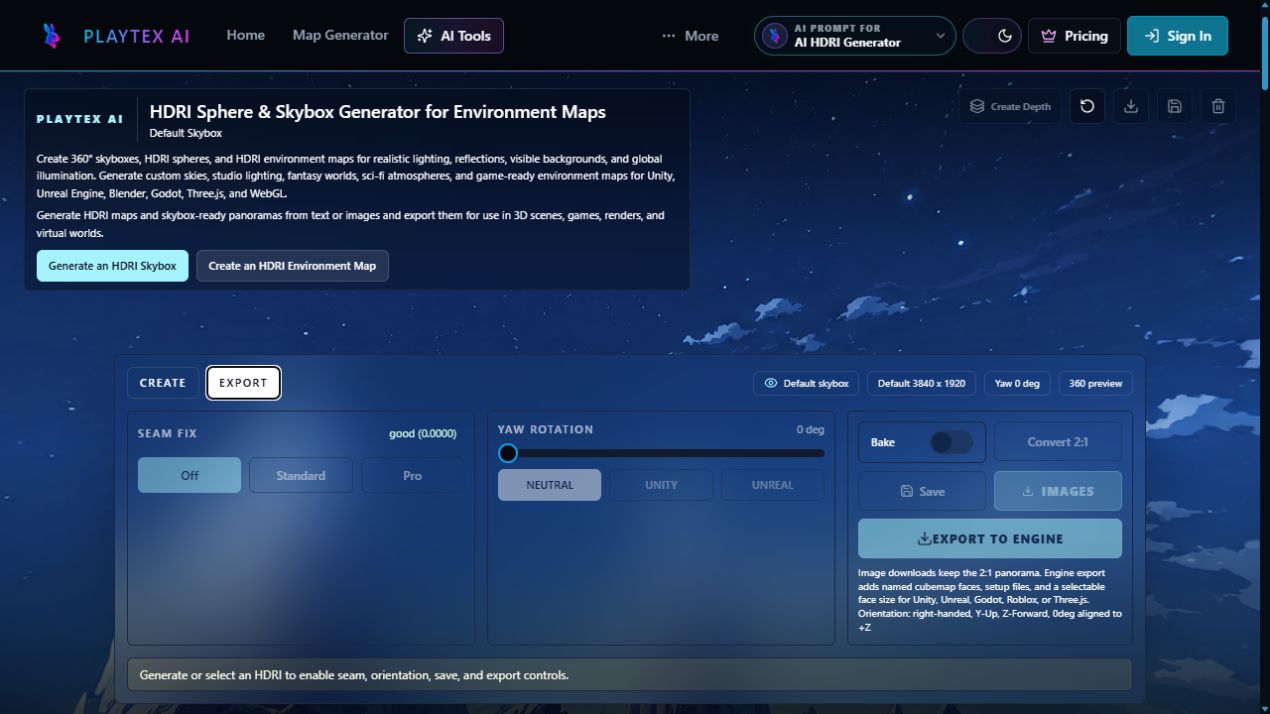
How do you make a Roblox skybox in PLAYTEX AI?
Generate or select a panorama, choose Roblox, pick a face size, and download. The final export action builds all six faces and the setup files together.
Create or select a 360° sky
Generate a complete 2:1 equirectangular environment in PLAYTEX AI, or select a saved HDRI sphere from the local workspace.
Choose Roblox and a face size
Open Export to engine, choose Roblox, then select 512, 1024, or 2048 pixels per square face.
Download the complete ZIP
One export action creates six named PNGs, setup Lua, a manifest, lighting notes, and Roblox-specific import instructions.
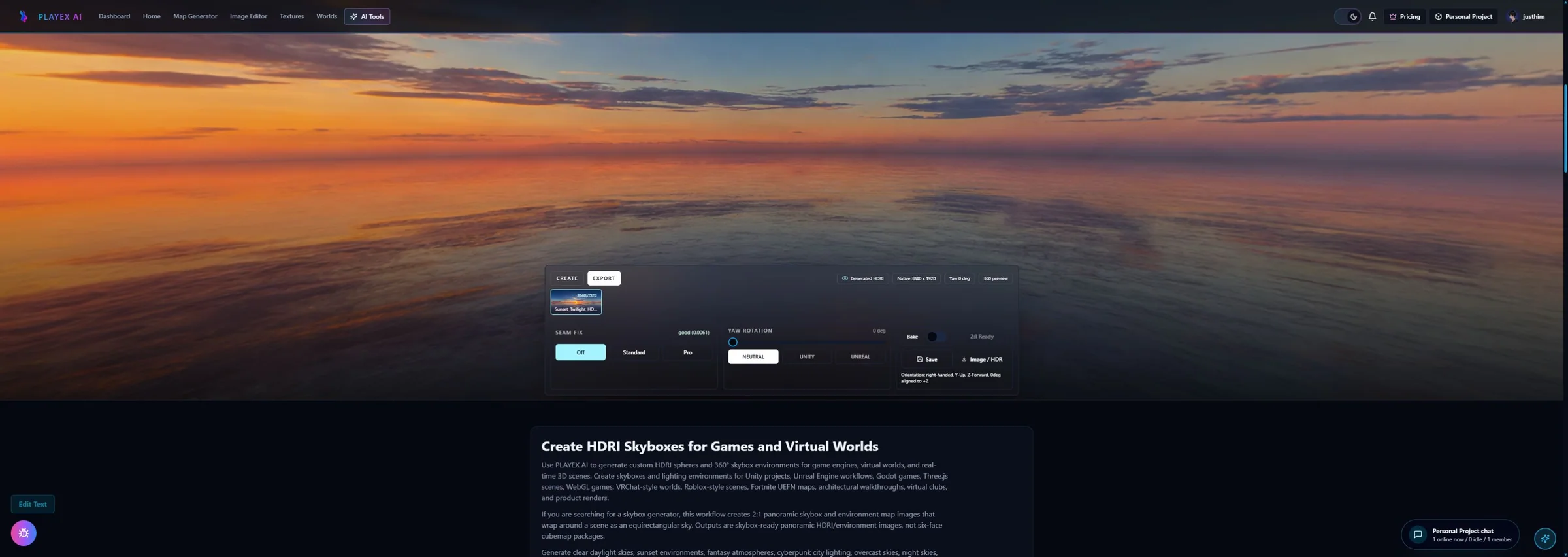
One export action creates the complete Roblox handoff: six named PNGs, setup Lua, a manifest, lighting notes, and Roblox-specific import instructions.
How does PLAYTEX AI split a 360-degree panorama accurately?
PLAYTEX AI does not cut the 2:1 image into six rectangles. For every output pixel, it computes the 3D direction of that cube face, converts the direction to spherical UV coordinates, and bilinearly samples the panorama with horizontal seam wrapping.
Direction-based projection
Each face is a 90-degree view from the panorama center. Normalized positive and negative X, Y, and Z directions preserve the cube geometry.
Wrap-aware sampling
Samples crossing the panorama's left or right boundary wrap to the opposite side instead of clamping to a different color.
Bilinear reconstruction
Four neighboring source pixels are blended for each output sample to reduce stair steps during resampling.
Roblox pole transforms
The Down and Up face rotations are built into the directional mapping, so exported files should not receive another rotation or mirror.
Which cubemap face maps to each Roblox Sky property?
The mapping follows the Roblox Staff Custom Skyboxes 101 guide. Keeping these filenames intact prevents common front/back and pole-orientation errors.
| Source face | Roblox property | Transform | Export file | Direction |
|---|---|---|---|---|
pz | SkyboxBk | None | SkyboxBk.png | Back |
ny | SkyboxDn | 90° counterclockwise | SkyboxDn.png | Down |
nz | SkyboxFt | None | SkyboxFt.png | Front |
nx | SkyboxLf | None | SkyboxLf.png | Left |
px | SkyboxRt | None | SkyboxRt.png | Right |
py | SkyboxUp | 90° clockwise | SkyboxUp.png | Up |
How do you apply a custom skybox in Roblox Studio?
Bulk import the six PNGs, paste their image asset IDs into the included Lua file, then run the script. Roblox remains the authority for asset moderation, experience permissions, and the live Lighting result.
Bulk import the six PNGs
In Roblox Studio, open Asset Manager and import the six files from the ZIP's Textures/Cubemap folder. Imported images enter moderation before they are available in a published experience.
Copy the six image asset IDs
Copy each uploaded image ID into the matching FACE_ASSET_IDS entry in Setup_PlaytexSky.lua. The filenames already match SkyboxBk, Dn, Ft, Lf, Rt, and Up.
Run the included setup Lua
Paste the script into Studio's Command Bar to create the Sky immediately, or keep it as a Script. It adds rbxassetid:// when needed and disables duplicate celestial bodies.
Tune Roblox Lighting
Review ClockTime, Atmosphere, EnvironmentDiffuseScale, EnvironmentSpecularScale, and exposure in the real place. The exported sky is a starting point, not a final lighting grade.
Abbreviated setup Lua
local Lighting = game:GetService("Lighting")

local sky = Lighting:FindFirstChildOfClass("Sky") or Instance.new("Sky")
sky.Name = "PLAYTEX AI Sky"
sky.SkyboxBk = "rbxassetid://REPLACE_SKYBOX_BK"
sky.SkyboxDn = "rbxassetid://REPLACE_SKYBOX_DN"
sky.SkyboxFt = "rbxassetid://REPLACE_SKYBOX_FT"
sky.SkyboxLf = "rbxassetid://REPLACE_SKYBOX_LF"
sky.SkyboxRt = "rbxassetid://REPLACE_SKYBOX_RT"
sky.SkyboxUp = "rbxassetid://REPLACE_SKYBOX_UP"
sky.CelestialBodiesShown = false
sky.Parent = Lighting
The downloaded script also includes a six-entry asset-ID table, prefix validation, Sky reuse, optional estimated Lighting values, and replacement checks.
What size should a Roblox skybox be?
Start at 1024 pixels per face, then move down for faster iteration or up only when the source and target-device tests justify it. The memory figures are six-face RGBA8 decoded estimates before mipmaps, compression, or Roblox streaming behavior.
| Face size | Use | Decoded cube estimate | Recommendation |
|---|---|---|---|
| 512 x 512 | Fast iteration | 6 MiB | Use for mobile-first prototypes, frequent sky swaps, or rapid upload tests. |
| 1024 x 1024 | Balanced default | 24 MiB | Use for most experiences. It balances horizon detail, upload time, and six-face memory. |
| 2048 x 2048 | High-detail sky | 96 MiB | Use when the source panorama contains real distant detail and the target-device budget has been tested. |
Roblox documents separately uploaded images up to 4096 x 4096. PLAYTEX AI currently caps a face at 2048 because a 3840 x 1920 source contains roughly 960 source pixels across a 90-degree cube face; a larger file can be resampled cleanly but cannot invent source detail.
How does PLAYTEX AI solve common Roblox skybox problems?
The converter handles geometric mistakes at export. Roblox-side moderation, permissions, Lighting values, and device performance still require a Studio check.
| Problem | Why it happens | Fix |
|---|---|---|
| Visible seams at cube edges | The source is incomplete, the equirectangular wrap is not continuous, or the conversion treated the panorama like six flat crops. | Use a complete 2:1 panorama and direction-based cube projection with horizontal wrap-aware sampling. |
| Top or bottom is sideways | Roblox expects the converted Down face rotated 90° counterclockwise and the Up face rotated 90° clockwise. | Export the Roblox target from PLAYTEX AI; both pole rotations are already baked into the PNGs. |
| Front and back are swapped | Generic cubemap labels do not map directly to the Roblox Sky property names. | Keep the documented pz → SkyboxBk and nz → SkyboxFt mapping. Do not rename the PLAYTEX AI files. |
| An extra sun, moon, or stars appear | The Roblox Sky object draws celestial bodies separately from the six skybox surfaces. | Set CelestialBodiesShown to false. The included setup Lua does this automatically. |
| Smooth metal looks flat | The sky is installed, but environment-derived diffuse or specular lighting is still too low for the material. | Tune EnvironmentDiffuseScale and EnvironmentSpecularScale in Lighting, then validate the result on target devices. |
| The upload worked but the sky is blank | One or more images may still be under moderation, lack experience permission, or use the wrong asset ID. | Wait for moderation, verify all six IDs, confirm the assets are available to the experience, and keep the rbxassetid:// prefix. |
Roblox skybox questions
What files does a Roblox Sky object use?
A Roblox Sky object uses six square images assigned to SkyboxBk, SkyboxDn, SkyboxFt, SkyboxLf, SkyboxRt, and SkyboxUp. The six images must align along every neighboring edge when folded into a cube.
Can Roblox use an HDRI or 360 panorama directly?
Roblox Sky does not take one equirectangular .hdr or 2:1 panorama as its skybox input. Convert the panorama into six square cube faces first; PLAYTEX AI performs that projection and packages the Roblox labels and rotations automatically.
How do I rotate a Roblox skybox?
Set Sky.SkyboxOrientation to a Vector3 in degrees. Roblox applies the skybox rotation around Y, then X, then Z; changing Y is the usual way to turn the horizon while keeping it level.
Does a Roblox skybox affect lighting and reflections?
Yes, Roblox can derive ambient and specular light from the environment through Lighting.EnvironmentDiffuseScale and Lighting.EnvironmentSpecularScale, and Sky can provide cubemap reflections inside ViewportFrames. Tune those controls separately because six LDR PNGs are not a calibrated HDR light probe.
What image format and resolution should I use for a Roblox skybox?
PNG is the safest PLAYTEX AI export because it avoids JPEG block artifacts at cube seams. Roblox documents separate texture uploads in PNG, JPG, TGA, or BMP up to 4096×4096; PLAYTEX AI offers 512, 1024, and 2048 pixels per face so you can choose a practical runtime budget.
Why do seams appear in a Roblox skybox?
Seams appear when the source is not a complete seamless 2:1 environment, neighboring cube directions do not sample the same panorama boundary, faces are mislabeled, or the Up and Down rotations are missing. PLAYTEX AI uses direction-based projection, wrap-aware bilinear sampling, exact labels, and baked pole rotations.
Do I still need Blender to turn a panorama into a Roblox skybox?
No. Blender remains useful for authoring or painting an environment, but it is not required for conversion when you use PLAYTEX AI. Export to engine performs the panorama-to-cubemap projection in the browser and downloads the six Roblox-ready faces.
What is included in the Roblox skybox ZIP?
The PLAYTEX AI Roblox ZIP includes the 2:1 panorama, six square PNG faces, Setup_PlaytexSky.lua, Roblox import instructions, manifest metadata, and optional estimated lighting notes. Roblox Sky ignores the optional depth workflow.
Which Roblox sources were checked?
Platform facts were checked on against Roblox Creator Hub documentation or a Roblox Staff guide.
The six Sky properties, seamless-neighbor requirement, celestial bodies, SkyboxOrientation, and ViewportFrame reflection use.
Roblox Staff — Custom Skyboxes 101
Complete 2:1 source guidance, exact pz/ny/nz/nx/px/py mapping, Up and Down rotations, and bulk-upload workflow.
Roblox Creator Hub — Asset Manager
Current Studio asset import, bulk import, moderation, and inventory behavior.
Roblox Creator Hub — Texture specifications
Supported separately uploaded image formats and the documented 4096×4096 maximum image resolution.
Roblox Creator Hub — Global lighting
EnvironmentDiffuseScale and EnvironmentSpecularScale behavior for environment-derived lighting.
Make the sky. Export the cube. Open Studio.
One export action creates six named PNGs, setup Lua, a manifest, and Roblox-specific import notes.