AI Generation
HDRI Generator: Create a 360 Skybox and Environment Map
Create a 2:1 lighting environment, control its horizon, sun, clouds, mood, seams, and yaw, then validate how it lights both rough and reflective materials before export.
Direct answer
What does an HDRI generator create?
Lock the lighting logic before polishing the prompt: horizon level, sun direction, time of day, cloud cover, and 360 continuity determine whether the environment works as a light source.
How PLAYTEX AI helps: PLAYTEX AI generates the panoramic environment, wraps it around an interactive 360 viewer, reports seam quality, and exports either the 2:1 panorama or an engine-specific ZIP with six projected cubemap faces and setup guidance.
What you will get
- Create usable environment maps for lighting and reflection look-dev.
- Understand how scene prompt, sky controls, seam fixes, and orientation work together.
- Preview the panorama, then package labeled cubemap faces for the target engine.
Best use cases
- You need a fast sky and reflection source for a 3D scene.
- You want a controlled environment map instead of searching HDRI libraries.
- You need a matching HDRI for a specific time-of-day or mood brief.
Acceptance test
Approve the asset only when these are true
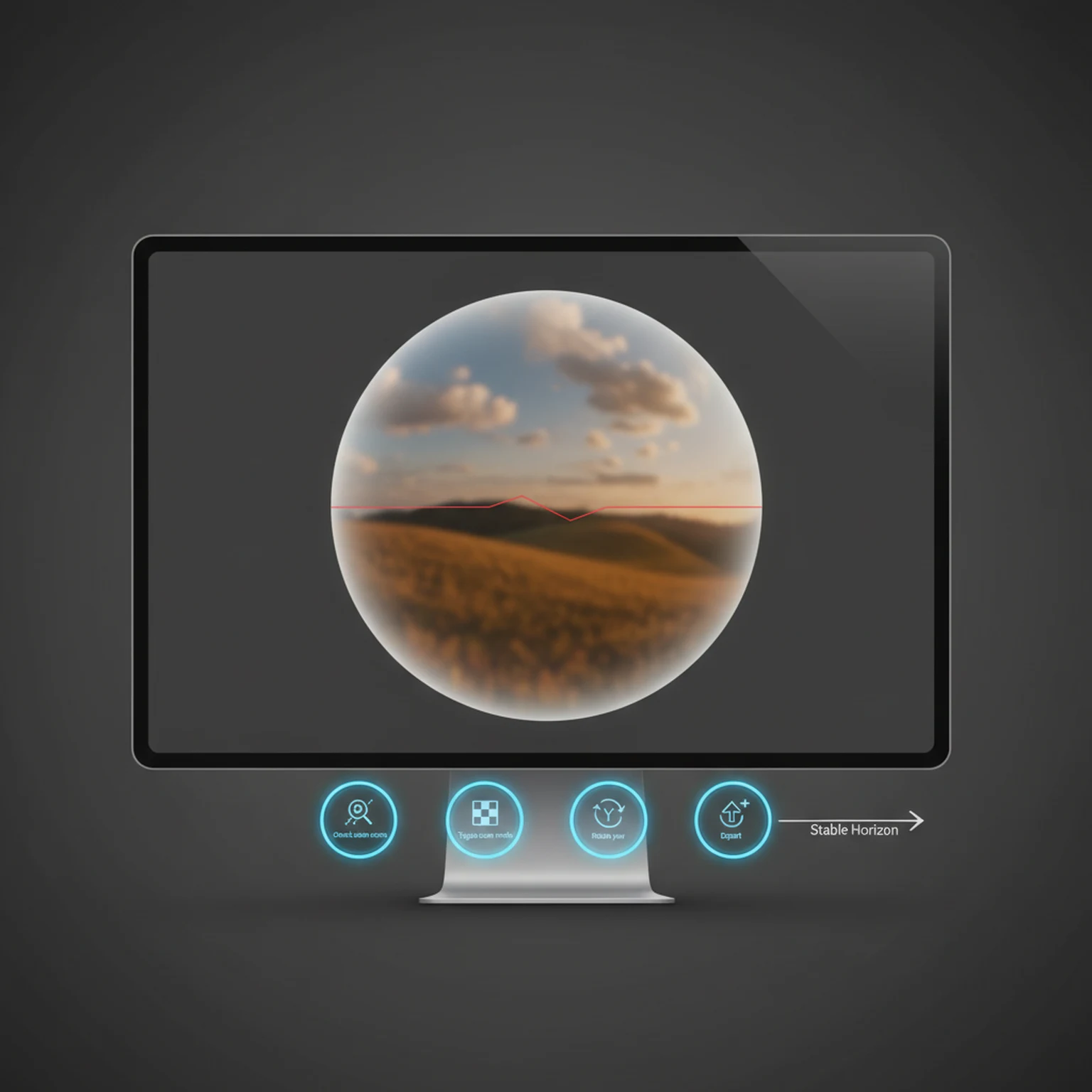
- The panorama uses a strict 2:1 equirectangular layout with a stable horizon and no unintended roll.
- The left and right edges meet without a visible seam in the 360 viewer.
- Sun direction and yaw place highlights and shadows where the scene composition expects them.
- Bright sources retain useful highlight detail and dark regions do not collapse into unusable noise.
- The environment is tested on both a rough diffuse object and a reflective object before export.
- For cubemap delivery, the target engine, face size, filenames, and orientation are verified before import.
Settings Reference
Generation controls
These settings define the base lighting environment.
- Mode: Switches between text-driven environment creation and image-based conversion. Use text mode for invention and image mode for matching or transforming a known source.
- Environment Option and Environment Style: Set the broad sky/environment family and the visual interpretation of that family. Pick environment option for scene category and environment style for mood or realism level.
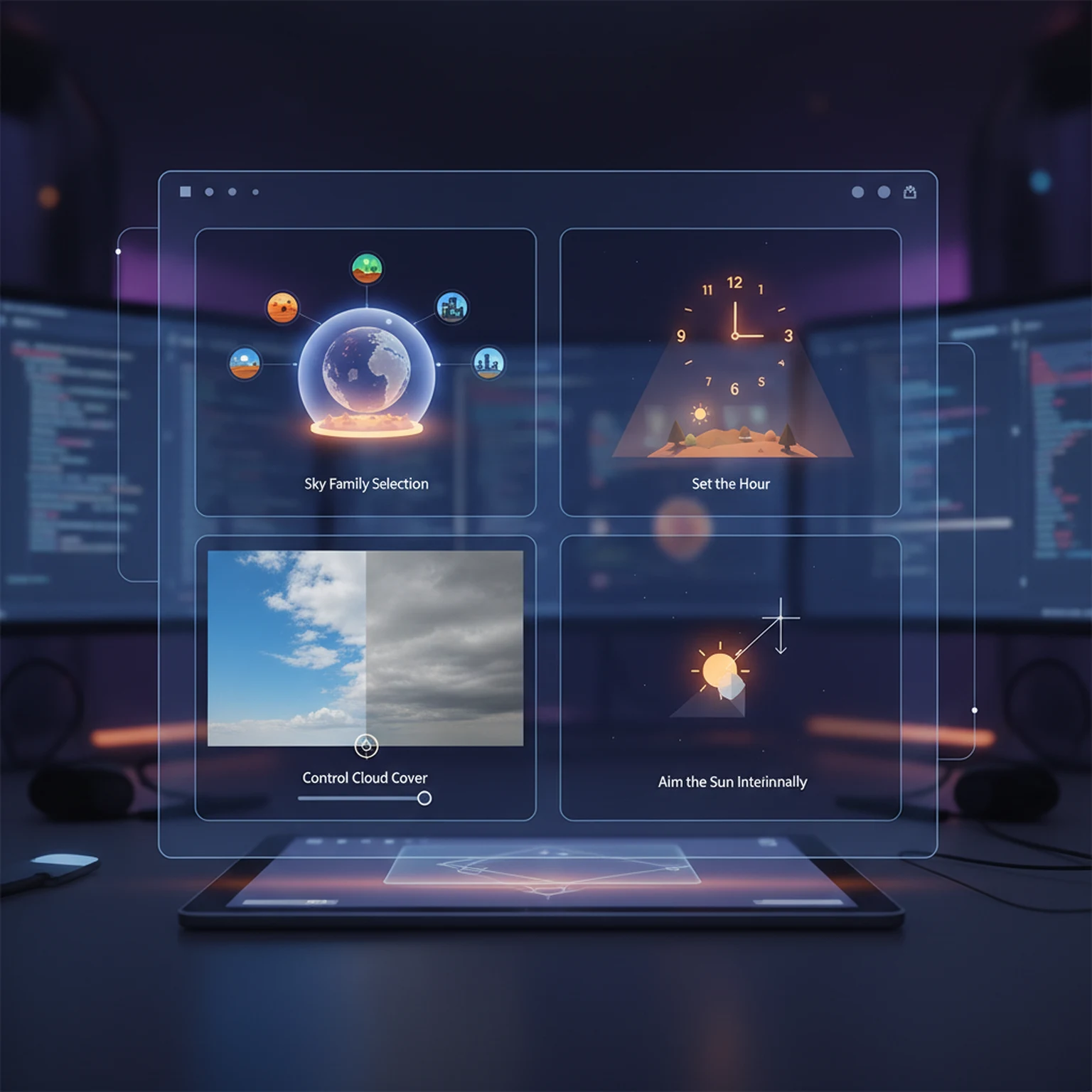
- Time of Day, Cloud Density, and Sun Position: These are the biggest lighting-shape controls in the tool. Use them to control horizon warmth, contrast, shadow angle, and sky drama before touching anything else.
- Resolution: Exports a 2:1 panorama at 512 × 256, 1024 × 512, 2048 × 1024, native source size, or the 4096 × 2048 4K standard. Use 512 for previews, 1K or 2K for lighting and most backgrounds, and 4K when reflections or a visible environment need more detail. Sizes above 512 require a subscription.
- Preserve Original Look: Keeps the result closer to the source or selected baseline. Keep it enabled when matching concept direction matters more than experimentation.
Preview, seam, and orientation controls
These controls determine whether the HDRI is usable in practice, not just pretty in isolation.
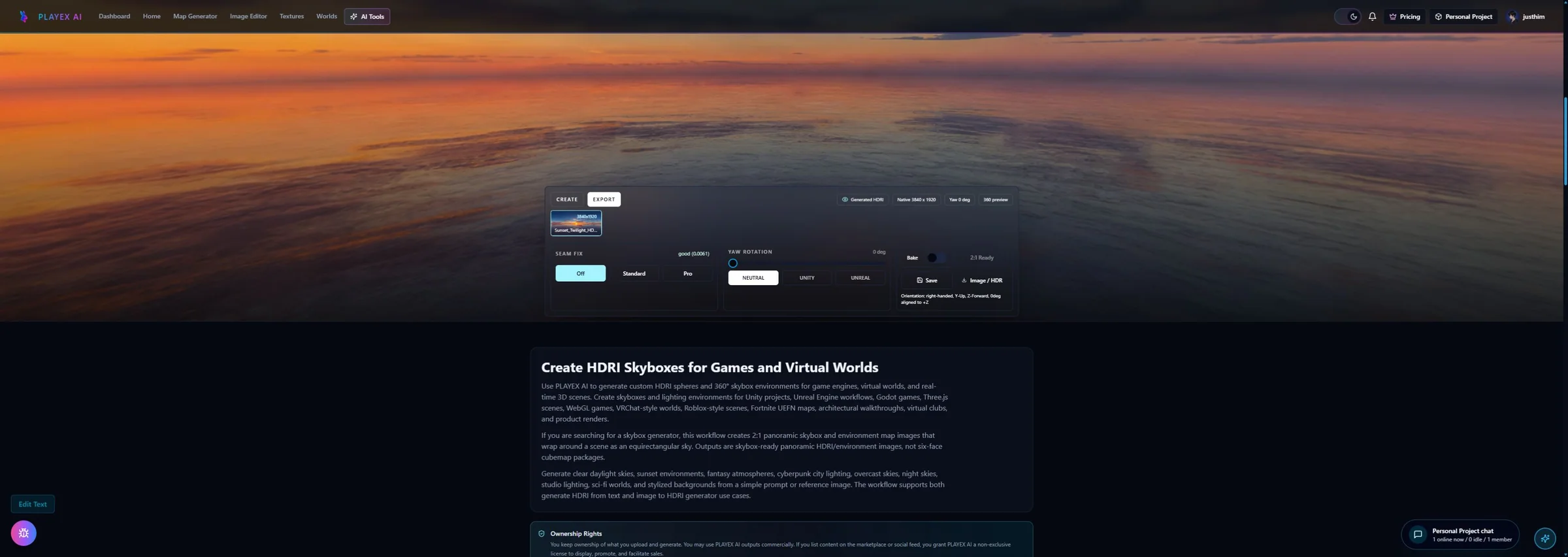
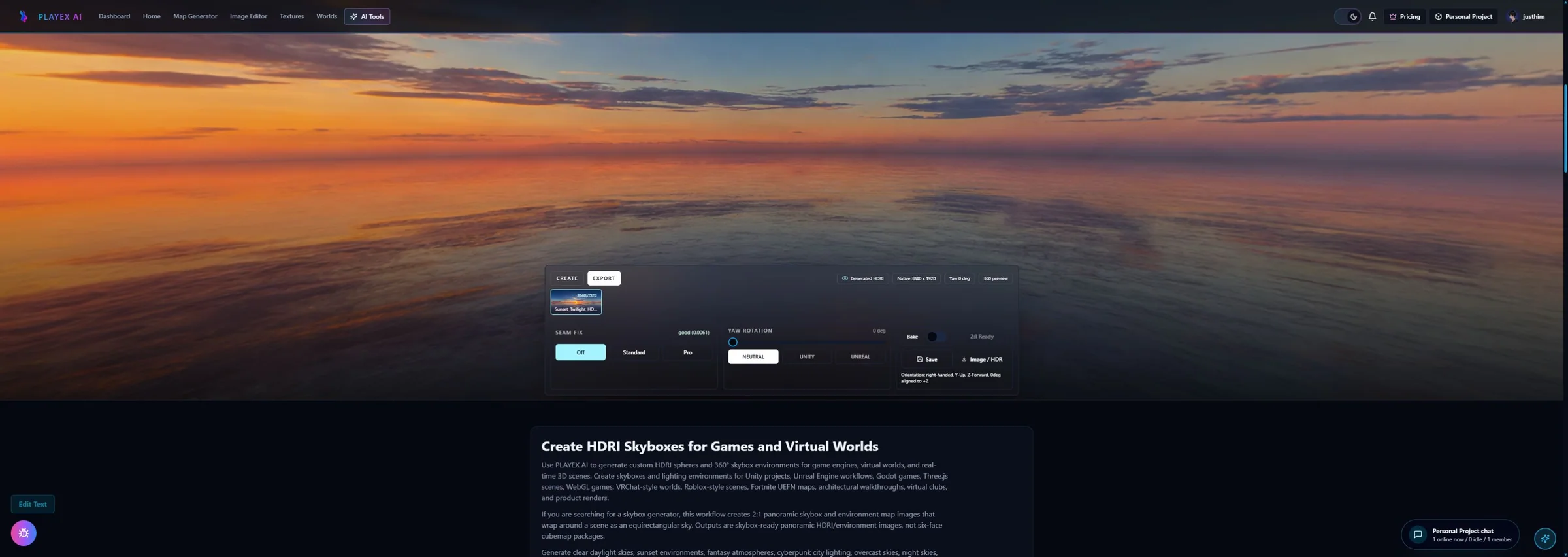
- Seam Fix Enabled and Inline Seam Mode: Applies deterministic edge harmonization after generation, with inline Off, Standard, and Pro seam review modes in the preview area. Keep seam fix on for production HDRIs and compare inline seam modes when the left-right join is visible in the 360 viewer or reflection tests.
- Yaw Rotation: Rotates the panorama horizontally so the main light or scene feature lands where you need it. Use it when the sun or hero skyline should face camera, model, or scene framing differently.
- Bake Rotation: Applies the previewed orientation into the exported asset. Enable it when the downstream tool expects the file itself to arrive pre-rotated.
- Strict 2:1 Conversion: Ensures the panorama is valid for systems that require exact equirectangular proportions. Use it when a renderer, engine, or export target is strict about HDRI geometry.
- Export Preset: Prepares orientation behavior for a neutral or target-specific output pattern. Use the preset when you know the destination pipeline and want fewer manual corrections.
- PNG and HDR Export: Exports a lossless LDR PNG skybox or wraps the same linearized LDR source in a Radiance RGBE HDR compatibility file. Use PNG for skyboxes, visual review, and sharing. Use Radiance HDR only when the target expects that container, and do not treat it as a calibrated multi-exposure light probe.
Workflow
Create a 2:1 lighting environment, control its horizon, sun, clouds, mood, seams, and yaw, then validate how it lights both rough and reflective materials before export.
Step 1: Choose text-to-HDRI or image-to-HDRI
Text-to-HDRI is best when you are designing the environment from scratch. Image-to-HDRI is best when a concept, matte, or sky reference already exists.
Step 2: Lock the environment logic before the scene prompt gets long
Environment type, style, time of day, cloud density, and sun position establish the lighting behavior. Use the prompt to refine the atmosphere, not to replace these controls.
Step 3: Check seams and orientation in the inline viewer
Use the 360 preview, seam score, seam fix mode, yaw rotation, and strict 2:1 conversion tools before export. Lighting problems are easier to solve here than after engine import.
Step 4: Export for the engine or renderer you actually use
Choose Unity, Unreal Engine, Godot, Roblox, or Three.js and select the square face size. The export pack bakes the required orientation, uses target-specific filenames, and includes a manifest and setup guidance.
Common Pitfalls
- Do not write huge prompts before setting the sky and lighting controls.
- Do not ignore seam behavior just because the static preview looks good.
- Do not export without checking orientation if the engine expects a different default front.
What is an HDRI environment map used for?
It surrounds a 3D scene with a panoramic environment and can drive ambient light and reflections. The renderer usually prefilters it for different material roughness levels.
What aspect ratio should a 360 HDRI use?
A standard equirectangular panorama uses a 2 to 1 aspect ratio. The left and right edges must join, and the top and bottom represent the poles.
How do I fix a visible HDRI seam?
Inspect the left-right join inside a 360 viewer, regenerate or repair discontinuous clouds and horizon features, and avoid accepting a flat preview that hides the wrap boundary.
What does HDRI yaw change?
Yaw rotates the environment horizontally around the scene. Use it to reposition the sun, bright sky, and reflection features without changing the panorama itself.
How should I test an HDRI before using it?
Use a rough diffuse object to judge ambient color and shadow direction, then a glossy or metallic object to expose seams, clipped highlights, and distracting reflection features.
Can I export Roblox or Three.js cubemap faces?
Yes. Export to engine packages the six square faces with Roblox SkyboxBk, SkyboxDn, SkyboxFt, SkyboxLf, SkyboxRt, and SkyboxUp labels or the Three.js px, nx, py, ny, pz, and nz loader order, plus setup guidance.
Primary sources
Official specifications and renderer documentation
PLAYTEX AI guidance is paired with official specifications and platform documentation where the handoff depends on an outside convention.
Open the live workflow that this guide is documenting.
PBR Map Generator: Create Normal, Roughness, AO, Height, Metallic, and Emission MapsTurn one viable image or source-guided hybrid setup into a coherent map stack, review every channel as part of one material system, and export for the renderer you actually use.
How to Make Game Textures with PLAYTEX AI: Complete WorkflowStart with the asset you actually have, move through only the tools that solve its current problem, and finish with a repeatable material or lighting handoff.