What you will get
- Bind meshes to versioned material assets with less ambiguity.
- Review slot-level behavior in one workspace instead of scattered notes.
- Keep project-scoped asset decisions cleaner as team size grows.
Studio Workflow
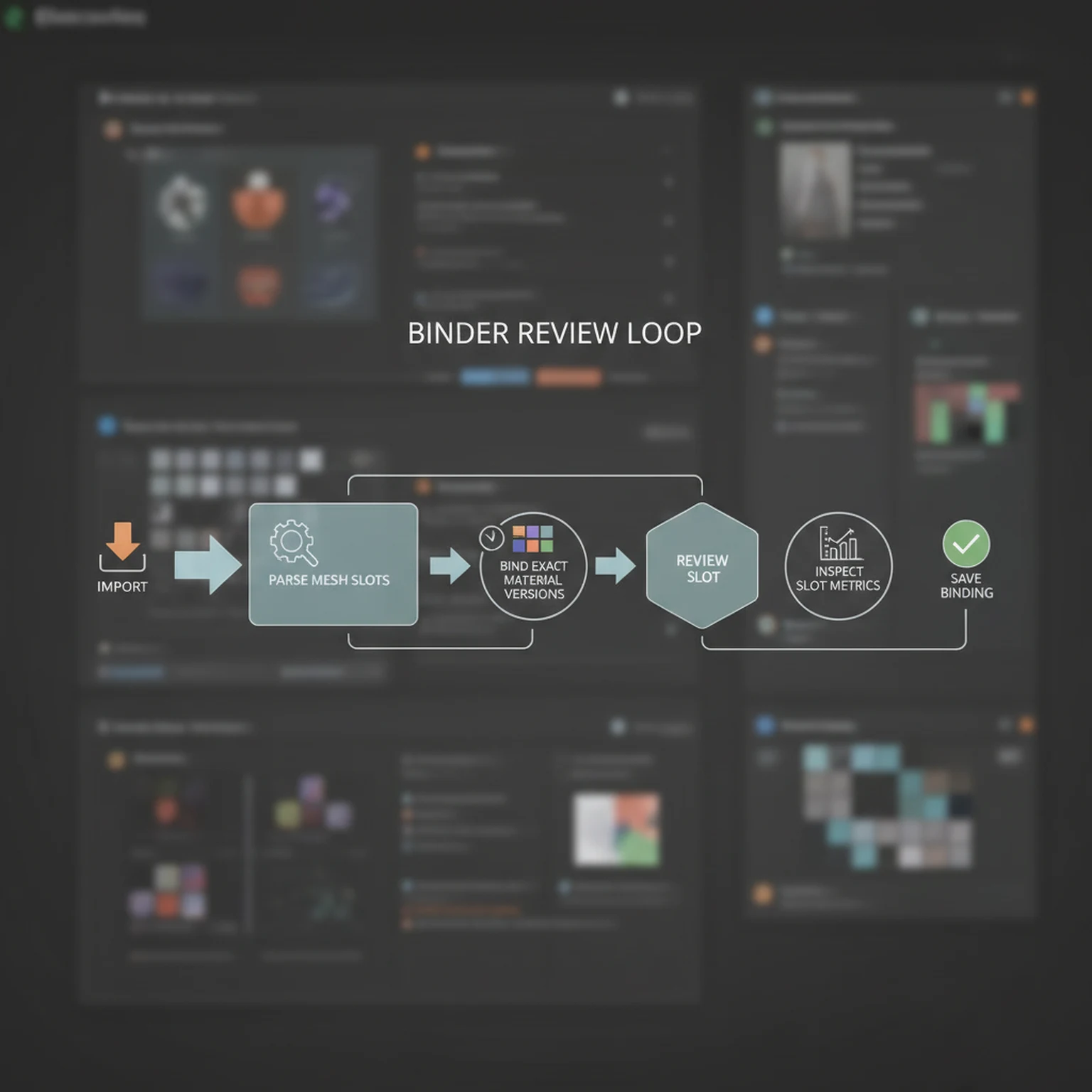
Use Asset Binder to import a mesh, parse material slots, assign approved material versions, preview bindings, and review slot-level logic inside a project-scoped workflow.
These settings establish the real asset relationship.
These controls make the workspace useful for more than a simple mapping table.
Use Asset Binder to import a mesh, parse material slots, assign approved material versions, preview bindings, and review slot-level logic inside a project-scoped workflow.
Start by importing a mesh and extracting its slot names. If the slot map is wrong, every binding decision after that will be noisy or brittle.
Once the mesh is known to the system, pull its binding state and available material versions into the workspace before editing.
Bind each slot to a material version, then inspect the mesh preview, slot metrics, and why-mode explanations to see whether the logic fits the asset.
The value of Asset Binder is not only the preview. It is the saved association between slots, materials, overrides, and project context.
Technical artists, look-dev leads, and teams managing reusable materials across multiple assets or projects get the most value from it.
Open the live workflow that this guide is documenting.
What Is a PBR Mapping Tool? PBR Map Generator Guide for Game MaterialsUse the web-based PBR mapping tool to turn a texture into a coherent material set with normal, roughness, metallic, ambient occlusion, height, emission, and albedo outputs tuned for real-time engines.
Builder Trainer Guide for Screenshot Analysis and UI LearningUse Builder Trainer to upload a builder or editor screenshot, let AI detect the important interface elements, and turn the screenshot into a teachable walkthrough for your workflow.
HDRI Sphere Generator Guide for 360 Lighting EnvironmentsCreate HDRI environment maps for lighting, reflections, and global illumination with controls for environment type, style, time of day, clouds, sun position, seam fixes, and export orientation.