Roblox PBR setup is pleasantly literal once the files are named. A SurfaceAppearance object accepts maps for color, normal direction, roughness, and metalness. The less pleasant part is discovering that a good-looking texture set cannot rescue missing UVs, inverted normals, or a lighting setup with no useful reflections.
This guide starts with a PLAYTEX AI export, but the import steps apply to any correctly authored PBR set.
Check the mesh before the maps
SurfaceAppearance is designed for a MeshPart whose mesh contains UV coordinates. Roblox's own environmental-art guidance uses SurfaceAppearance on MeshParts and assigns color, metalness, normal, and roughness maps to those UVs.
If the object is an ordinary Part, a SurfaceAppearance workflow is not the same as a world-aligned Material or MaterialVariant workflow. If the texture stretches, rotates unexpectedly, or lands on the wrong faces, inspect the mesh UV layout in Blender or another DCC tool before editing the image files.
Prepare a Roblox map set
| Roblox property | Expected information | Quick sanity check |
|---|
| ColorMap | Surface color with little or no baked lighting | No permanent cast shadows |
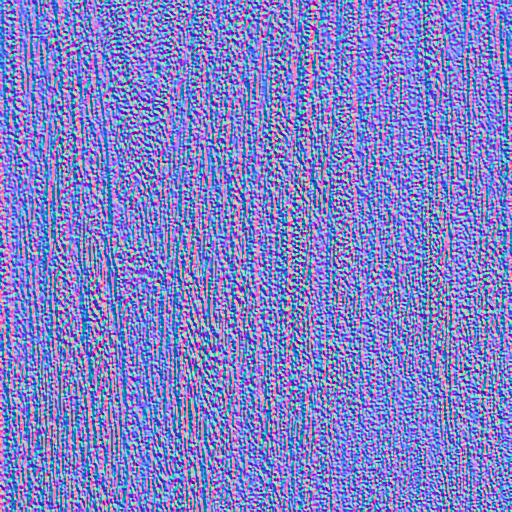
| NormalMap | Tangent-space surface directions | Flat areas are near purple RGB 127,127,255 |
| RoughnessMap | Black is smoother; white is rougher | Gloss pattern matches the material, not source brightness |
| MetalnessMap | Black for dielectrics; white for metal | Wood, stone, paint, and dirt remain non-metal |
| EmissiveMaskContent | Mask for regions that should emit | Only intentional lights, screens, or runes are selected |
Roblox documents OpenGL-format tangent-space normal maps. If a normal map was exported for a DirectX-oriented pipeline, invert the green channel before upload or export the correct orientation from the source tool.
Upload and assign the images
- Upload the final image files through Roblox Studio's Asset Manager or the current asset-upload workflow.
- Select the target MeshPart in Explorer.
- Insert a
SurfaceAppearance as a child of the MeshPart.
- Assign each uploaded asset to the matching SurfaceAppearance property.
- Leave unsupported or unnecessary maps empty rather than forcing data into the wrong slot.
Roblox can package a SurfaceAppearance for reuse across compatible modular assets. That is useful for trim sheets and material families, but only when the receiving meshes use the expected UV layout.
Handle transparency as its own decision
The ColorMap alpha channel can participate in SurfaceAppearance transparency when the selected AlphaMode supports it. Preserve color in transparent pixels so filtering does not pull dark fringes into leaf, fence, or fabric edges. Use cutout-like coverage for hard-edged holes and reserve blended transparency for materials that actually need it; the visual result and performance behavior are not interchangeable.
Set up reflections before judging metal
Metalness depends strongly on environment lighting. The SurfaceAppearance documentation notes that metalness has no effect when Lighting.EnvironmentSpecularScale is zero, and recommends appropriate diffuse and specular environment settings for realistic reflections.
A nearly black metal is often not a bad metalness map; it may have nothing useful to reflect. Add or adjust environment lighting before painting brighter color into the material to compensate.
Use emissive controls deliberately
Current SurfaceAppearance properties include EmissiveMaskContent, EmissiveStrength, and EmissiveTint. The mask chooses the glowing regions, strength controls the contribution, and tint colors it.
Emission makes a surface appear self-lit. Do not assume it automatically lights nearby geometry like a physical lamp. If the scene needs local illumination, add an appropriate Roblox light and treat the emissive surface as the visible source.
Test the material where players will see it
- Move a light across the mesh to catch inverted normal direction.
- Inspect UV seams, especially on curved and mirrored areas.
- Test low and high graphics quality; Roblox warns that appearance depends on device and quality level.
- Step back to gameplay distance and check whether compressed detail flickers or disappears.
- Test a dark and bright environment so roughness and emission do not depend on one scene.
Common failures
The material is flat: confirm the NormalMap is assigned and uses the documented tangent-space format. The bumps are dents: invert the normal green channel once. Metal is black: provide useful environment reflections. The map stretches: fix the MeshPart UVs. The glow disappears: check the emissive mask and strength, then verify the current client and quality level.
Exporting is the midpoint, not the finish line. The finish line is a SurfaceAppearance that behaves on the intended mesh, under Roblox lighting, at the quality levels players actually use.
Worked example: keep four Roblox maps separate
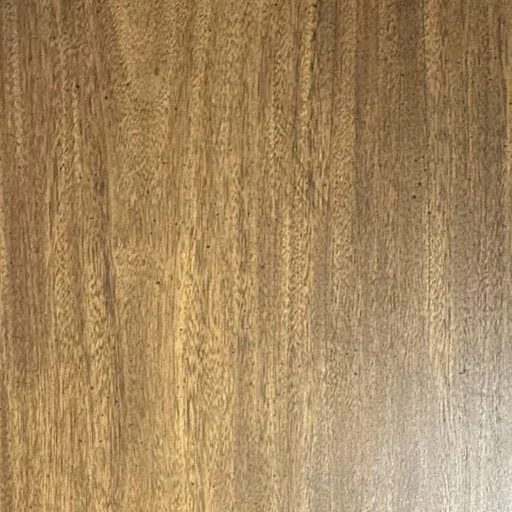
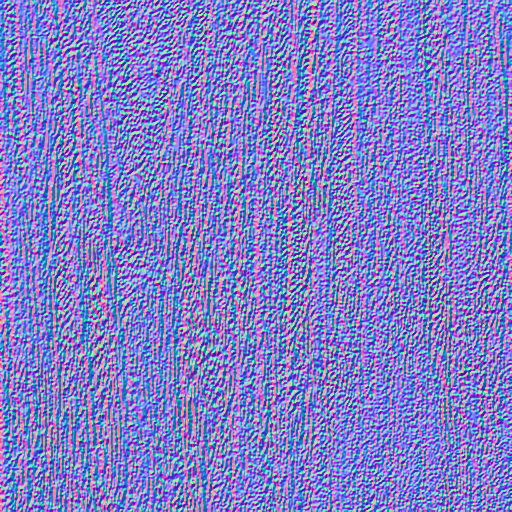
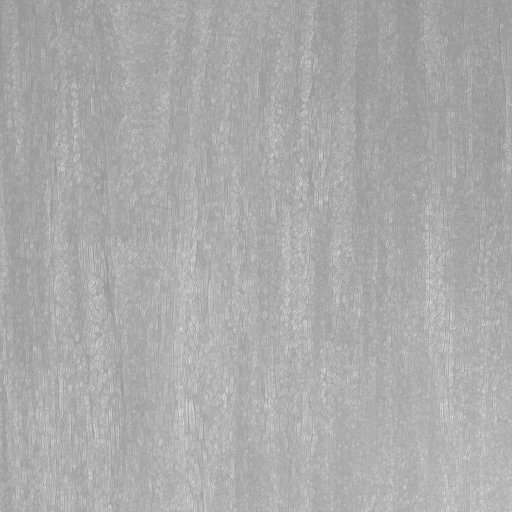
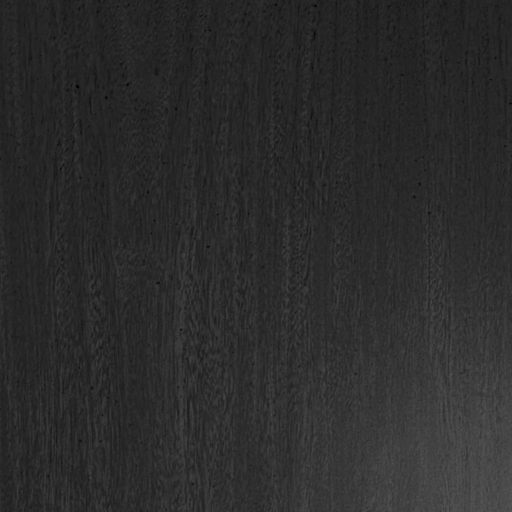
Use the archived wood albedo for ColorMap, normal for NormalMap, roughness for RoughnessMap, and metallic for MetalnessMap. Upload the separate images and assign their asset IDs to a SurfaceAppearance on a UV-mapped MeshPart. An ORM image is not a replacement for these four separate property assignments.
For diagnosing orientation, the source normal's upper-left RGB sample is (76, 142, 243). The green-flipped diagnostic file contains (76, 113, 243), because 255 − 142 = 113. Red and blue stay unchanged. We decoded the saved PNG and verified this operation at every pixel; flipping green a second time recovers the original bytes.
Do not flip automatically. Compare the original and diagnostic normals on the same mesh under a moving light, then retain the convention that matches the material and engine. This example does not include a Roblox screenshot or claim a completed Studio validation.
Download the pixel checks and SHA-256 hashes · Download the reproduction script. Run the script from a PLAYTEX AI repository checkout with Node.js 24 and the installed dependencies.
What this establishes: the exported bytes follow the stated conversion. This is not an engine-render test, a claim of physically accurate maps, or a seamlessness certification. The source is the existing September 3 wood benchmark, with its documented material errors preserved.