PBR Troubleshooting
Why Is My Emission Map Not Glowing?
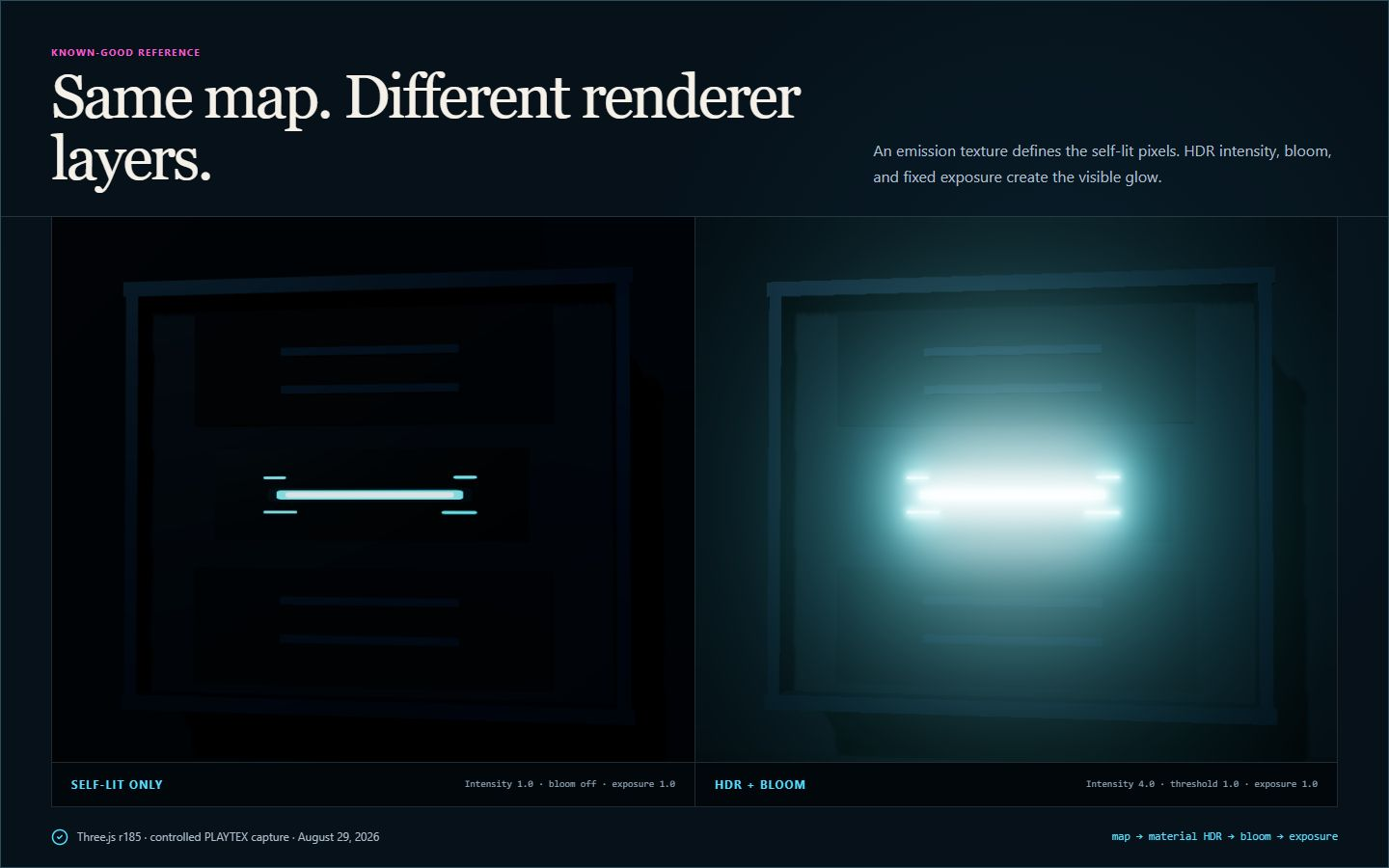
An emission map makes selected pixels self-lit, but it does not create a visible halo or light nearby objects by itself. Assign the map, use a non-black emissive color, raise material intensity into HDR when the renderer requires it, enable bloom, then hold exposure steady while you test.
Open Emission Map Generator · Run the 60-second diagnosis
Download the known-good emission mask

PNG / 1024 × 1024 / exact source used by the controlled Three.js r185 evidence scene
Release notes
What changed?
- : Verified symptom owner published Added a six-check diagnosis, reproducible Three.js r185 captures, a downloadable known-good mask, and an explicit separation between emissive output, bloom, exposure, and scene lighting.
Direct answer
What should I check first when an emission map is not glowing?
Separate the failure into five layers: texture assignment, emissive color, HDR material intensity, bloom, and exposure. If the surface is bright but has no halo, the map is already working and bloom is the missing layer. If the wall beside it stays dark, add a real light, baked lighting, or supported global illumination; that is not a texture-map failure.
Texture job versus renderer job: Emission Map Generator owns pixel selection, threshold, edge softness, emitted color, map intensity, a dark preview, and PNG export. The destination material owns the texture slot and HDR multiplier. The camera or post stack owns bloom and exposure. Lights, baking, or supported global illumination own nearby illumination.
What you will get
- Identify the first failed layer instead of changing every glow setting at once.
- Distinguish self-lit pixels, an HDR signal, bloom, exposure, and nearby illumination.
- Reproduce the fix with a version-labeled Three.js r185 sample and exact settings.
Symptoms this focused guide owns
- The emission texture looks black or has no visible effect on the material.
- The surface is bright, but there is no soft halo around it.
- Glow appears in a dark test scene but disappears outdoors or after eye adaptation.
- A neon sign looks emissive but does not illuminate the wall or floor beside it.
- A PNG worked in one engine or viewer but changes after import, compression, or color-space conversion.
Acceptance test
Approve the asset only when these are true
- The emission texture is assigned to the intended material and uses the same UV layout as the surface.
- The renderer samples a color emission texture in the correct color space and the emissive tint is not black.
- The surface remains visibly self-lit before bloom is enabled.
- Material intensity crosses the chosen bloom threshold without erasing texture detail.
- Exposure is fixed or bounded during diagnosis, so adaptation cannot hide the comparison.
- Nearby illumination is implemented with a light, bake, or supported GI path rather than painted into the PNG.
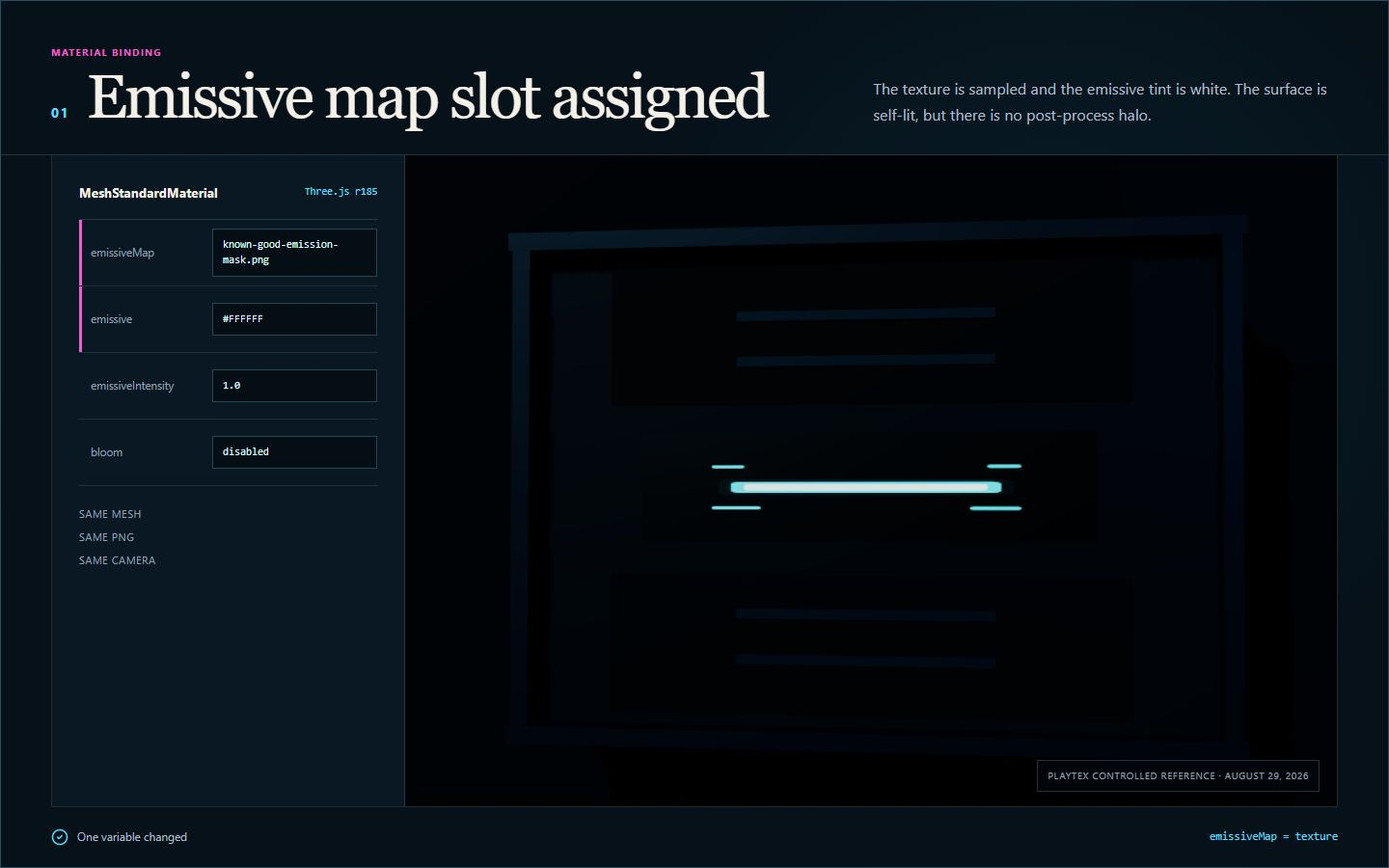
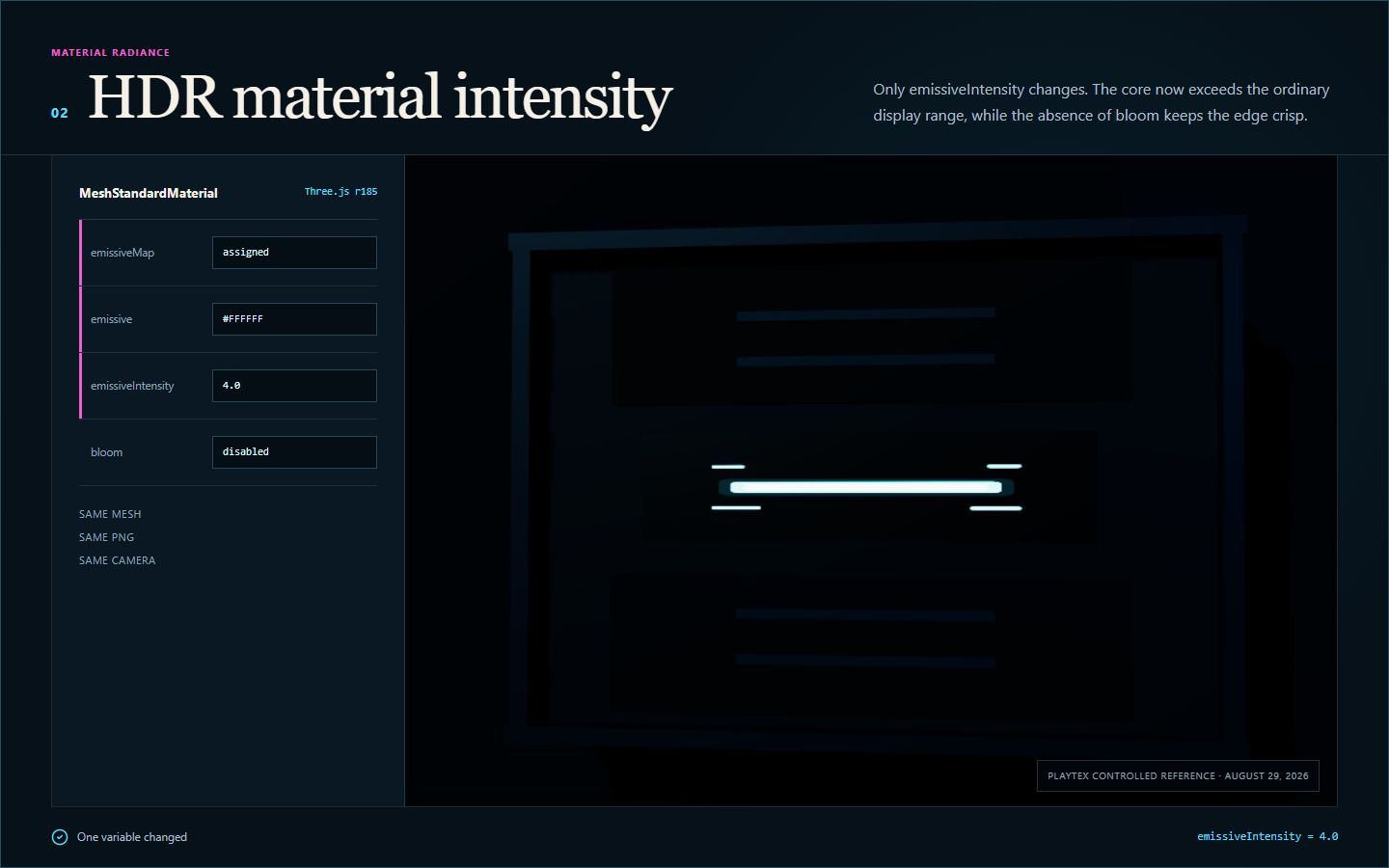
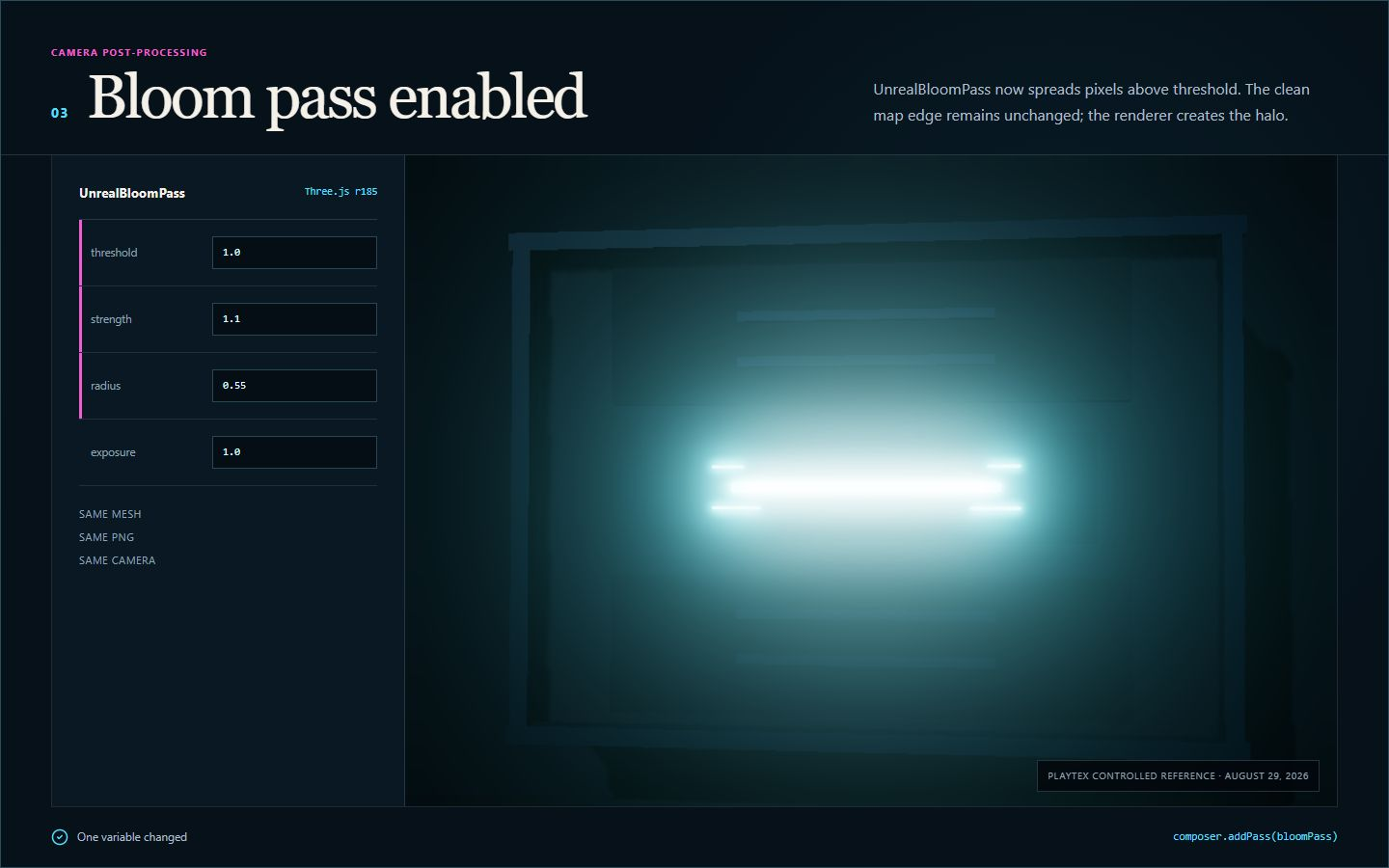
The map, HDR signal, bloom, exposure, and GI are five different layers
The emission texture answers a spatial question: which texels emit, and what color do they contribute? The material answers a radiometric question: how strongly should that signal enter the renderer? Bloom answers an image-processing question: which bright pixels should spread into a halo? Exposure answers a camera question: how should the HDR scene map to the display? Lights, baking, or global illumination answer a transport question: what energy reaches other surfaces?
Diagnose in that dependency order. A later layer can hide an earlier mistake, but it cannot make the asset contract correct. A low bloom threshold can make ordinary white surfaces glow; a high exposure can make a dark map look usable; a painted halo can look convincing in one thumbnail. Each shortcut breaks as soon as the lighting, camera, distance, or platform changes.
Keep color in the texture and open-range brightness in the renderer
A conventional PNG emission map is useful for authored RGB color and coverage. In a color-managed Three.js r185 workflow, typical PNG or JPEG emissiveMap textures are annotated as sRGB and converted into the linear working space for rendering. The shader-side emissiveIntensity then creates values beyond the closed display range that tone mapping and bloom can use.
This split keeps the source portable. It also avoids destructive edits made only to satisfy one camera. If the target workflow genuinely stores HDR emission in an EXR or another open-range format, document that contract explicitly; do not assume an 8-bit PNG contains the same numeric range.
Exposure can hide a correct result
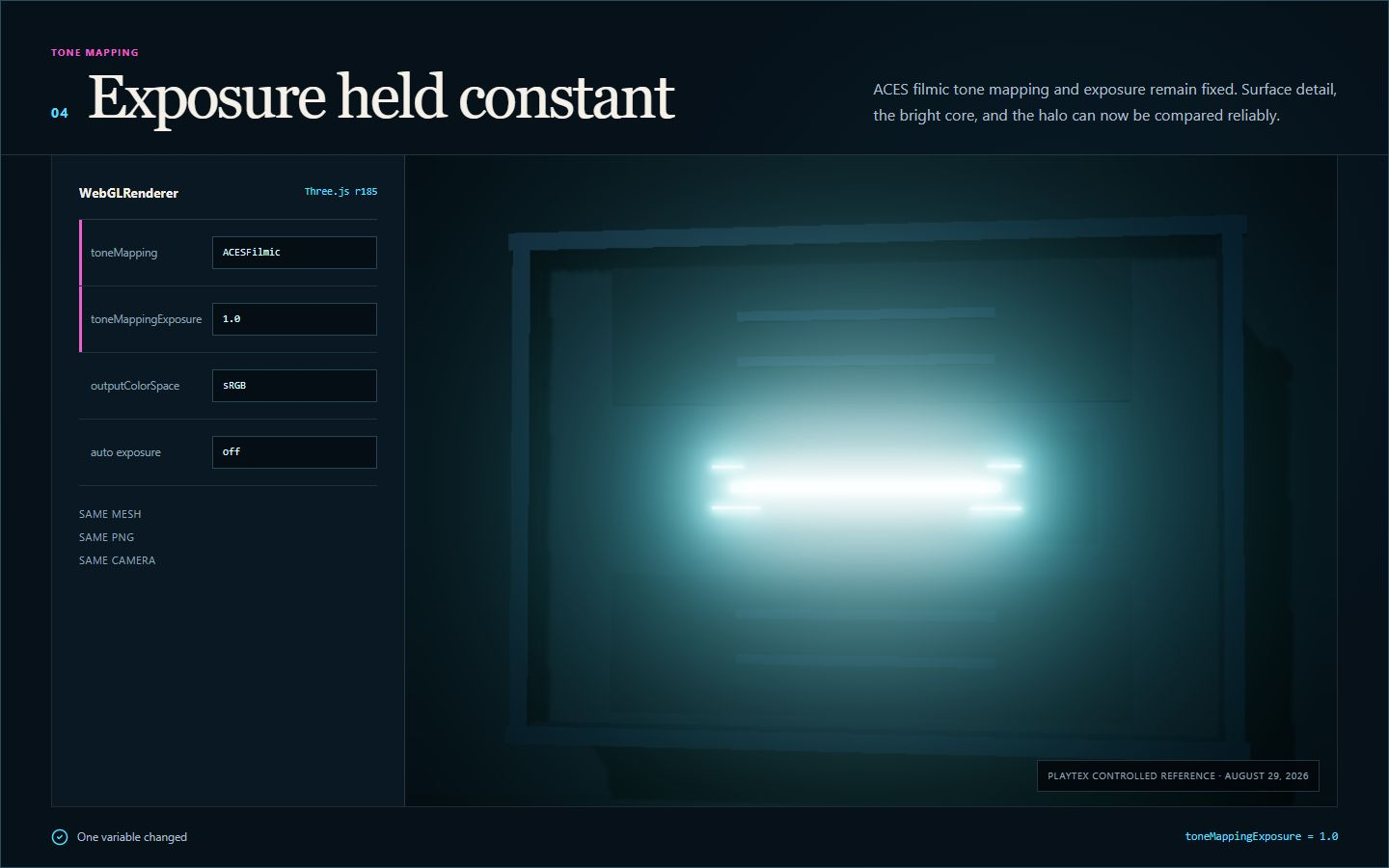
Auto exposure reacts to the whole view. A sign that blooms in a dark corridor can appear modest when the camera sees daylight, even though its material values never changed. Freeze exposure while comparing renderer states, then restore the camera behavior and validate the asset at the minimum and maximum production exposure you support.
A known-good test needs the same mesh, texture, lights, camera, tone mapper, and viewport. Change one variable and record it. The captures on this page follow that method so the visible difference can be attributed to intensity, bloom, or exposure rather than to an undocumented scene change.
Visible glow is not automatically light transport
Bloom is a screen-space halo. It does not illuminate a wall, cast a shadow, or bounce colored light through the scene. Unreal Engine and Unity can connect emissive materials to supported baked or real-time lighting paths under specific settings, while many lightweight and web renderers require explicit lights or custom GI. Treat those as engine features with their own cost, quality, and mobility limits.
The PLAYTEX AI funnel keeps those jobs separate: use Emission Map Generator for the focused mask, PBR Map Generator when the whole material needs aligned maps, and PBR Engine Converter for target naming and packing. This guide remains the owner of the not-glowing symptom; the texture troubleshooting field guide remains the broader multi-symptom reference.
Which setting controls each kind of glow?
Texture and material binding
These checks decide whether the shader receives a usable emission signal at all.
- Emission / emissive slot: Binds the texture that identifies self-lit RGB regions. Black contributes no emitted color; brighter colored pixels contribute more before the material multiplier. Check it first when the surface is completely black, the wrong regions emit, or changing the texture has no visible effect.
- Emissive color or factor: Multiplies the sampled emission texture. In Three.js r185, emissiveMap is modulated by both emissive and emissiveIntensity. Set it to white to preserve the map color, or use a deliberate tint. Never leave it black when a texture should show.
- Color-space annotation: Tells the renderer how to decode RGB emission color before lighting math. Three.js documents typical PNG or JPEG emissiveMap textures as sRGB color data. Inspect it when the hue, edge brightness, or threshold behavior changes after import. A deliberately linear or HDR source must be labeled according to how it was authored, not by filename alone.
- Compression, mipmaps, and alpha: Filtering and compression can smear thin bright marks, darken small mips, or alter an alpha-carried mask even when the full-size source looks correct. Compare the uncompressed source, a close camera view, and distant mips when small emissive details vanish or develop dark fringes.
HDR signal, bloom, and exposure
These renderer controls turn a self-lit surface into a perceptible glow while preserving a stable image.
- Material emissive intensity: Scales emitted radiance after the texture and emissive color are combined. Values above the display range can feed HDR tone mapping and bloom. Raise it when the surface is mapped correctly but never exceeds the bloom threshold. Reduce it when the core clips to featureless white.
- Bloom threshold: Limits which bright rendered pixels contribute to bloom. In Three.js UnrealBloomPass, luminance must clear this threshold before the blur chain contributes. Lower it only after confirming HDR intensity. A threshold that is too low makes ordinary highlights and UI-like whites glow.
- Bloom strength and radius: Strength controls the added bloom contribution; radius controls its spread. Neither setting makes a missing emissive texture valid. Tune strength after threshold isolates the intended emitter, then use radius to match the apparent lens or art direction.
- Tone-mapping exposure: Maps scene-referred HDR values toward the display. Auto exposure or a changed manual value can make the same material look much dimmer or brighter. Lock exposure while diagnosing, then retest across the supported production exposure range instead of optimizing for one dark frame.
Nearby illumination and runtime delivery
A visible glow and light received by another object are separate renderer features.
- Real lights: Point, spot, area, or custom lights directly illuminate nearby geometry and can cast supported shadows. Use them for dynamic signs, weapons, characters, or effects when the surrounding scene must respond predictably at runtime.
- Baked or global illumination: Transfers emissive energy to other surfaces only when the chosen engine, renderer, and bake or GI mode support that path. Use it for static or supported dynamic scenes after verifying platform cost and update rules. Do not assume a self-lit shader automatically participates.
- Engine export convention: Preserves filenames, color roles, and channel assignments expected by the destination material workflow. Use PBR Map Generator for the aligned set, then PBR Engine Converter when the target expects different names, packing, or normal conventions.
Run the emission diagnosis in this order
An emission map makes selected pixels self-lit, but it does not create a visible halo or light nearby objects by itself. Assign the map, use a non-black emissive color, raise material intensity into HDR when the renderer requires it, enable bloom, then hold exposure steady while you test.
Step 1: Confirm the emission texture is assigned
Open the material actually used by the visible mesh. Bind the exported PNG to its emission or emissive-color input, confirm the intended UV set, and make sure a material instance or runtime override is not replacing the slot. A correct file cannot affect a shader that never samples it.
Step 2: Set a non-black emissive color
Many shaders multiply the texture by an emissive color or factor. Black multiplied by any map remains black. In Three.js MeshStandardMaterial, emissiveMap is multiplied by emissive and emissiveIntensity, so set emissive to white or the intended tint before judging the texture.
Step 3: Prove self-illumination before adding bloom
Disable bloom temporarily and darken the ordinary scene light. The mapped pixels should stay visible while non-emissive parts of the material become dark. If that test fails, remain in the material and texture layer; post-processing cannot repair a missing shader signal.
Step 4: Raise shader intensity into HDR
An 8-bit PNG usually stores closed-range display color, not the open-range brightness that drives HDR bloom. Keep the texture readable and raise the renderer-side emissive multiplier. In the PLAYTEX AI reference, emissiveIntensity 4.0 crosses a bloom threshold of 1.0 without baking a halo into the source image.
Step 5: Enable bloom and tune its threshold
Bloom is a post-process that spreads sufficiently bright pixels after material shading. Enable the post stack, confirm it renders to the final camera, then adjust threshold, strength, and radius in that order. A threshold above the emissive luminance produces no halo even when the surface itself is bright.
Step 6: Lock exposure and decide whether you need real light
Hold tone-mapping exposure at one known value while comparing states. After the halo works, restore the production exposure. If the requirement is light on nearby geometry, add a light, bake emissive lighting, or use a supported GI solution; PBR Engine Converter can then package the completed map set for the target convention.
What does each emission symptom actually mean?
| Symptom | Likely layer | First fix | Do not do this |
|---|---|---|---|
| Surface is black | Material binding | Assign the map and set a non-black emissive color. | Do not enable bloom first. |
| Surface is bright, no halo | Bloom / post stack | Enable the camera pass and lower its threshold only as needed. | Do not blur the PNG. |
| Glow disappears outdoors | Exposure / HDR range | Lock exposure, confirm HDR intensity, then test the production range. | Do not optimize only in a black room. |
| Wrong pixels glow | Mask / UV / color factor | Inspect the exported map, UV set, channel use, and tint multiplication. | Do not compensate with strength. |
| Thin marks vanish at distance | Mipmaps / compression | Compare source and runtime mips, then protect edge energy or change format. | Do not disable mipmaps as the first shipping fix. |
| No light reaches the wall | Lights / baking / GI | Add the supported illumination path for the target scene. | Do not treat bloom as scene lighting. |
Fixes that hide the real failure
- Do not paint a soft halo into the emission PNG; the blur will stick to the UVs, mip poorly, and ignore the camera response.
- Do not judge bloom before proving the surface is self-lit with post-processing disabled.
- Do not leave the emissive color black when the shader multiplies that factor by the texture.
- Do not brighten base color to imitate emission; it remains dependent on scene lighting and contaminates material response.
- Do not assume bloom casts light on other objects. It is a post-process, not a light-transport solution.
- Do not compare captures with different exposure, light, camera, or tone mapping and call the difference an emission-map fix.
- Do not mark a color emission PNG as non-color data merely because other PBR masks are scalar; follow the target shader and the way the file was authored.
- Do not turn off mipmaps as the default answer to disappearing distant details; inspect coverage, compression, and edge energy first.
Why is my emission map visible but not glowing?
The self-lit material layer is working, but the halo layer is not. Enable the camera or renderer bloom pass, make sure the emissive result exceeds its threshold, and hold exposure steady while you compare. Do not blur the emission texture itself.
Should an emission map be sRGB or linear?
It depends on how the file was authored and what the shader expects. A typical RGB PNG or JPEG emissiveMap containing display-referred color is sRGB; Three.js r185 documents that common case. A scalar mask, deliberately linear texture, or HDR EXR has a different contract. Label the actual data meaning instead of applying one rule to every filename.
What values make emission bloom?
There is no portable universal number. The rendered luminance must exceed the configured bloom threshold after texture, emissive color, material intensity, lighting-model behavior, tone mapping, and exposure interact. The reproducible Three.js r185 sample on this page uses emissiveIntensity 4.0, threshold 1.0, strength 1.1, radius 0.55, and exposure 1.0 as a test—not as a cross-engine preset.
Does an emission map light nearby objects?
Not by itself. It makes the material self-lit. Nearby illumination needs an explicit light, a bake, or a supported real-time global-illumination path. Bloom only spreads bright pixels in the final image.
Why does the glow disappear when I enter a bright scene?
Exposure adaptation can map the same HDR emission to a dimmer display value when the wider scene becomes bright. Lock exposure during diagnosis, then test the intended material across the supported production exposure range.
Can I use a grayscale mask instead of a colored emission map?
Yes when the shader multiplies that mask by a separate emissive color. Confirm which channel is sampled and whether the texture is treated as scalar data. If the file already stores the intended RGB glow color, preserve that color and use a neutral emissive factor.
Why do thin emissive lines disappear at a distance?
Mip filtering and compression can average a thin bright feature with surrounding black texels until it falls below the bloom threshold. Inspect runtime mips, padding, texture format, and minimum screen coverage before disabling mipmaps or over-brightening the full-resolution source.
What can PLAYTEX AI Emission Map Generator fix?
It can create and refine the emission texture: threshold, edge softness, color, source-color preservation, map intensity, dark preview, and PNG export. It cannot enable an engine material slot, camera bloom, exposure, or GI. Those remain destination-renderer settings.
Primary sources
Official specifications and renderer documentation
PLAYTEX AI guidance is paired with official specifications and platform documentation where the handoff depends on an outside convention.
- PLAYTEX AI Three.js r185 known-good settings manifest
- Three.js r185 MeshStandardMaterial emissiveMap and emissiveIntensity documentation
- Three.js UnrealBloomPass threshold, strength, and radius documentation
- Three.js renderer tone mapping and toneMappingExposure documentation
- Three.js color-management guide for emissive color textures
- Unity 6.1 manual: add light emission to a material
- Unreal Engine 5.8: using the Emissive Material input
- Unreal Engine 5.8: bloom and exposure in post-process volumes
PNG / 1024 × 1024 / exact source used by the controlled Three.js r185 evidence scene
Open Emission Map GeneratorOpen the live workflow that this guide is documenting.
PBR Texture Maps Explained: Albedo, Normal, Roughness, Metallic, AO, Height, and EmissionA PBR material separates visible surface properties into coordinated texture maps. Base color describes surface color, normal and height describe relief, roughness controls reflection spread, metallic classifies conductors, ambient occlusion adds limited local contact shading, and emission identifies self-lit regions.
The Game Developer's PBR Texture HandbookAs of August 2026, this handbook gives game developers and material artists one engine-aware PBR texture system: map semantics, base color and delighting, normals and height, roughness, metallic classification, support maps, seamless authoring, calibrated material families, controlled-light review, color space, formats, channel packing, eight renderer targets, runtime budgets, production QA, and troubleshooting.
Texture Troubleshooting Field Guide for PBR Materials and Game AssetsAs of August 2026, this guide diagnoses 13 common texture failures with the same repeatable pattern: symptom, likely cause, two-minute test, correction, prevention, and a final acceptance check. The companion PDF contains 64 pages and a 15-point preflight for PBR materials, transparent PNGs, GLB assets, mipmaps, and texture memory.
PBR Map Generator: Create Normal, Roughness, AO, Height, Metallic, and Emission MapsTurn one viable image or source-guided hybrid setup into a coherent map stack, review every channel as part of one material system, and export for the renderer you actually use.