The same material can look perfect in Blender and wrong in-engine. Use this map-by-map reference for color space, roughness, smoothness, normals, packing, and import checks.
Treat base color and emissive color as color data; treat normal, roughness, metallic, AO, and height as linear data.
Unity URP expects smoothness, while Blender and Unreal commonly expose roughness: smoothness equals one minus roughness.
Channel packing is a convention you must document, not a format the engine can safely guess.
Validate the same texture set under neutral light in every destination before calling the export finished.
Who Informed This
Built as a handoff reference for artists who author one metallic-roughness material set and need predictable results across Blender, Unity URP, Unreal Engine, and glTF-adjacent pipelines.
How It Was Evaluated
Each map is classified by data type, value direction, and destination socket. Packing rules are stated per engine, and the final QA rig checks seams, tangent orientation, roughness response, scale, and mip behavior.
Proof And Evidence
The worked example includes 512×512 ORM and URP PNGs, a green-channel-flipped normal, all-pixel verification, source maps, and reproduction code. No engine render is claimed.
Limits And Caveats
Shader Graphs, custom Unreal master materials, HDRP, render-pipeline upgrades, and studio-specific packers may use different sockets or channel layouts. The project shader contract always wins.
What Changed
September 6, 2026: added a reproducible worked example with downloadable files and explicit test limitations.
A PBR material is not a diplomatic passport. The same five image files can cross from Blender into Unity or Unreal and immediately acquire plastic shine, inverted dents, gray color, or the subtle charm of wet cardboard.
The pixels usually survived. The interpretation did not. This guide is a practical handoff sheet for metallic-roughness materials: what each map means, whether it is color or data, which values need inversion, and how to wire it in Blender, Unity 6 URP, and Unreal Engine 5.
The portable PBR set
Use unambiguous names and keep a lossless master:
brick_basecolor.png
brick_normal_opengl.png or brick_normal_directx.png
brick_roughness.png
brick_metallic.png
brick_ao.png
brick_height_16bit.png when displacement or parallax is part of the shader
Do not name a grayscale file gloss when it is actually roughness. Do not name a packed texture mask.png and hope Future You remembers the channels. brick_orm_R-AO_G-Rough_B-Metal.png is not glamorous, but it can prevent an afternoon of shader archaeology.
The rule that prevents most export mistakes
Color textures describe visible color. Data textures store numbers.
Usually sRGB/color: base color and color emissive.
Usually linear/non-color: normal, roughness, smoothness, metallic, ambient occlusion, opacity masks, and height.
sRGB decoding is desirable for an image representing perceived color. Apply it to a roughness value and the renderer changes the number before using it. A mid-gray roughness no longer means what the artist authored. The result often looks mysteriously too shiny or too dull.
Keep unpacked masters even if the runtime build combines grayscale maps into channels.
Roughness and smoothness are opposites
In a roughness workflow, black is smooth and mirror-like; white is rough and matte. Unreal’s physically based material guide describes the Roughness input this way and recommends treating most pure materials as metallic 0 or 1.
Unity’s common URP Lit workflow exposes Smoothness. Its direction is reversed:
smoothness = 1 - roughness
If you pack roughness directly into a smoothness channel, dry concrete becomes polished stone. Invert it once during export or once in the shader—never both.
Normal maps: label the Y convention
Tangent-space normal maps differ mainly in their green/Y direction. Call the source OpenGL (+Y) or DirectX (-Y), and make the conversion deliberate. The red and blue channels remain unchanged; conversion flips green.
Also keep the normal texture linear. The Blender manual specifically instructs artists to set the Image Texture to Non-Color and to use the same UV map for the image and tangent calculation.
There is no substitute for a light test. Put a recognizable diagonal scratch on a sphere or beveled cube and move one hard light around it. If the scratch caves inward, flip Y. If only UV seams break, investigate tangents, triangulation, and mirrored islands instead.
Blender setup: keep the graph literal
For a Principled BSDF material:
Load base color as sRGB/Color and connect Color → Base Color.
Load roughness as Non-Color and connect Color → Roughness.
Load metallic as Non-Color and connect Color → Metallic.
Load the normal map as Non-Color, pass it through a Normal Map node set to Tangent Space, then connect Normal → Normal.
Use height through a Bump node for a cheap preview or a displacement workflow when the render setup and mesh subdivision support real displacement.
Ambient occlusion has no universal “plug this here and physics is solved” role in the Principled BSDF. For game export, preserve AO separately or in your agreed packed map. Avoid permanently multiplying strong AO into base color; baked darkness can fight the destination engine’s lighting and screen-space AO.
Unity 6 URP setup: pack for the shader you use
A standard URP Lit material accepts a Base Map and Normal Map, then uses metallic/smoothness and occlusion controls. For Unity’s documented Lit and Complex Lit channel-packed workflow, build one RGBA texture like this:
R: metallic
G: ambient occlusion
B: unused
A: smoothness
The official Unity 6 URP channel-packed texture guide also says to disable sRGB (Color Texture), then assign the same packed image to the Metallic and Occlusion properties. Remember that alpha stores smoothness, so invert an authored roughness map before packing it there.
Unity supports custom Shader Graph layouts too. If your team uses RMA, ORM, or a bespoke terrain shader, that graph—not this generic layout—is the contract. Put the convention in the filename and importer preset.
In URP’s documented packed layout, alpha is smoothness—not roughness and not spare storage.
Unreal Engine 5 setup: direct sockets, optional masks
Unreal’s default material node makes the basic wiring pleasantly direct:
Base color texture → Base Color with sRGB enabled.
Normal texture → Normal; verify normal-map compression and sRGB disabled.
Roughness texture → Roughness with sRGB disabled.
Metallic texture → Metallic with sRGB disabled.
AO texture → Ambient Occlusion with sRGB disabled.
For runtime efficiency, pack grayscale masks. A common ORM convention is R = AO, G = roughness, B = metallic. Unreal does not magically require that order; it lets a material read whichever channel you connect. Epic’s texture mask documentation explains the general technique of storing different masks in RGB or RGBA channels. Choose one studio convention and automate it.
ORM is also convenient around glTF because the glTF 2.0 specification reads roughness from G and metalness from B; its occlusion texture reads R and may reference the same image. That compatibility is useful, but your Unreal master material still needs the channels wired explicitly.
Channel packing: savings with paperwork
Packing three grayscale maps into RGB can reduce texture samples and file count. It can also make artifacts harder to isolate, couple maps that might want different resolutions, and produce waste if a fourth alpha channel forces a more expensive compression format.
Keep separate, lossless masters. Pack only at the engine-export stage. Record:
the channel order;
whether roughness was inverted;
whether Y was flipped in the normal;
the intended color-space import setting;
the target shader and render pipeline.
File format and bit-depth choices
PNG or TGA: sensible lossless interchange for most 8-bit base color, normal, and mask textures.
16-bit PNG, TIFF, or EXR: safer masters for height when visible banding would become geometry.
JPEG: fine for disposable references, risky for normals and masks because block compression changes the data before the engine even imports it.
The engine will usually create its own runtime compression and mip chain. Your source export should give that importer clean data rather than pre-compressed artifacts.
The five-minute cross-engine preflight
Tile the material 3×3 on a plane. Look for seams and unique features that repeat too loudly.
Place it on a sphere and beveled cube. Move a hard light to reveal normal orientation and roughness response.
Solo each scalar channel. Metallic should describe material category, not random grayscale noise. AO should concentrate in plausible creases. Roughness should explain highlight width.
Check the object from gameplay distance. Mipmaps can erase thin masks or make noisy normals sparkle.
Compare Blender, Unity, and Unreal under roughly neutral lighting—not three unrelated HDRIs. You are testing data interpretation, not staging a beauty-shot contest.
The export is a contract
A texture set is only “engine-ready” when everyone agrees on what each number means. Generate maps with the PLAYTEX AI PBR Map Generator, keep the unpacked masters, create explicit presets for each destination, and test the actual shader that ships.
If the material looks wrong after crossing engines, resist repainting it immediately. First ask four boring, productive questions: Is this color or data? Roughness or smoothness? +Y or -Y? Which value lives in each channel? Those four answers solve an astonishing amount of PBR drama.
Worked example: one wood pixel, two packed textures
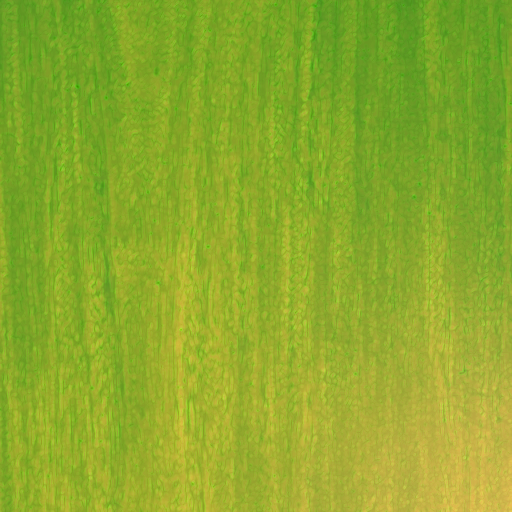
We packed the archived 512×512 wood maps into two lossless files and decoded both outputs to verify all 262,144 pixels. At the upper-left pixel, AO is 85, roughness is 148, and metallic is 32 on the 0–255 scale.
Output
Channels
Upper-left sample
ORM
AO, roughness, metallic
85, 148, 32
URP packed RGBA
Metallic, AO, unused, smoothness
32, 85, 0, 107
The final alpha is 107 because 255 − 148 = 107. At the center pixel, roughness is 176 and alpha becomes 79. That change is an inversion, not an sRGB conversion: import both packed files as linear data.
What this establishes: the exported bytes follow the stated conversion. This is not an engine-render test, a claim of physically accurate maps, or a seamlessness certification. The source is the existing September 3 wood benchmark, with its documented material errors preserved.
Sources and further reading
Primary documentation and research consulted for the claims in this article.